Actions on workspace
Learn how to rename, secure, or delete a workspace in NocoDB.
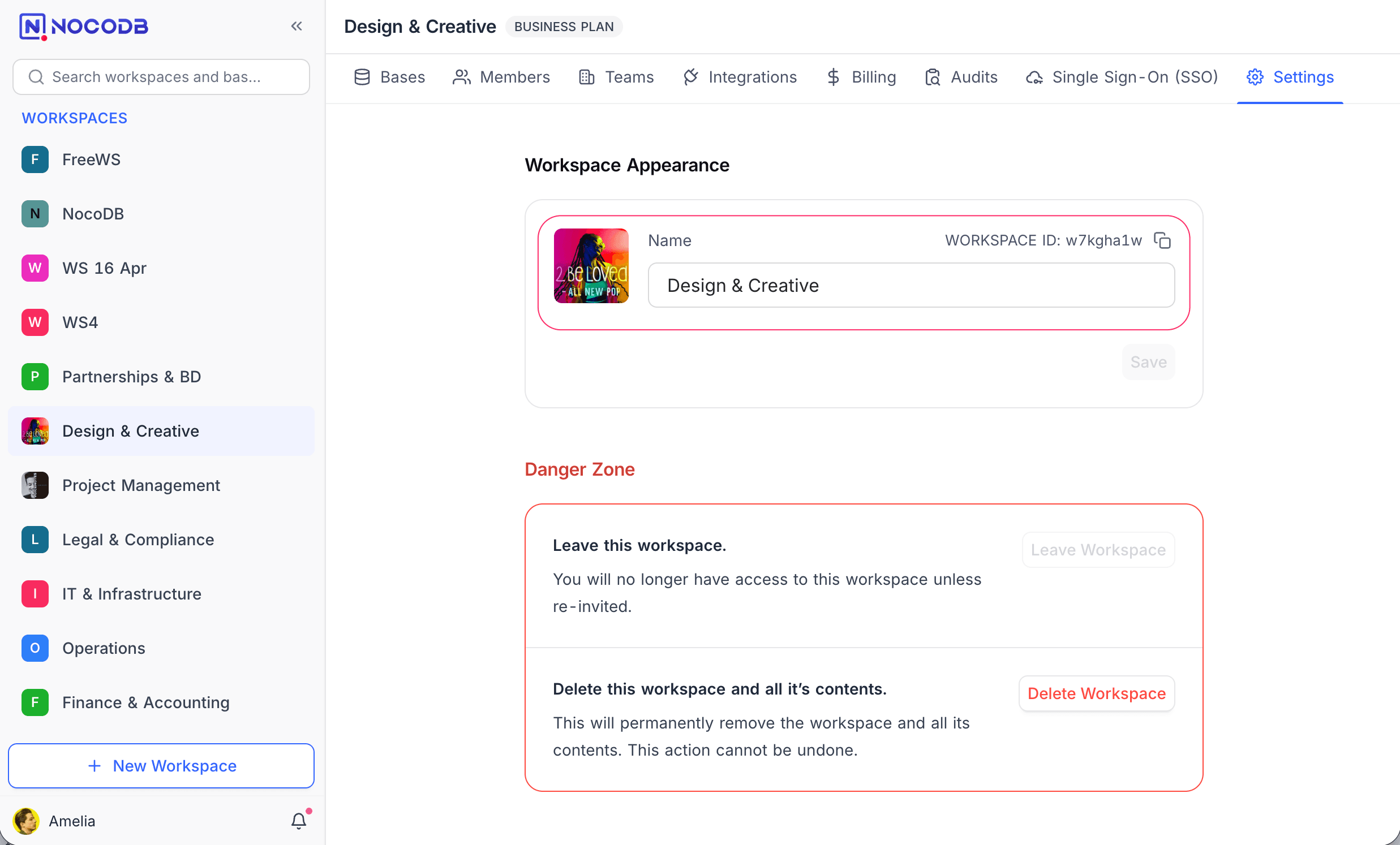
Rename workspace
- Click on the workspace name in the sidebar to open workspace settings.
- Open the Settings tab.
- Under Workspace Appearance, update the Name field.
- Click Save to apply changes.
Require two-factor authentication
Workspace owners can enforce two-factor authentication (2FA) for the entire workspace. When enabled, all workspace members must have 2FA configured on their account before they can access this workspace.
To require 2FA for a workspace:
- Go to Team & Settings → Settings tab.
- In the Security section, toggle Require two-factor authentication on.
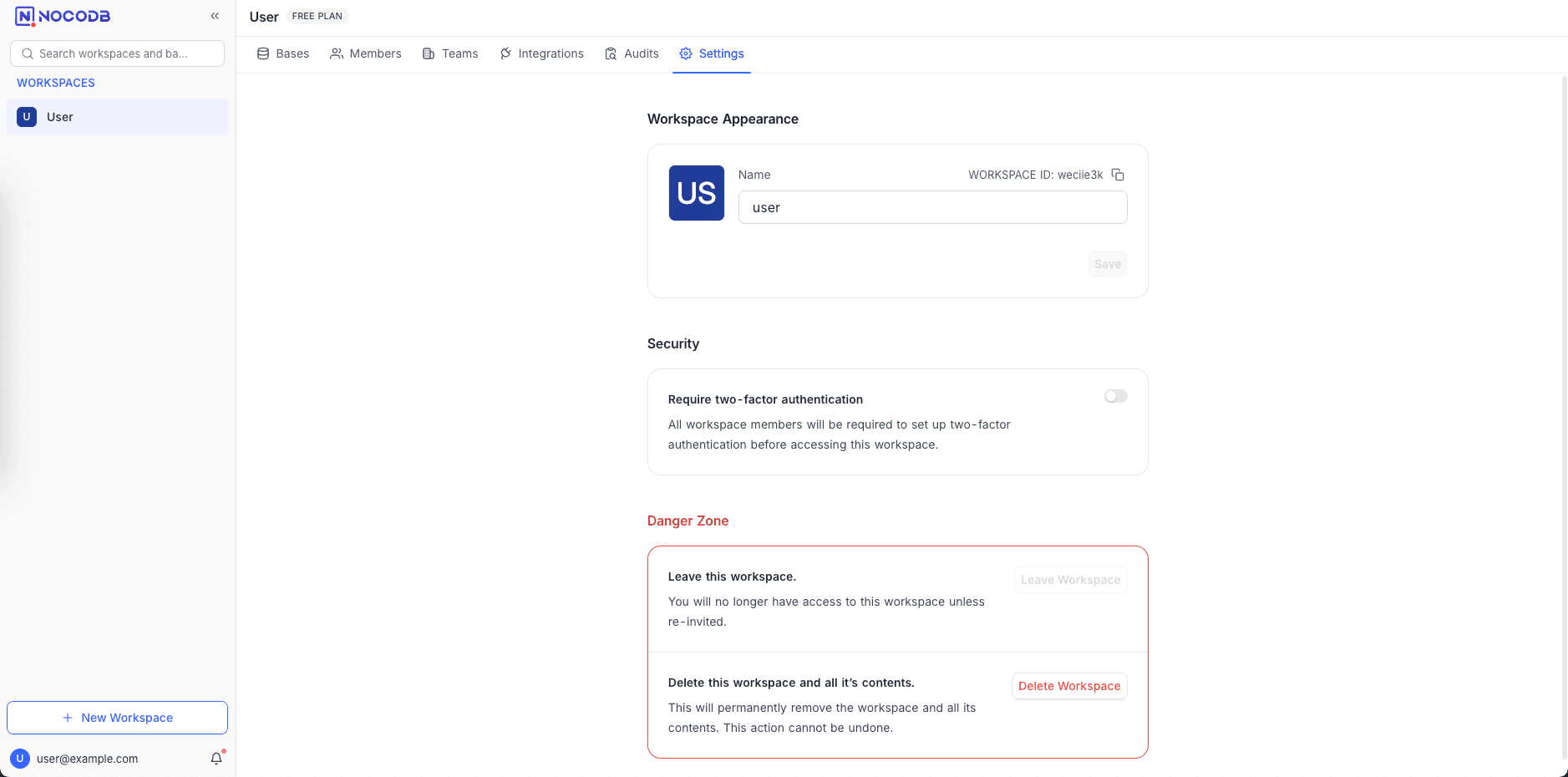
Once enabled:
- Existing members without 2FA are prompted to set it up the next time they try to access the workspace.
- New invitees must complete 2FA setup before they can open the workspace.
- Members who have already enabled 2FA on their account are not affected.
- Members who sign in via SSO (e.g., Google OAuth, SAML, OIDC) are exempt from this requirement and can access the workspace normally, as their authentication security is managed by the SSO provider.
To turn off the requirement, toggle the setting off. Members who previously had to enable 2FA only to meet this policy can choose to keep or remove it from their own Account Settings → Security.
For details on how members set up 2FA on their account, see Two-Factor Authentication.
Delete workspace
Permanently deletes the workspace and all its bases, tables, and data.
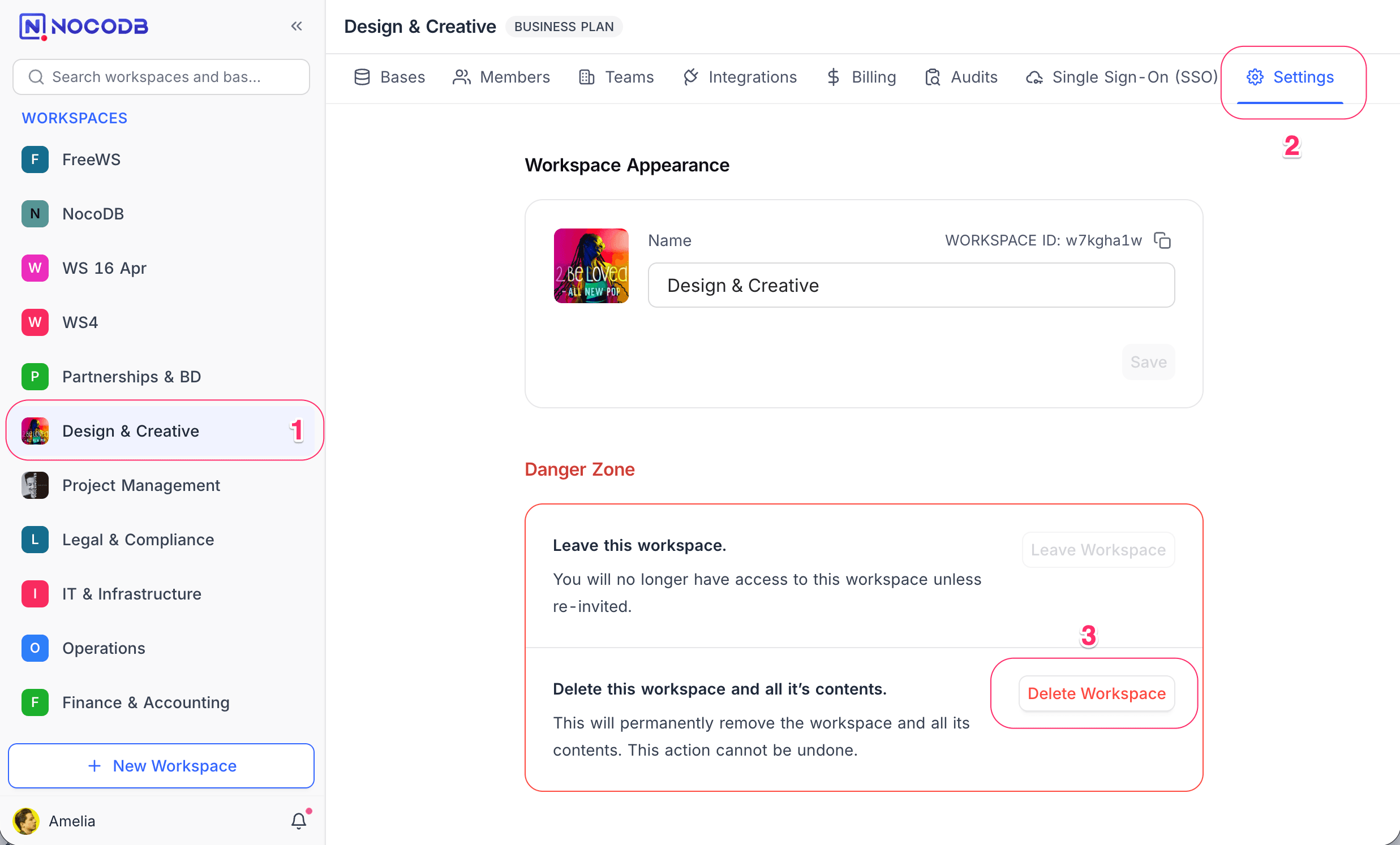
- Click on the workspace name in the sidebar to open workspace settings.
- Open the Settings tab.
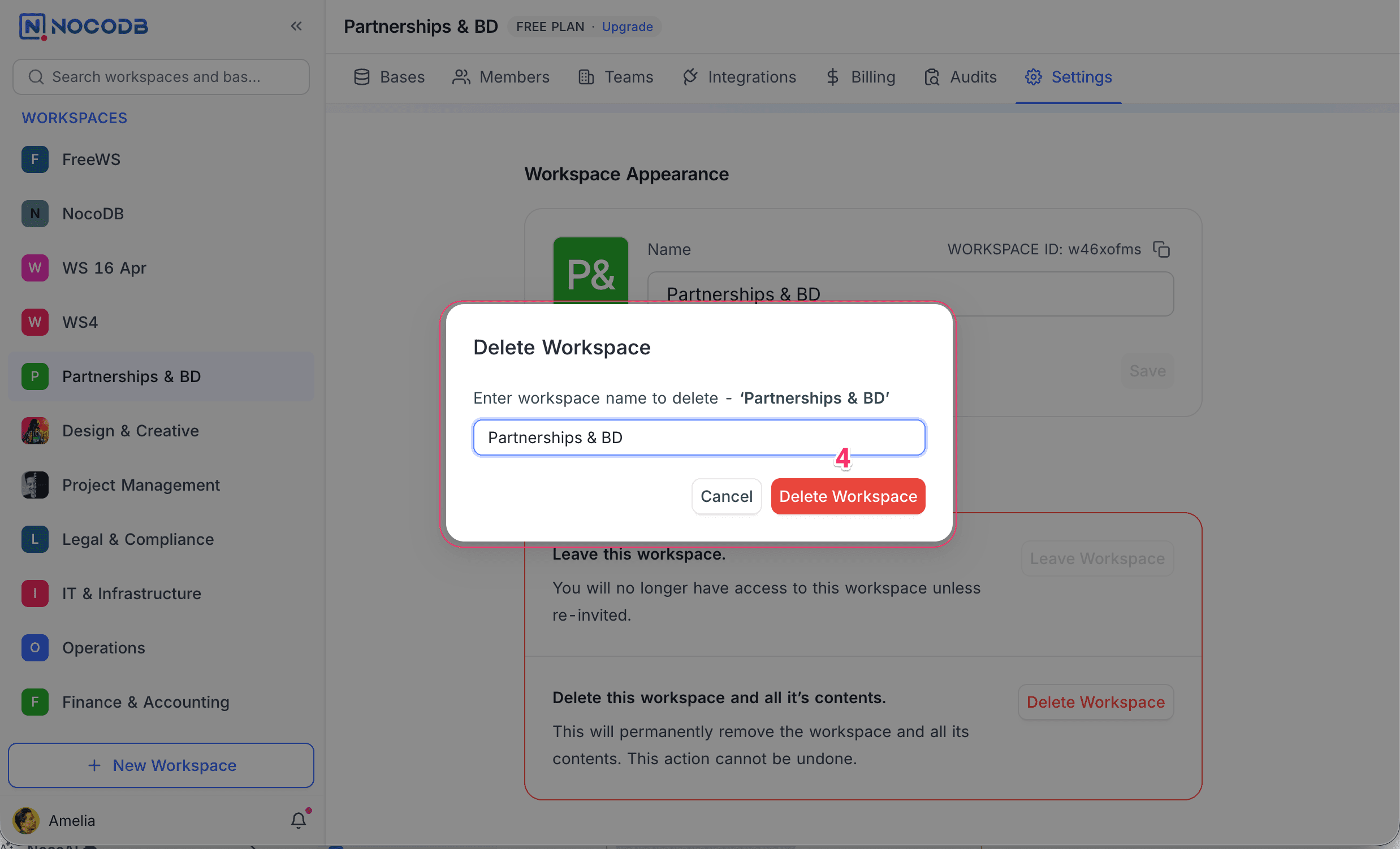
- Under Danger Zone, click Delete Workspace.
- Confirm by entering the workspace name in the dialog.
Leave workspace
If you no longer need access to a workspace, you can leave it. You will not be able to access the workspace unless re-invited.
- Click on the workspace name in the sidebar to open workspace settings.
- Open the Settings tab.
- Under Danger Zone, click Leave Workspace.
Find workspace ID
Each workspace has a unique ID displayed on the Settings tab next to the workspace name. The ID is also visible in the URL when viewing a workspace.
Example:
https://app.nocodb.com/w7kjha1w/...In this example, the workspace ID is w7kjha1w.