White Label
Replace NocoDB branding with your own — product name, logos, favicon, brand color, email branding, and support contact — across your self-hosted instance.
White labeling lets you replace NocoDB's branding with your own across the entire self-hosted instance, including the app shell, login screen, public forms, browser tab, transactional emails, and the in-app support contact. It is designed for resellers, OEM partners, and enterprises that present NocoDB to their own users under a different brand.
White labeling is instance-wide and configured by the Super Admin. There is a single configuration for the whole deployment; it applies to every workspace and user. Changes apply live, without a restart.
Open the White Label settings
-
Open the NocoDB UI and go to Admin Panel > White Label.
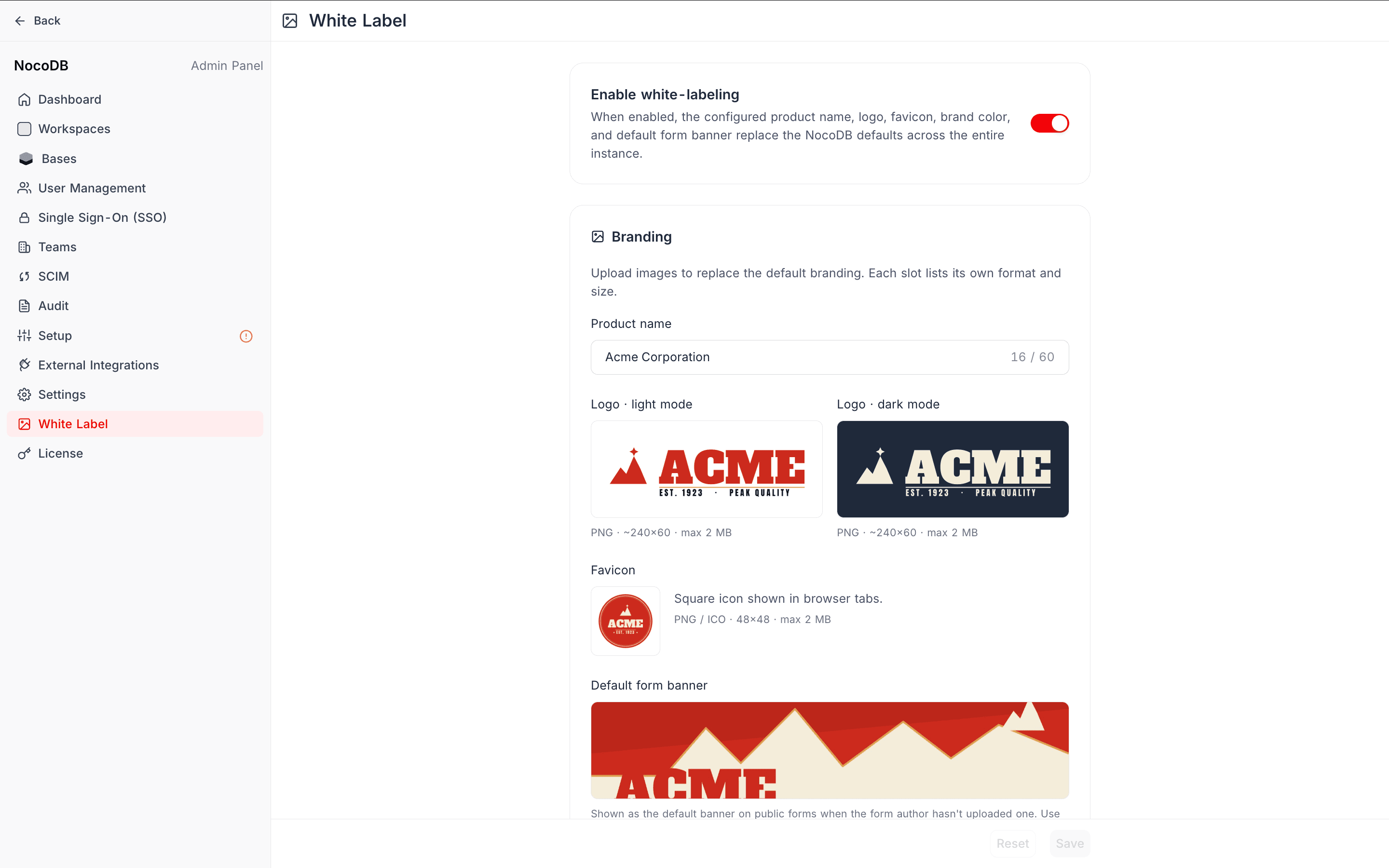
The page is organized into four sections: a master Enable toggle, Branding, Email branding, and Support.
Enable white labeling
The master toggle at the top controls whether the configuration is applied.
- You can fill in and save every field while the toggle is off — nothing is applied yet, so you can prepare your branding before going live.
- Turn the toggle on and save to apply the configuration across the instance.
Branding
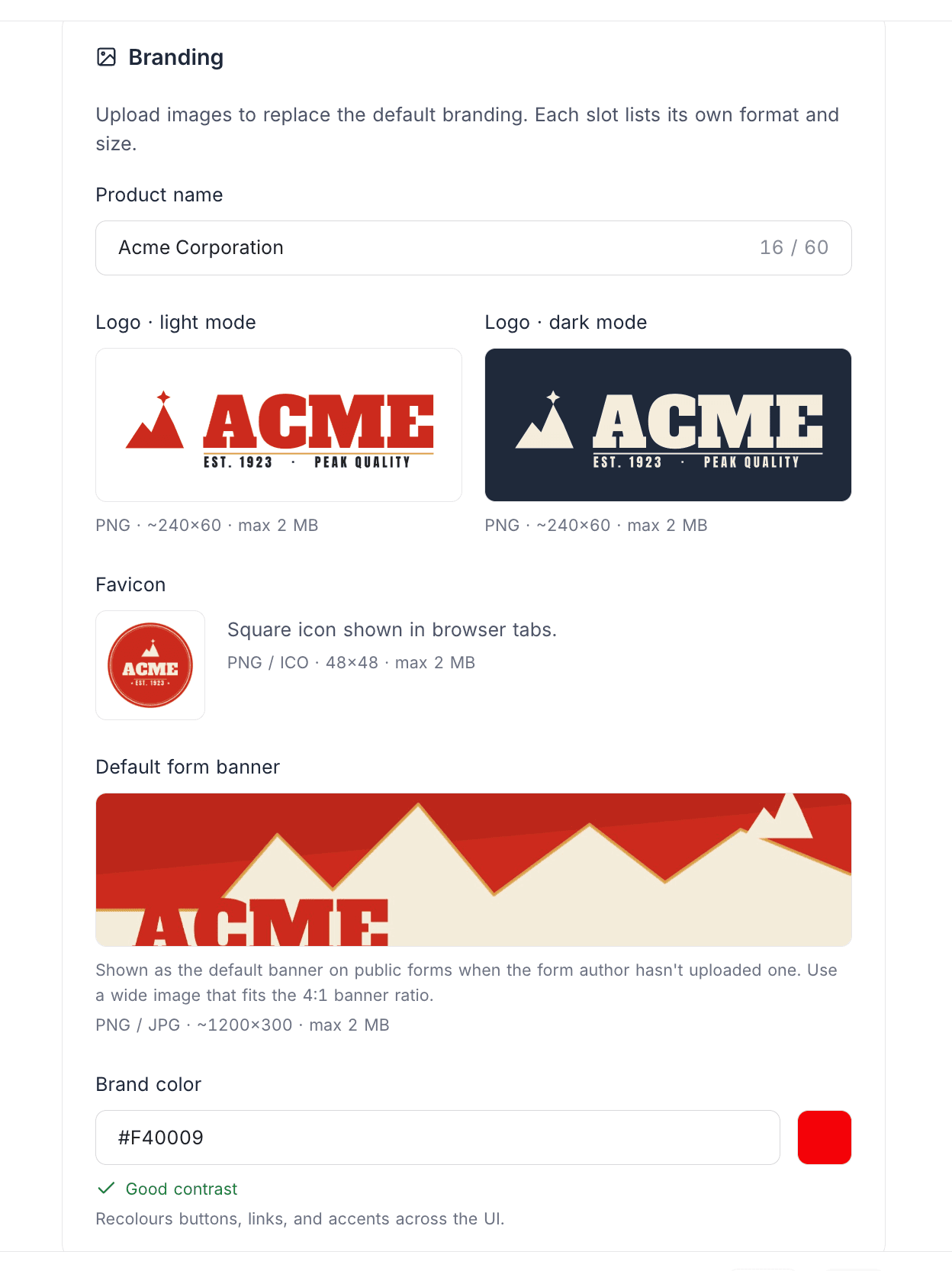
Product name
Replaces the word "NocoDB" in browser tab titles, the application sidebar, page titles, the login screen, and public form titles. Up to 60 characters. Leave blank to keep "NocoDB".
Logo
Upload separate logos for light and dark backgrounds:
- Logo · light mode — rendered on light surfaces.
- Logo · dark mode — rendered on dark surfaces. If left empty, it falls back to the light logo (and vice versa), so a single uploaded logo works in both modes.
The logo appears in the application header and sidebar, the login screen, the workspace menu, and public / shared views.
Format: PNG · approximately 240×60 · max 2 MB.
Favicon
The square icon shown in browser tabs. It is also used for the iOS "Add to Home Screen" icon and as the square brand mark in the public form footer.
Format: PNG or ICO · 48×48 · max 2 MB.
Default form banner
Shown as the default banner on public forms when the form's author hasn't uploaded their own banner. Use a wide image that fits the 4:1 banner ratio; the uploader includes a cropper to help.
Format: PNG or JPG · approximately 1200×300 · max 2 MB.
Brand color
A single hex color (for example #0D5A5A) that recolors buttons, links, and accents throughout the UI. NocoDB derives a full color ramp (light and dark variants) plus the matching component theme tokens from this one seed color, so every accented surface recolors coherently. The brand color also drives the mobile browser chrome color (theme-color).
- Type a hex value directly, or use the color picker. A set of curated presets is provided, and the free hex input remains available for an exact brand match.
- A contrast indicator warns you if white button text may be hard to read on your chosen color.
#RGB or #RRGGBB; any transparency (alpha channel) is dropped.Uploading assets
For each image slot, drag & drop a file or click to browse and upload.
Uploaded assets are served from a stable, permanent URL so they load reliably in transactional emails and survive instance restarts. When you replace or remove an asset, the previous file is cleaned up from storage automatically.
Email branding
These values override the default "NocoDB Team" branding in transactional emails (invitations, password resets, notifications, etc.). Leave a field blank to keep the NocoDB default.
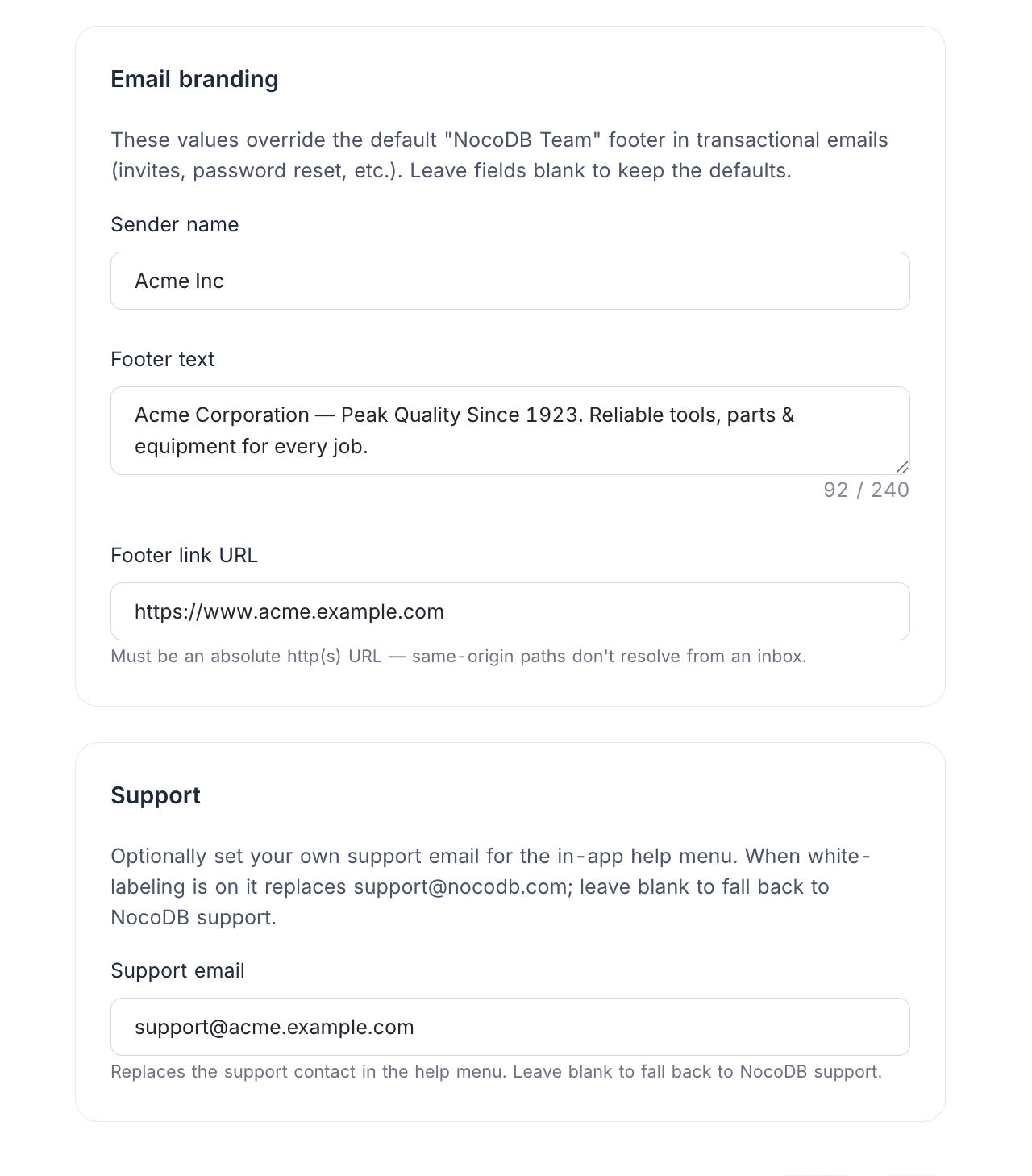
| Field | What it does |
|---|---|
| Sender name | The "From" display name on outgoing emails. Falls back to the product name, then "NocoDB", so the sender name is never blank. Up to 60 characters. |
| Footer text | Replaces the default footer tagline / signature. Up to 240 characters. |
| Footer link URL | The brand link in the email footer. Must be an absolute http(s) URL — same-origin paths don't resolve from an inbox. |
When white labeling is enabled, transactional emails also:
- Use your product name in headings and body copy instead of "NocoDB".
- Show your logo at the top of the email.
- Drop the standard NocoDB social and legal footer links, leaving a minimal footer with just your brand line.
Support
Support email
Optionally set your own support contact for the in-app help menu. When white labeling is on, this replaces support@nocodb.com in the help menu. Leave it blank to fall back to NocoDB support.
NC_DISABLE_SUPPORT_CHAT environment variable.What gets branded
| Area | Branded by |
|---|---|
| Browser tab title | Product name |
| Browser tab icon, iOS home-screen icon | Favicon |
| App header & sidebar logo | Logo (light / dark) |
| Login screen | Logo + brand color |
| Workspace menu | Logo |
| Public & shared views | Logo + product name |
| Public form default banner | Default form banner |
| Public form footer | Favicon + product name (and footer link, if set) |
| Buttons, links, accents, mobile chrome color | Brand color |
| Transactional emails | Sender name, logo, product name, footer text & link |
| In-app help menu support contact | Support email |
Examples
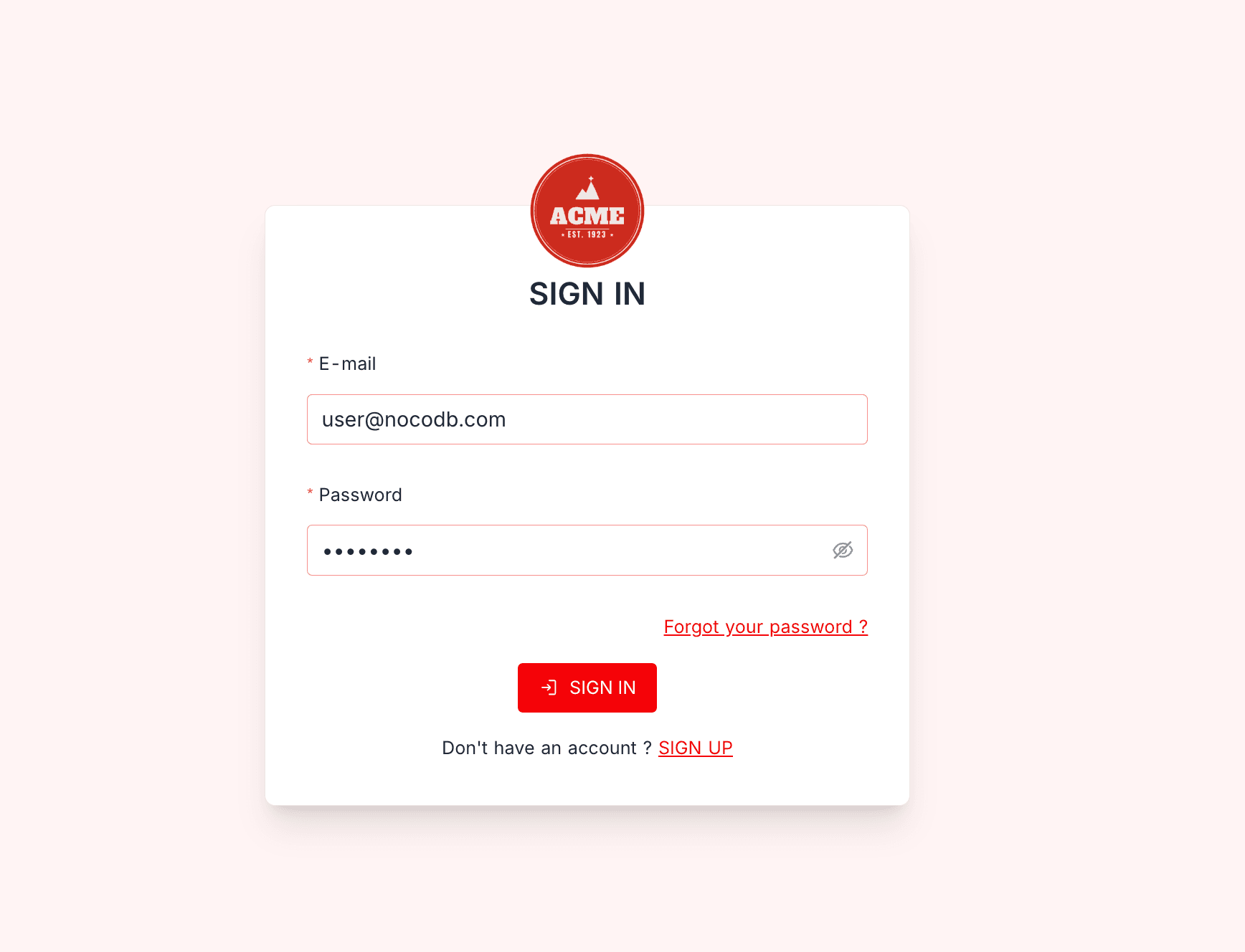
The login screen shows your logo and recolors its buttons and links with the brand color:
Your logo replaces the NocoDB mark in the app sidebar and workspace menu:
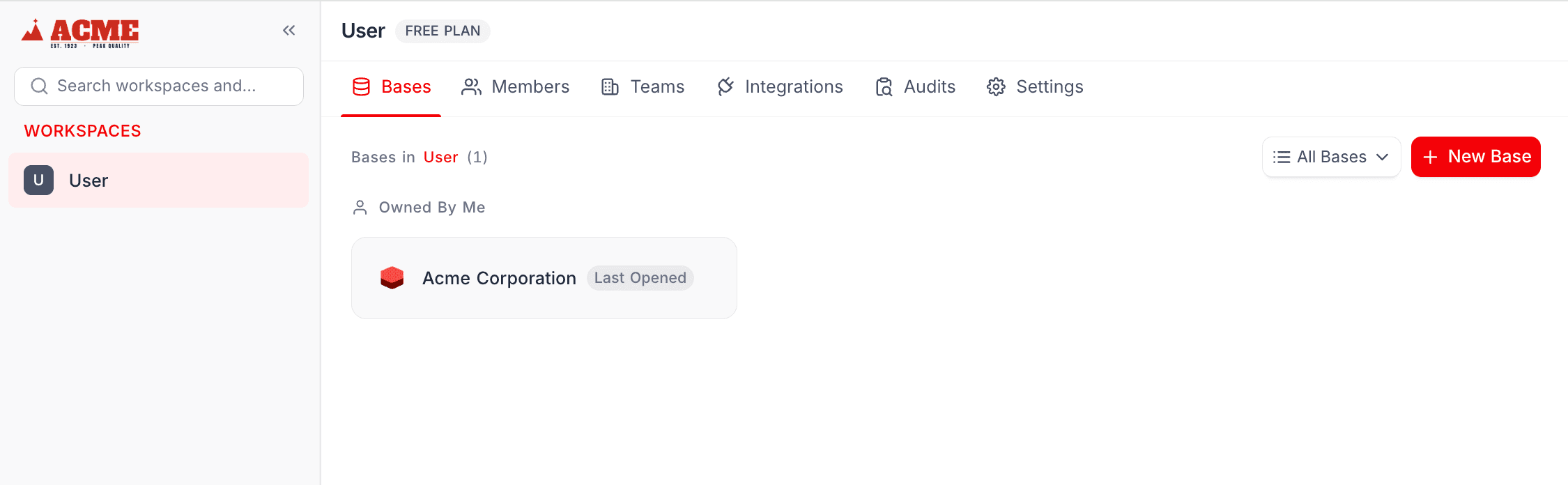
Buttons, links, and accents throughout the app pick up the brand color:
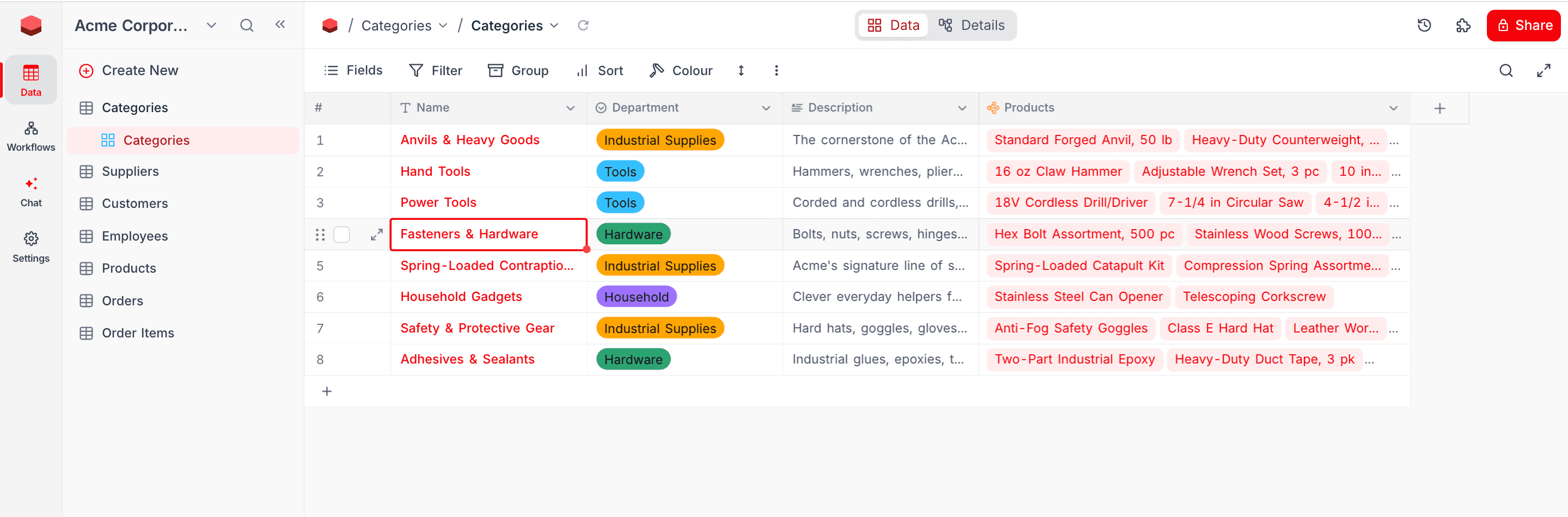
Public forms use your default banner when the form author hasn't set their own:
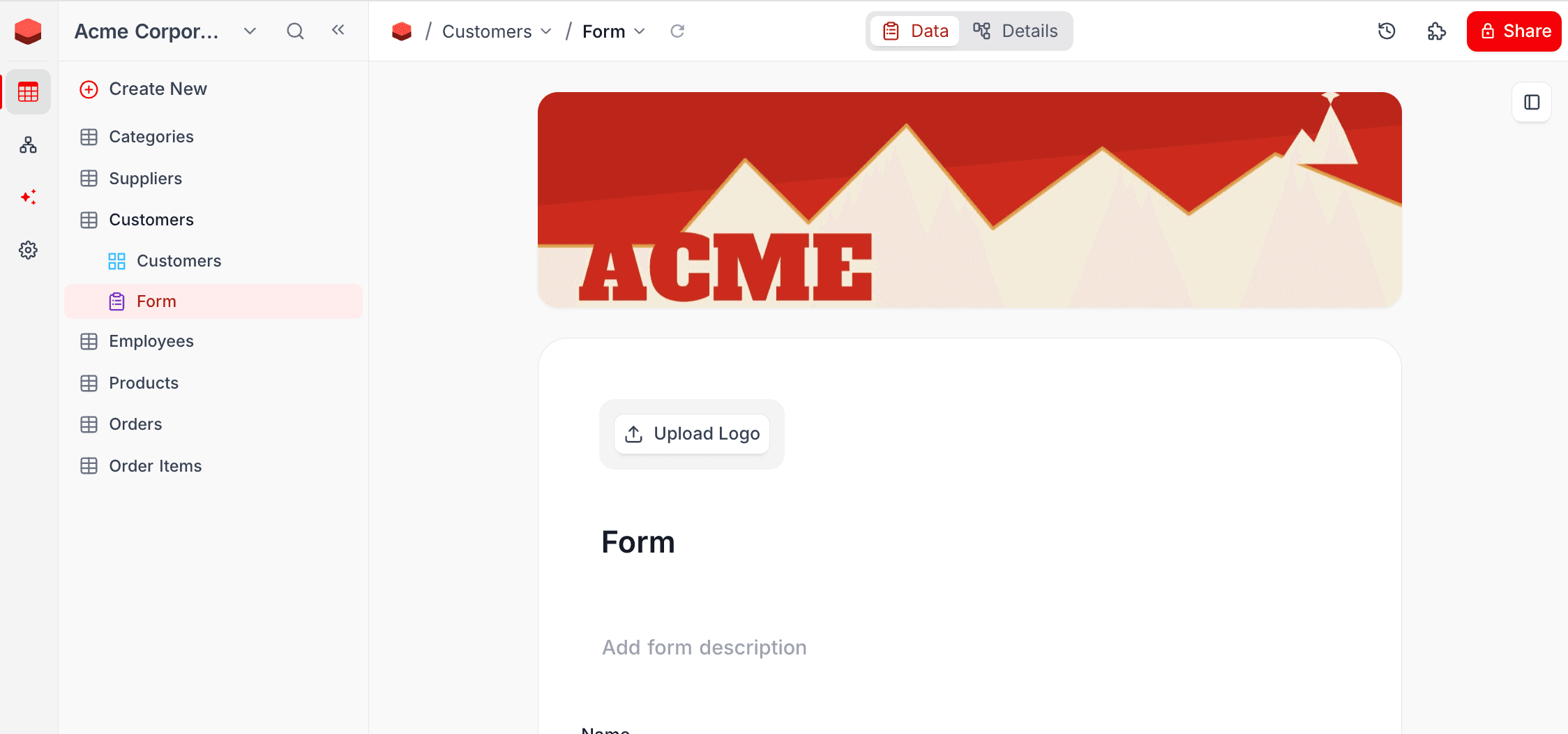
How licensing affects white labeling
If your license expires, is downgraded, or the add-on is removed, the instance automatically reverts to NocoDB defaults. Your saved configuration is preserved; restoring the entitlement restores your branding.