Activating a license
Activate your NocoDB self-hosted license. Standard, airgapped, and fully offline methods.
Self-hosted NocoDB requires a valid license key to enable paid features. The right activation method depends on whether your server has internet access. If you do not have a license yet, see Purchase a License.
Same image, license-gated. nocodb/nocodb:latest ships with both Community and Enterprise code. Enterprise features activate when a valid license key is set, either via the Admin Panel or the NC_LICENSE_KEY env var. There is no separate nocodb-ee image to pull.
Which method should I use?
| Method | When to use | Internet needed |
|---|---|---|
| Standard | Your server can reach the internet | Yes, ongoing |
| Airgapped | Your server has limited or no internet access | One-time only |
| Offline (manual) | Your server has no internet access at all | Never |
Most self-hosted customers use Standard. If your environment restricts outbound connections, use Airgapped. If your server can never connect to the internet, reach out and we will set it up for you.
Standard license
Best for cloud VMs, typical data centers, and any environment with internet access.
How to activate
-
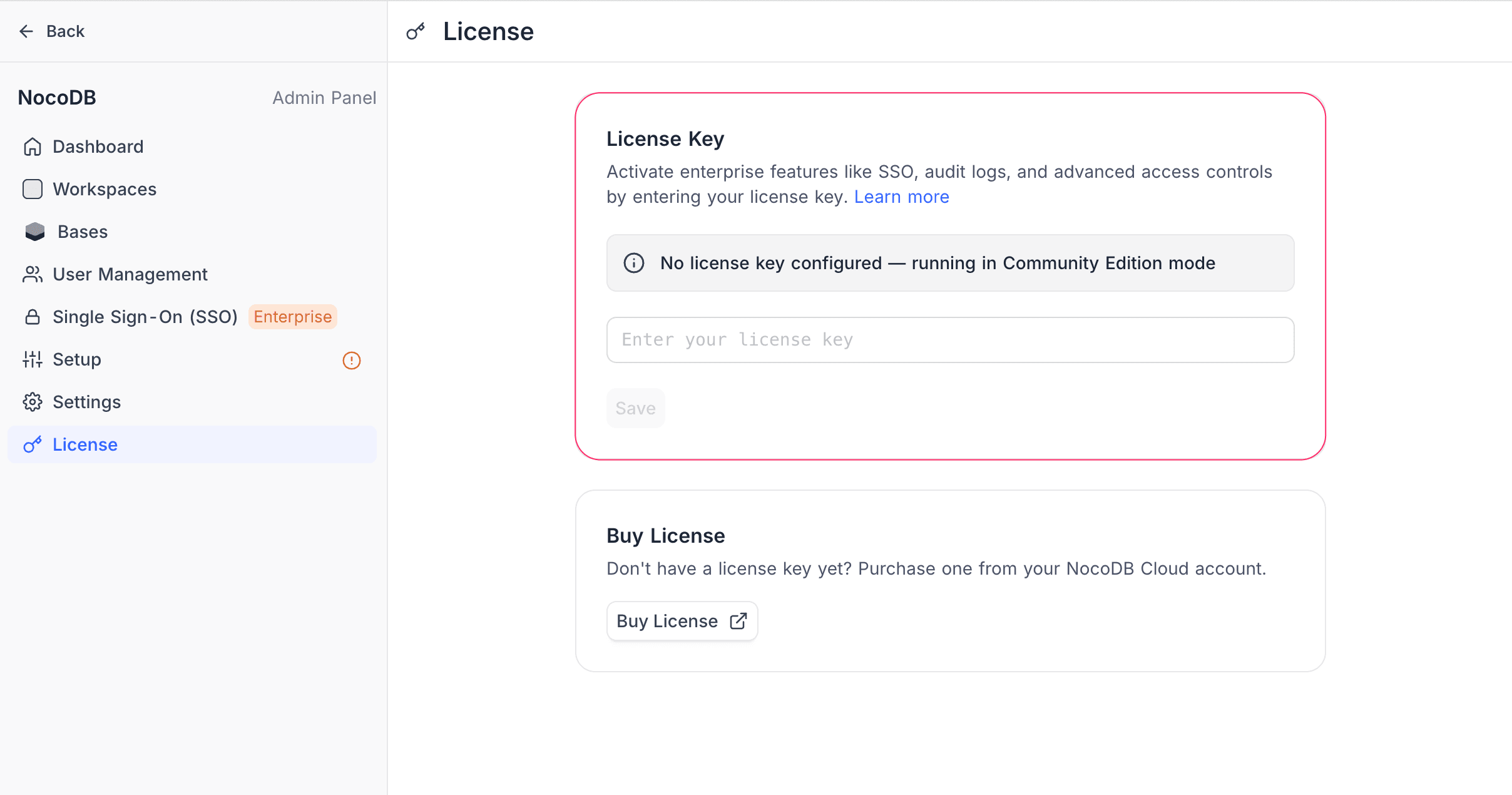
Open the NocoDB UI and go to Admin Panel > License.
-
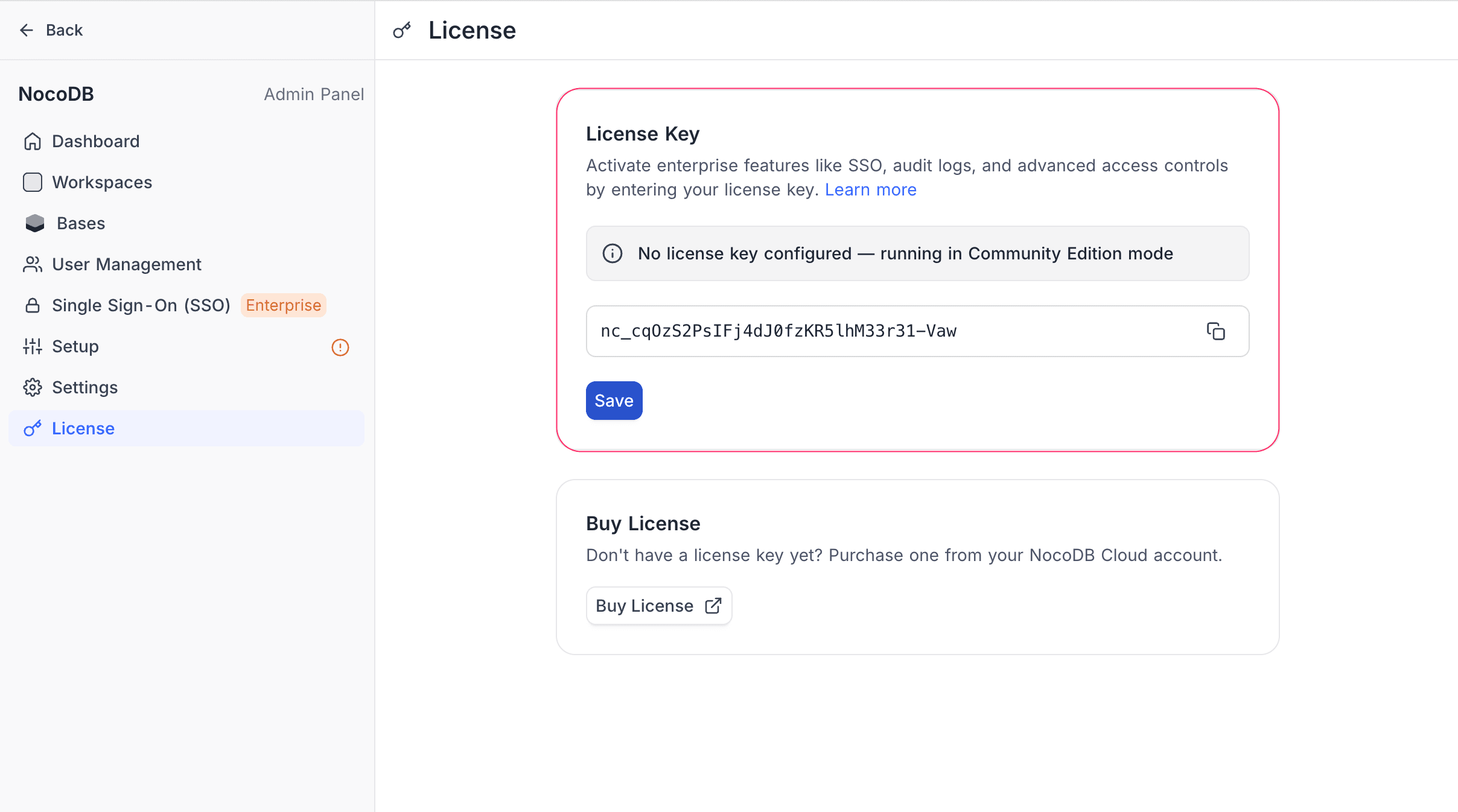
Paste your license key into the Enter your license key field. The Save button activates once a key is entered.
-
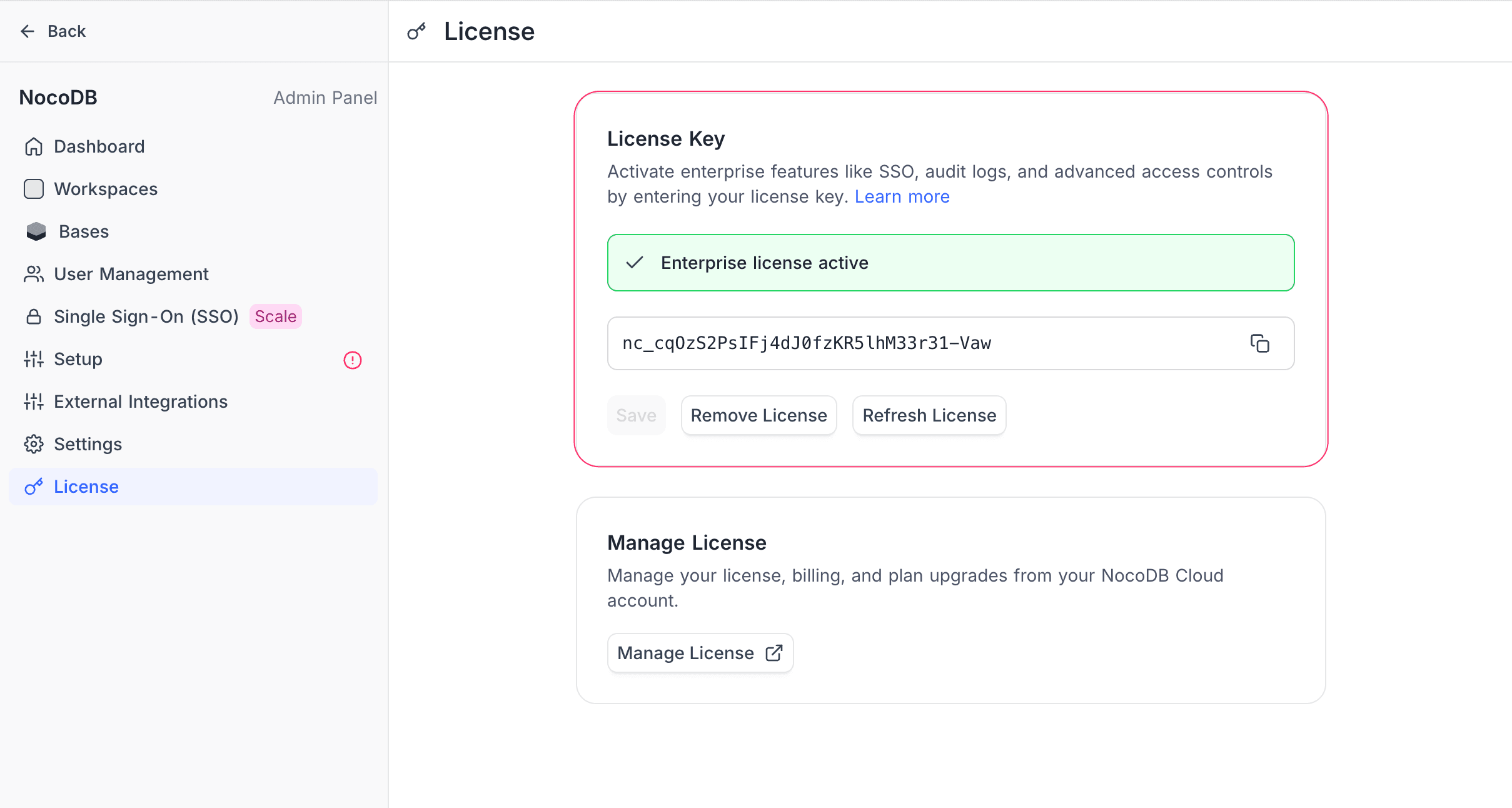
Click Save. NocoDB validates the key against NocoDB Cloud. On success, the status banner turns green and paid features are activated immediately. No restart needed.
How it stays active
NocoDB checks in with the license server every 6 hours. The call is small and carries no application data. If a check-in fails, NocoDB retries every hour. After 48 hours without a successful check-in, paid features are paused. They resume automatically once connectivity is restored.
Network requirements
NocoDB makes outbound HTTPS calls to a single endpoint:
POST https://app.nocodb.com/api/v1/on-premise/agentIf your network filters outbound traffic by host or path, allow exactly that host (app.nocodb.com) and that path (/api/v1/on-premise/agent) over TCP 443. Nothing else is involved.
Setting the license key via environment variable
Instead of pasting the key in the Admin Panel, set it at startup:
NC_LICENSE_KEY=nc_...When NC_LICENSE_KEY is set in the environment, the Admin Panel → License page becomes read-only. The environment value wins. Useful for IaC and ephemeral instances that should reactivate on every boot.
Multi-process deployments
If you run the API and worker as separate containers, or scale nocodb to multiple replicas, license-state changes need to propagate across processes. NocoDB does this via a Redis pub/sub channel. A working Redis connection (NC_REDIS_URL) is required for license changes made in the Admin Panel to take effect across all processes without restarts. The production examples and the Single-server install already include Redis.
Airgapped license
Best for firewalled or restricted networks, or anywhere ongoing internet access is not possible.
With an airgapped license, NocoDB connects to the internet once during setup. After that single activation, it runs fully offline for the lifetime of the license. No check-ins, no callbacks.
How to activate
-
You will receive a license key starting with
nc_ag_from NocoDB. -
Make sure your server has temporary outbound internet access (just for the initial activation).
-
Open the NocoDB UI and go to Admin Panel > License.
-
Paste your
nc_ag_license key and click Save. -
NocoDB activates the license with a single outbound call. Once confirmed, you can remove internet access. NocoDB keeps running with full paid features.
Notes
- After activation, no internet connection is needed until the license expires.
- The license is tied to your installation. If your Instance ID changes, contact us to re-activate.
Offline activation
For environments that can never connect to the internet: classified networks, isolated infrastructure, or strict compliance setups.
We handle this for you:
-
Start NocoDB. During startup, it prints an Instance ID in the logs:
docker compose logs nocodb | grep "Instance ID"You will see something like:
Instance ID: a1b2c3d4e5f6789... -
Send us your Instance ID along with your license key by emailing cs@nocodb.com.
-
We will send you back a license token. Open the NocoDB UI, go to Admin Panel > License, paste the token, and click Save.
Manage license on this instance
Once a license is active, the Admin Panel → License page exposes additional controls.
Refresh license
Click Refresh License to re-validate the license against NocoDB Cloud. Use this if your plan was recently upgraded or renewed and the instance has not yet picked up the change.
Remove license
Click Remove License to deactivate the license on this instance. You will be asked to confirm. After removal, the instance reverts to NocoDB Community and paid features are disabled. The license key remains available in your NocoDB Cloud account and can be re-applied at any time.
Manage license (billing portal)
Once a license is active, a Manage License card appears on the License page. Click it to open the Stripe billing portal. See Manage billing for what you can do there.
What is the Instance ID?
The Instance ID uniquely identifies your NocoDB deployment. It is printed in the server logs every time NocoDB starts and stays stable across restarts and updates. If it ever changes, reach out for a new activation.
Renewing your license
| Method | What to do |
|---|---|
| Standard | Nothing. Renewal is automatic once your subscription is renewed. |
| Airgapped | Temporarily restore internet access and restart NocoDB. The new expiry is picked up automatically. |
| Offline | Contact us for a new license token and update it in Admin Panel > License. |
Troubleshooting
| Problem | What to do |
|---|---|
| Activation fails | Make sure your server can reach https://app.nocodb.com/api/v1/on-premise/agent over TCP 443. Check firewalls, egress proxies, and DNS. |
| "Bound to a different installation" | Your installation environment changed. Contact us at cs@nocodb.com for a re-issue. |
| Paid features stopped working | For standard licenses, restore internet access and restart. For expired licenses, renew your subscription. |
| Can't find the Instance ID | Check the NocoDB container logs. The Instance ID is printed during startup. |