Lookup
This article explains how to create & work with a Lookup field.
Lookup fields help bring additional field information from related table into the current table. This is useful when you want to display additional information about a record in a table. For example, if you have a table of Orders and a table of Customers, you can use a Lookup field to display the customer's name and address in the Orders table.
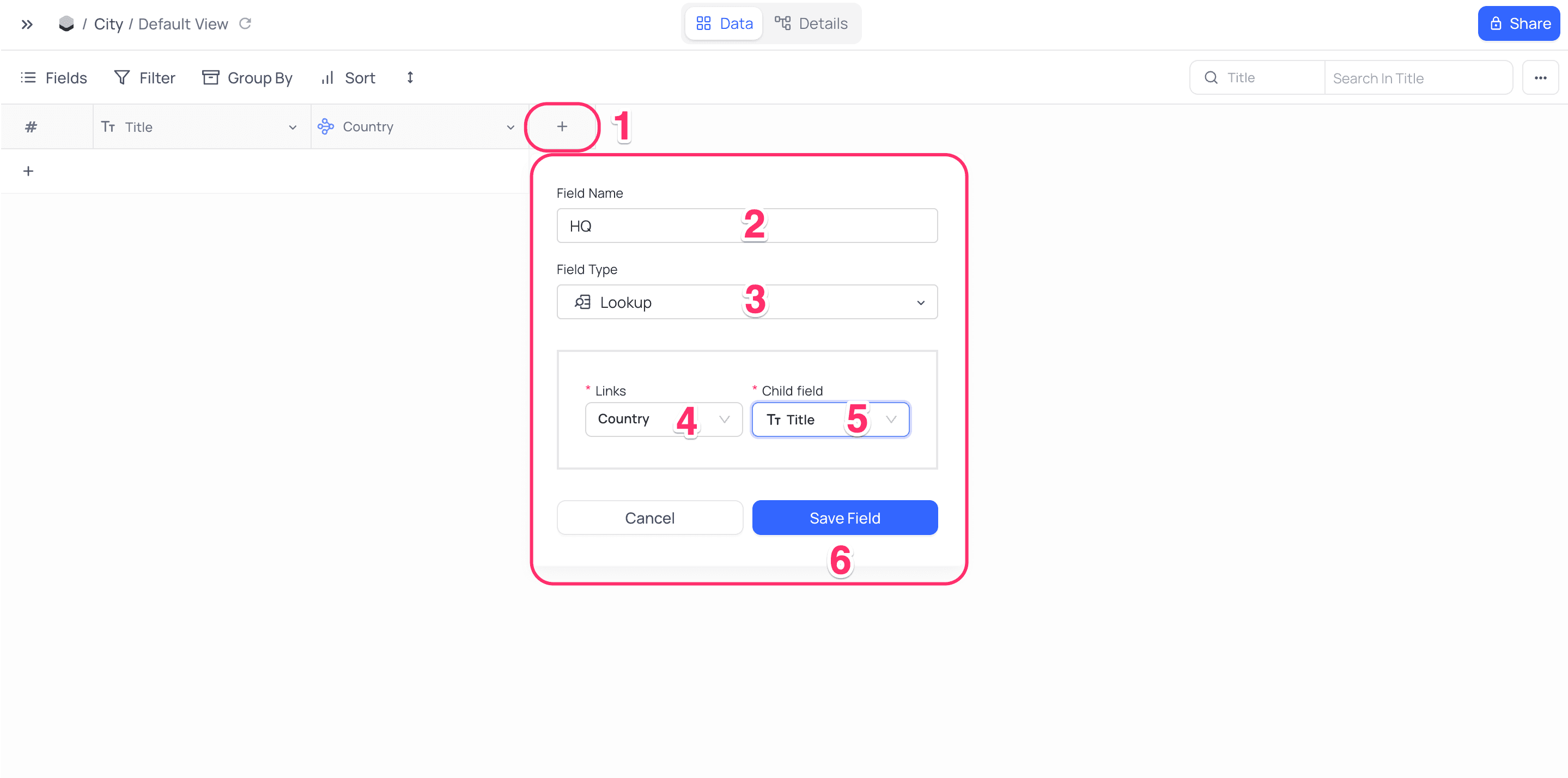
Create a Lookup Field
- Click on
+icon to the right ofFields header - On the dropdown modal, enter the field name (Optional).
- Select the field type as
Lookupfrom the dropdown. - Select the link field from the dropdown. This is the field that links the current table to the related table.
- Select the field for display from the dropdown. This is the field that will be displayed in the current table.
- Click on
Save Fieldbutton.
Formatting
The Lookup field editor is organised into two tabs:
- Configuration : select the relation (link field) and the lookup field, as described above.
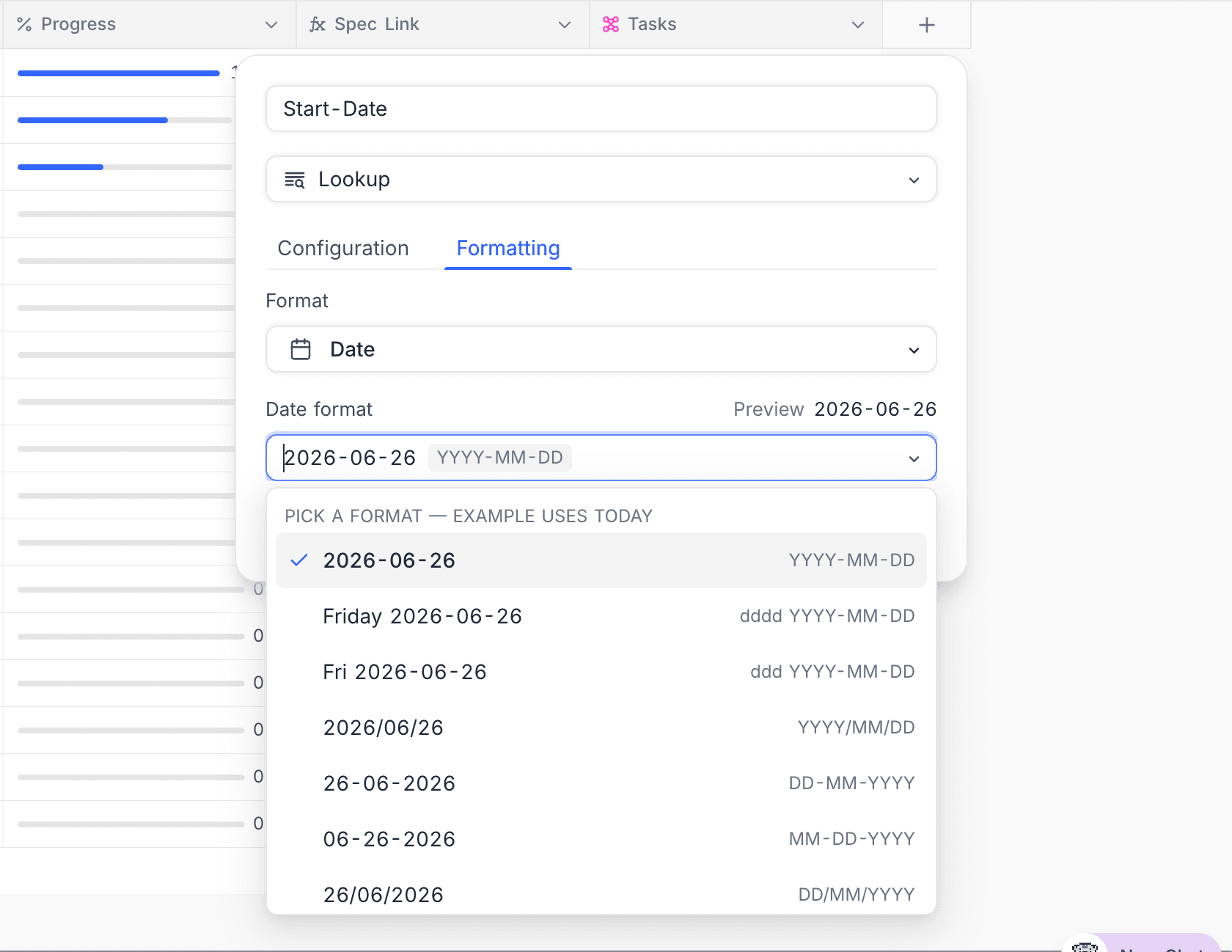
- Formatting : control how the looked-up value is displayed. This tab stays disabled until a lookup field is selected.
The Formatting tab lets the Lookup display its value with formatting that is independent of the source field. The chosen format applies everywhere the Lookup renders, including the grid, expanded record, and exports.
The available options depend on the type the lookup resolves to:
- When the result is a number, the Format selector offers Decimal, Currency, or Percent.
- When the result is a Date, only Date formatting is available.
- When the result is a DateTime, the Format selector offers Date, DateTime, or Time.
- When the result is a Time, only Time formatting is available.
Selecting a format reveals that format type's usual sub-options (for example, precision for Decimal, or the date format for Date).
Conditional Lookup ☁
By default, a Lookup field pulls in all linked records from the related table. However, in many cases, you may want to display only a subset of those records — for example, only recent entries or records above a certain threshold.
To achieve this, you can enable the option: Only include linked records that meet specific conditions
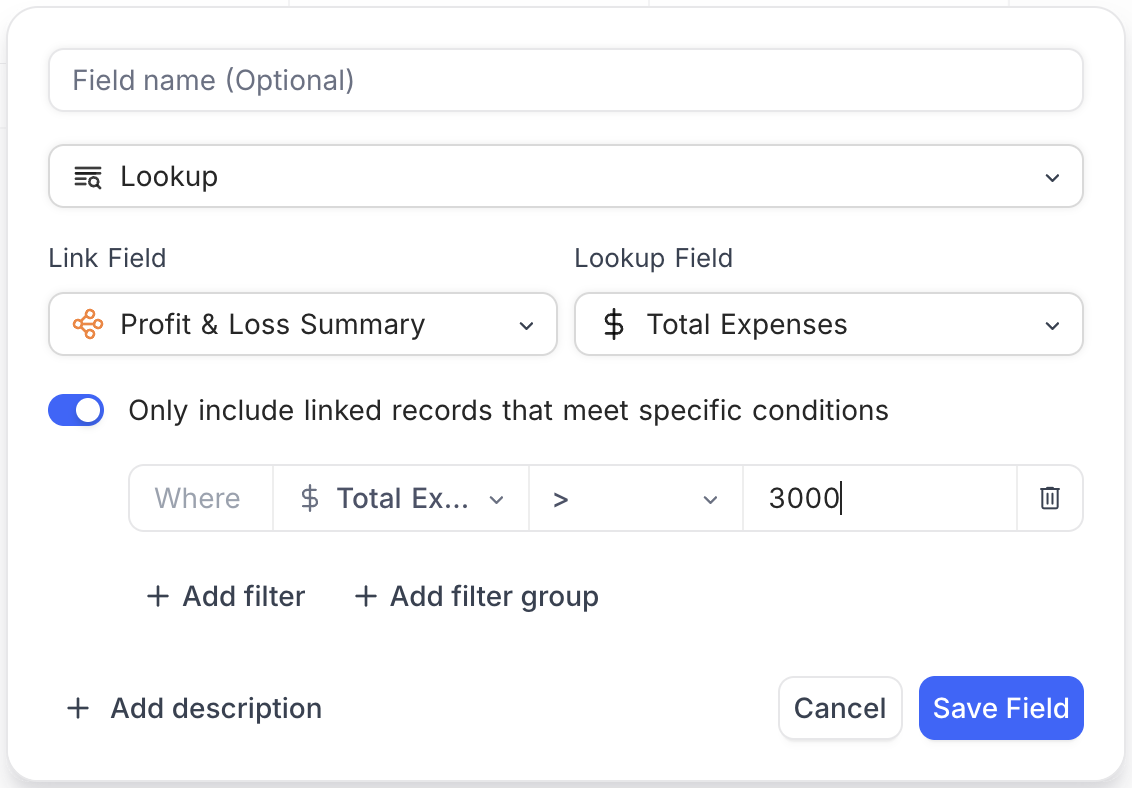
This option allows you to filter the linked records based on criteria defined from fields in the related table. It helps tailor the Lookup field to show only the data that’s most relevant to your use case.
Applying filters
- Toggle ON Only include linked records that meet specific conditions.
- Click Add filter to define one or more conditions using fields from the related table.
- Use Add filter group to combine filters with AND/OR logic.
- Click Save Field to apply.
Sort and limit lookup values ☁
By default, a Lookup field pulls in every linked value in the underlying link order. You can control both the order of the looked-up values and how many are shown, directly from the Lookup field editor.
Sort the looked-up values
- Open the Lookup field editor and select the link field and lookup field.
- Under Sort records, click Add Sort Option.
- Choose the field to sort by and the direction. Add more sort options to break ties.
- Click Save Field.
Limit the number of values shown
- Toggle on Limit the number of items shown.
- Under Limit to the, choose First or Last from the dropdown and enter how many values to keep (minimum
1). - Click Save Field.
Combined with a sort, this lets you show, for example, only the First three linked records by date. Existing Lookup fields are unaffected until you configure a sort or limit on them.