Admin Panel
This article explains how to use the Admin Panel in Cloud & Self hosted Enterprise Edition.
The Admin Panel in NocoDB provides organization-level oversight and control. It allows administrators to monitor usage metrics, manage workspaces and bases, provision and track users, configure Single Sign-On (SSO), and update branding settings. This guide walks through each section available within the Admin Panel to help administrators maintain governance, enforce security, and keep user and workspace configurations aligned with organizational standards.
Navigation Overview
Admin panel is accessible for users with administrative privileges. To access the Admin Panel, click on the Admin Panel option located in the user menu in the bottom-left corner of the NocoDB interface.
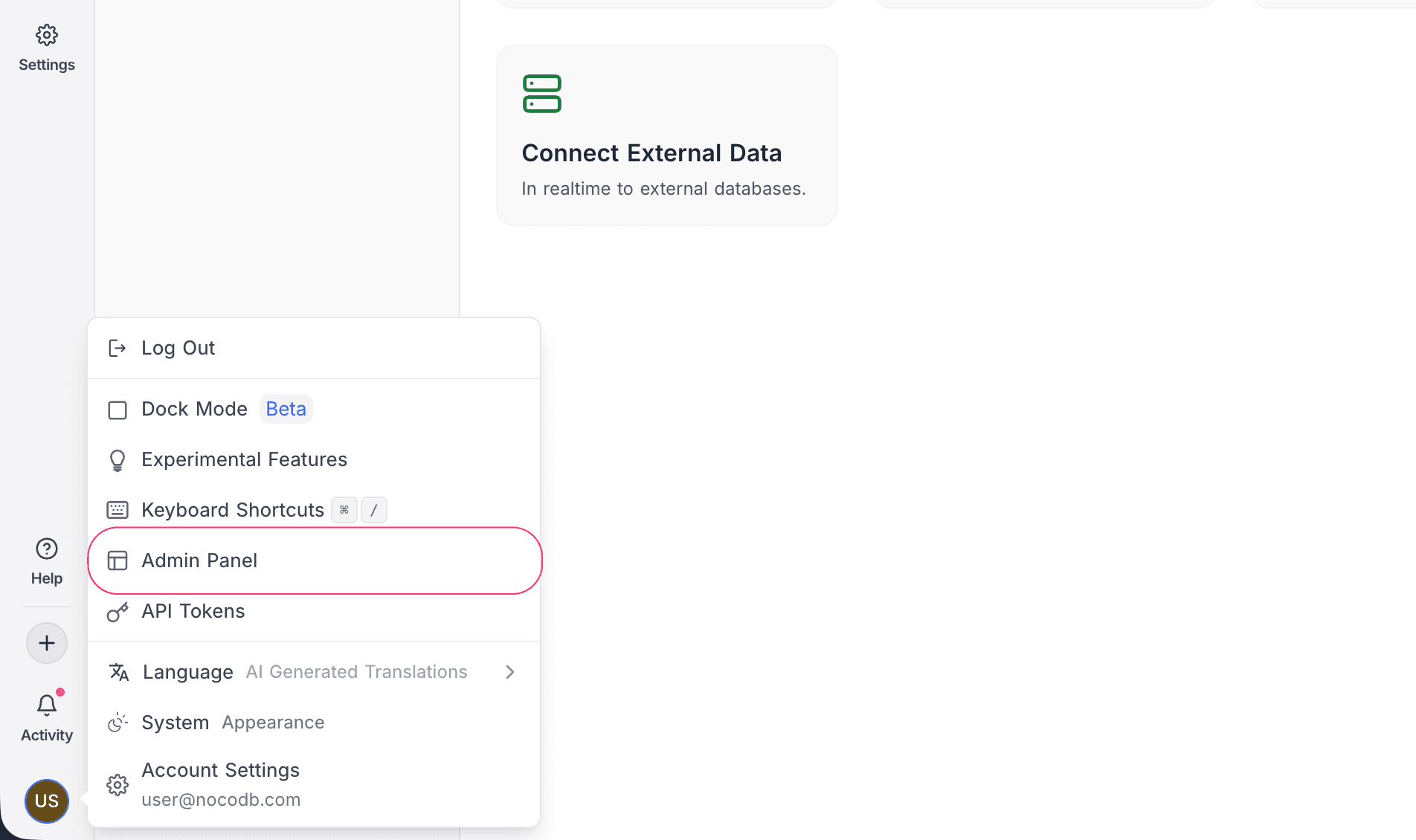
The Admin Panel interface includes a sidebar menu with persistent access to the following sections:
- Dashboard
- Workspaces
- Bases
- User Management
- Single Sign-On (SSO)
- Teams
- SCIM
- Settings
- License (self-hosted only)
Use the Back button in the top-left corner to return to the main NocoDB application interface.
Dashboard
The Dashboard offers a high-level overview of key metrics across your NocoDB deployment. It acts as a basic control center for admins to monitor system usage and understand the scale of their organization’s data and user base. While the current functionality is limited, the visual summaries make it easy to track a few critical numbers at a glance.
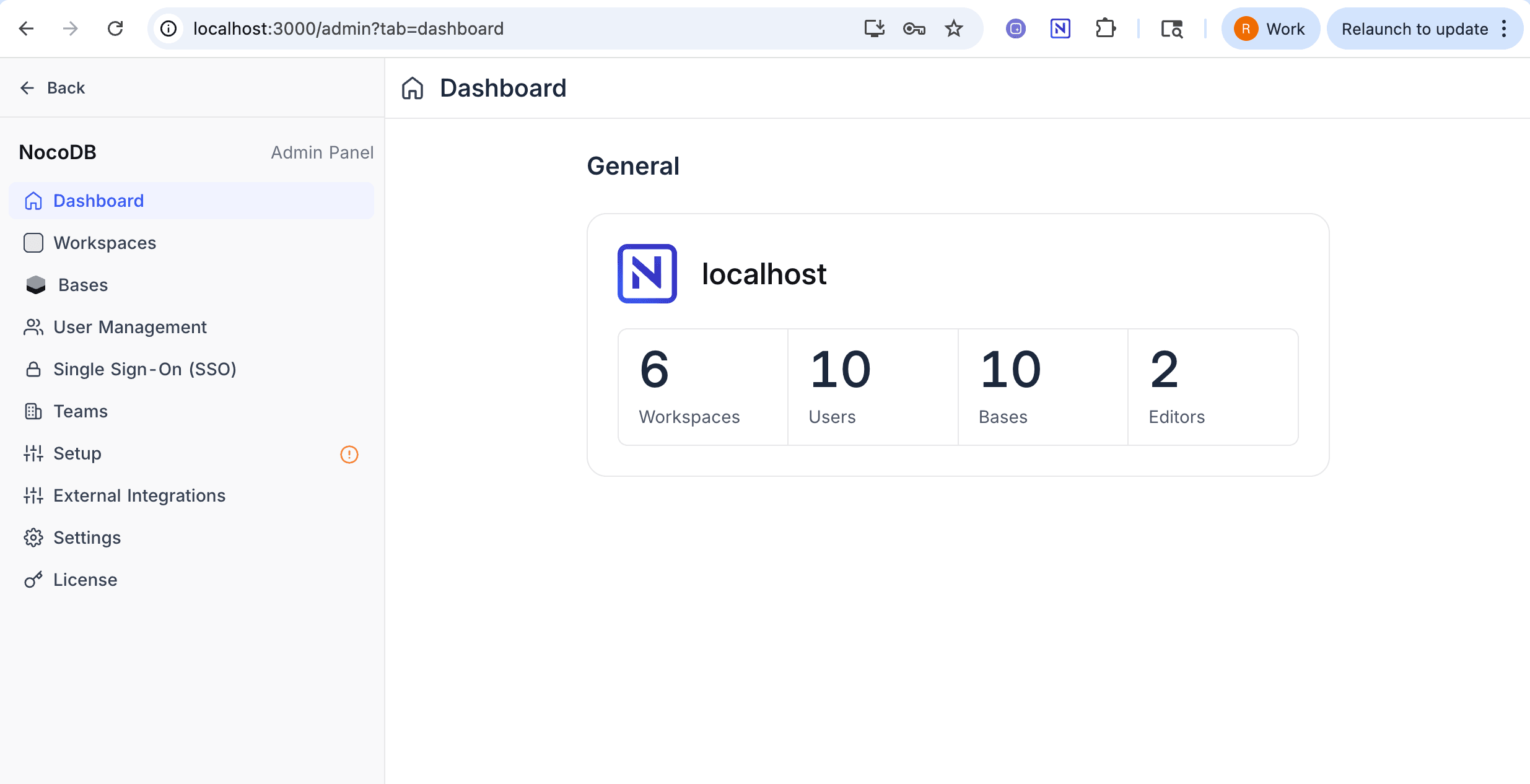
Displayed Metrics:
- Workspaces – Number of workspaces created within the organization.
- Users – Count of unique users who are part of the organization.
- Bases – Total number of bases created across all workspaces.
- Editors – Number of users with Editor-level access or above.
Workspaces
The Workspaces section lists all active workspaces within your organization. Each workspace displays its name, number of members, and number of bases. This view helps admins monitor workspace-level participation and data volume.
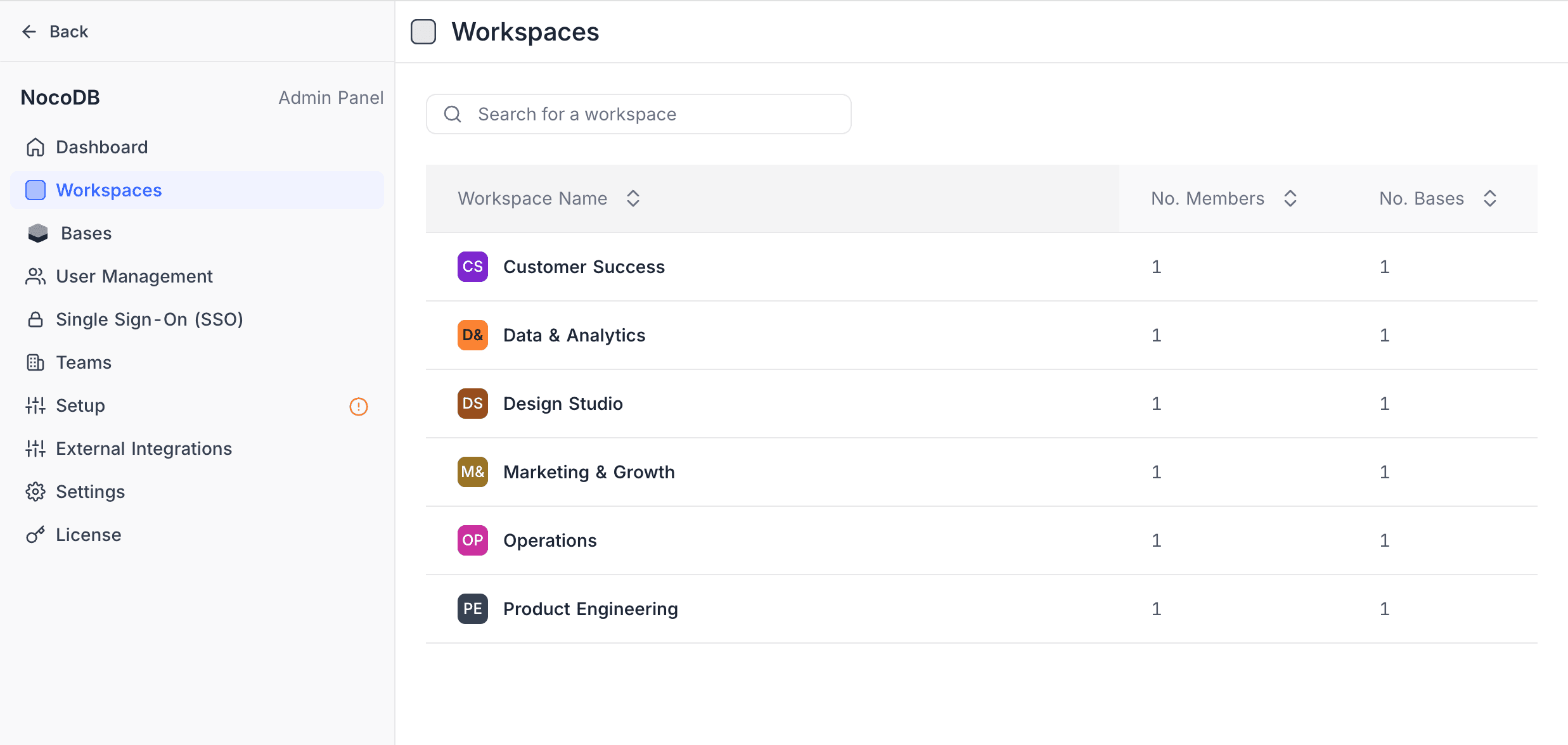
Actions:
- Add Member – Invite new users to the workspace.
- Rename – Edit the workspace name.
- Manage Users – Modify user roles or remove users from the workspace.
Bases
The Bases section displays all databases across the organization, regardless of the workspace they belong to. Each base shows its name, the workspace it belongs to, and the number of members. This provides a centralized view to help admins maintain visibility over base creation and ownership.
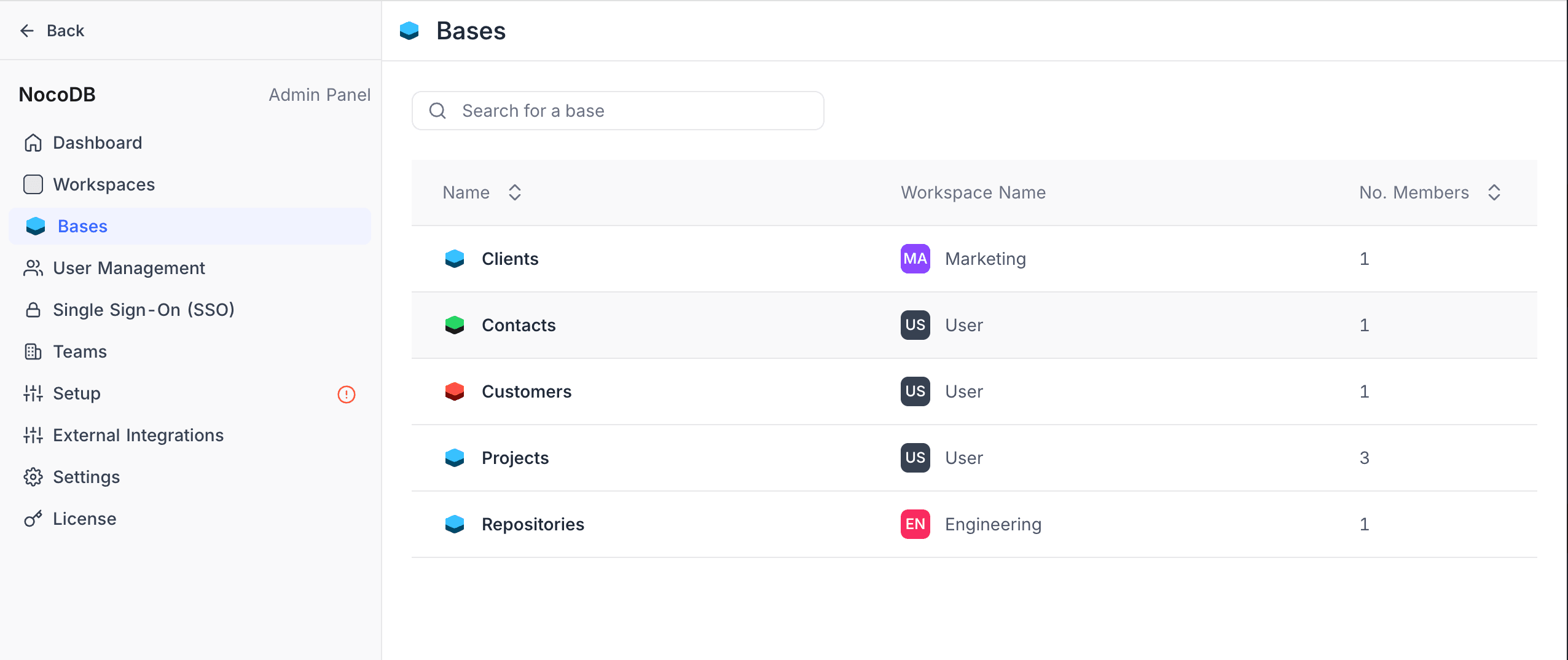
Actions:
- Rename – Update the base name.
- Manage Users – Add or remove collaborators, or change their roles.
User Management
The User Management section lists all users who are part of the organization. Each member is shown with their Org Role (Org-Admin, Org-Creator, or Org-Viewer) and the date they joined. The Org Admin can manage organization membership, assign org-level roles, and provision workspace access.
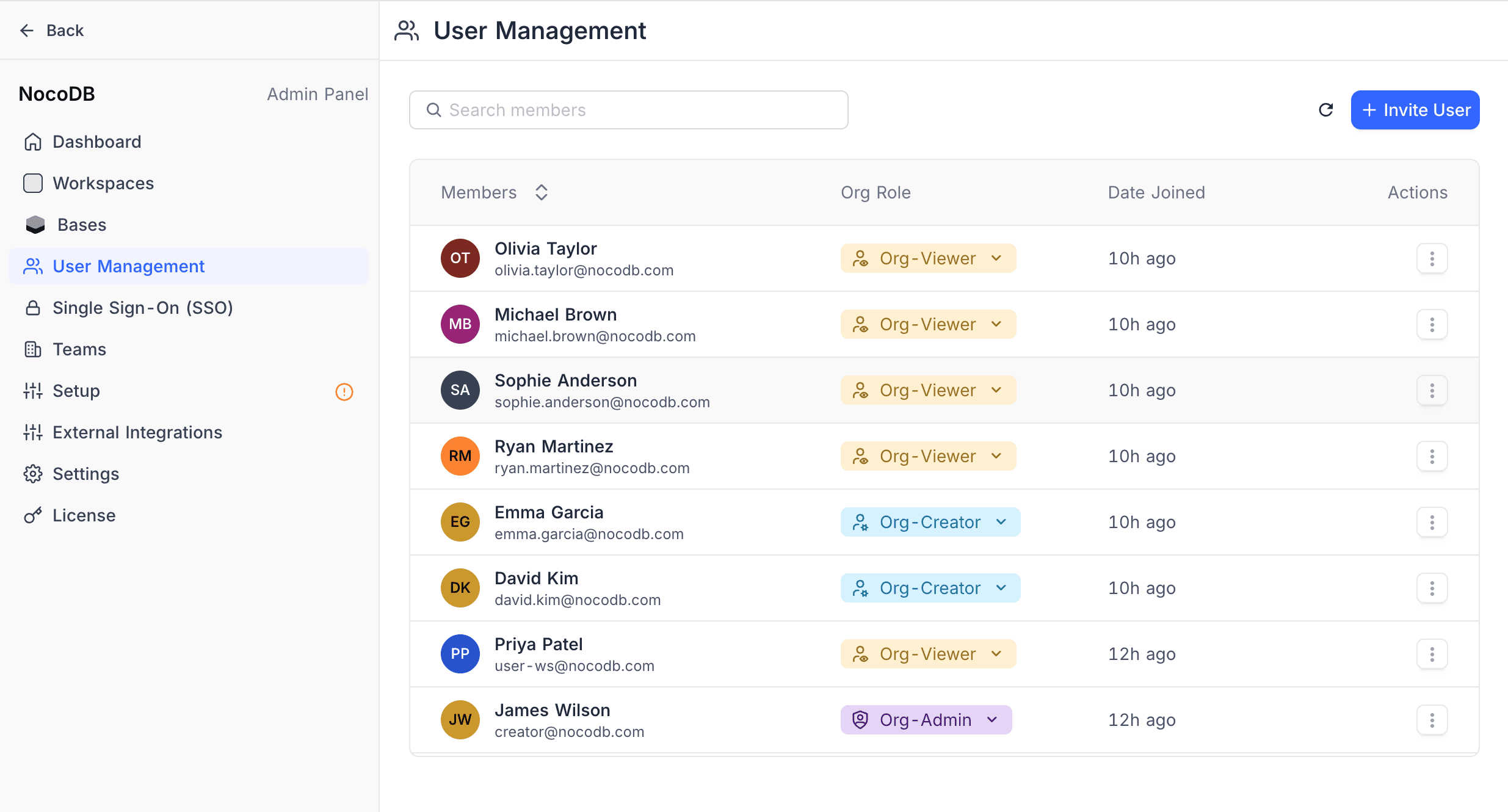
Changing Org Roles:
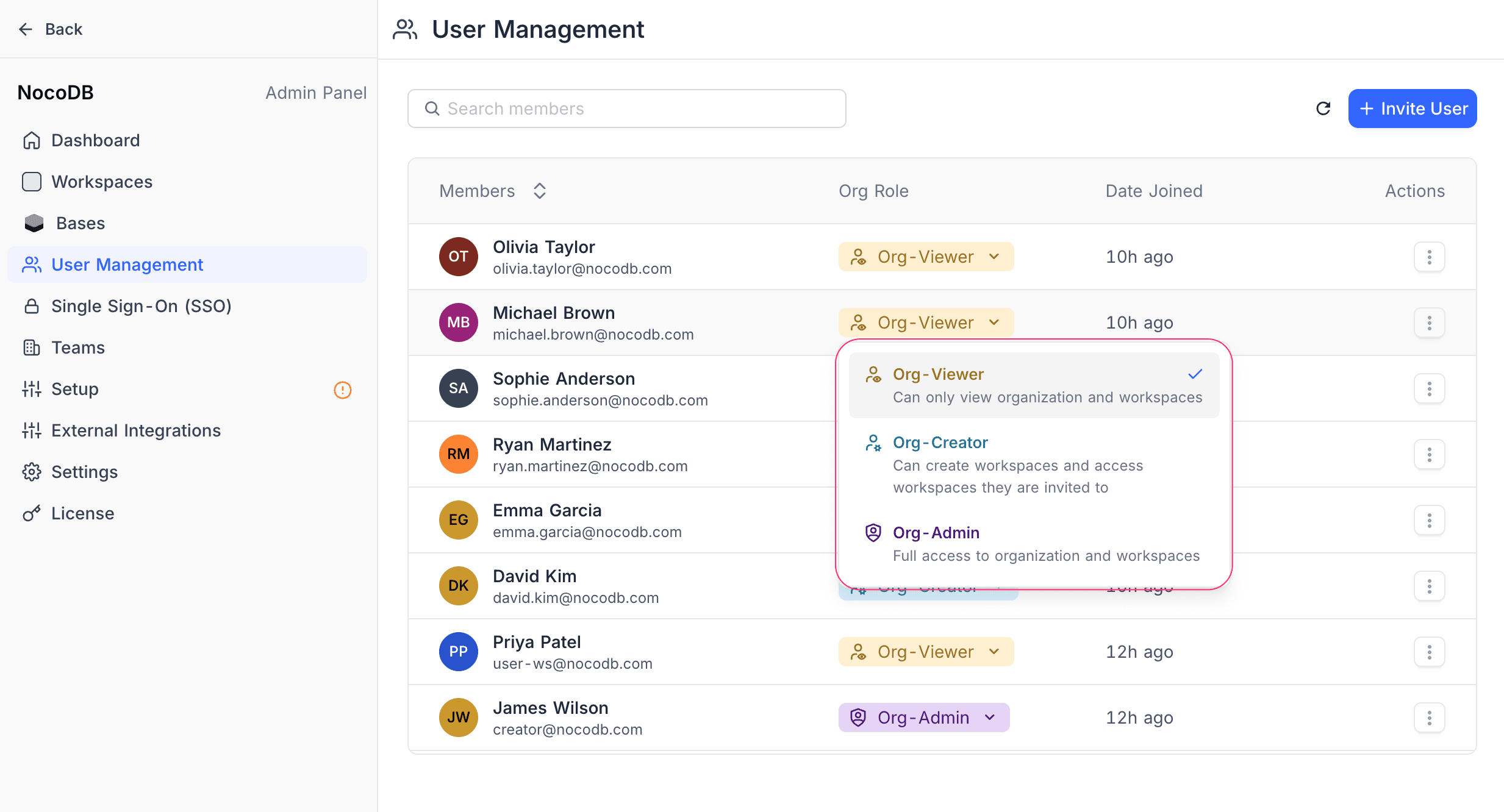
Click the role dropdown next to any member to change their org role. The available roles are:
- Org-Viewer – Can access workspaces and bases they are invited to, but cannot create new workspaces
- Org-Creator – Same as Org-Viewer, plus can create new workspaces within the organization. Cannot manage org membership.
- Org-Admin – Complete access to the organization, including member management, SSO, SCIM, domains, billing, and all org-level settings
The Org Admin's role is displayed as a distinct badge. See Organization-level Roles for details on org role constraints.
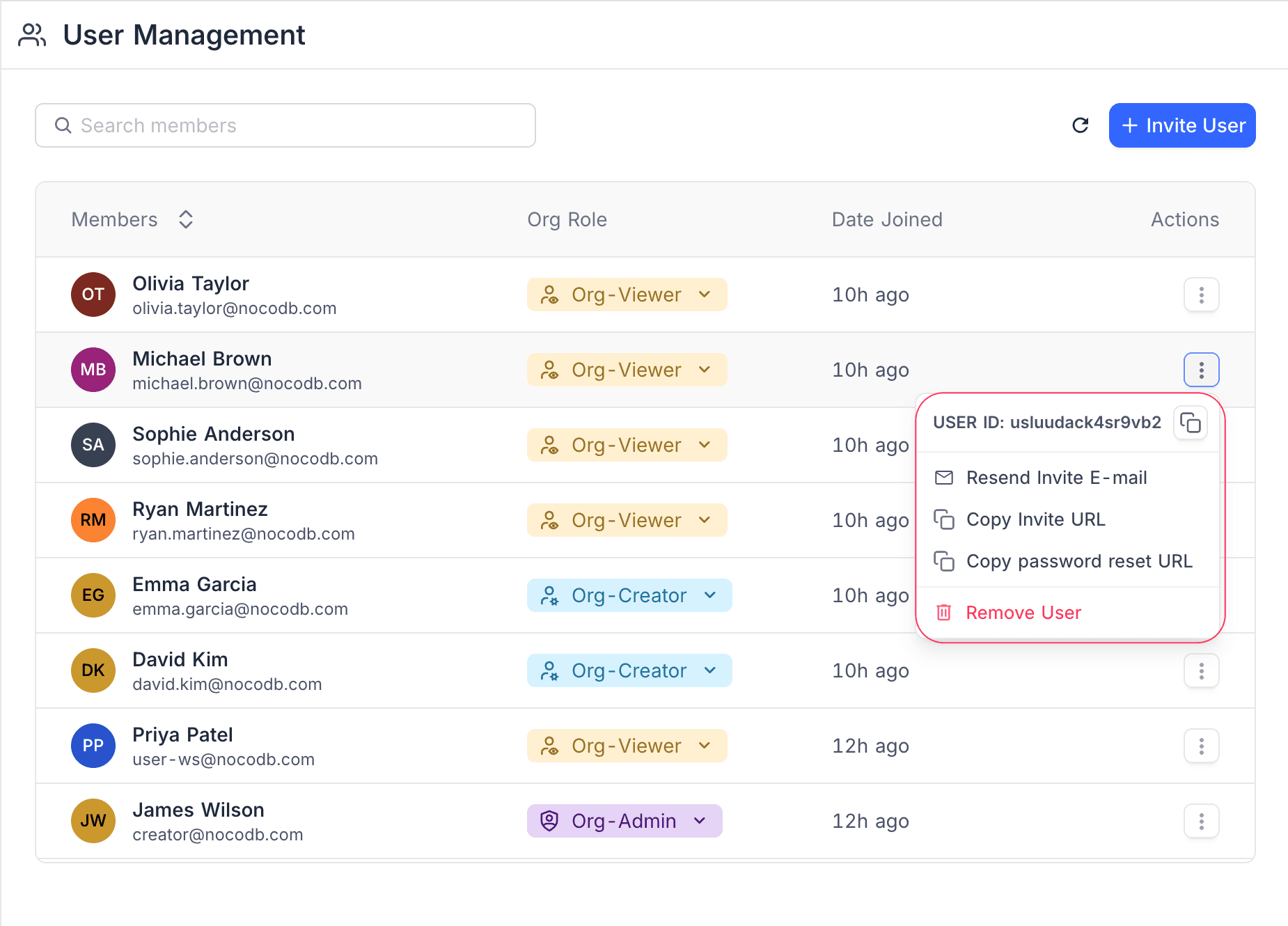
Actions menu:
Click the Actions (three dots) menu beside a member to access:
- Resend Invite E-mail – Resend the invitation email to the user.
- Copy Invite URL – Copy the invitation link to clipboard.
- Copy password reset URL – Generate and copy a password reset link.
- Remove User – Remove the user from the organization. This also removes them from all workspaces, bases, and teams within the organization.
Use the + Invite User button to add new users to the organization.
For more details about organization-level roles, see Organization-level Roles.
Teams
The Teams section allows Org Admins to create and manage organization-level teams. Unlike workspace teams, org teams are available across all workspaces within the organization — they can be assigned roles in any workspace or base.
The teams list displays each team's name, badge, member count, creator, and an actions menu. Teams with sub-teams show an expand/collapse toggle. You can switch between tree view and flat view using the toggle buttons in the toolbar.
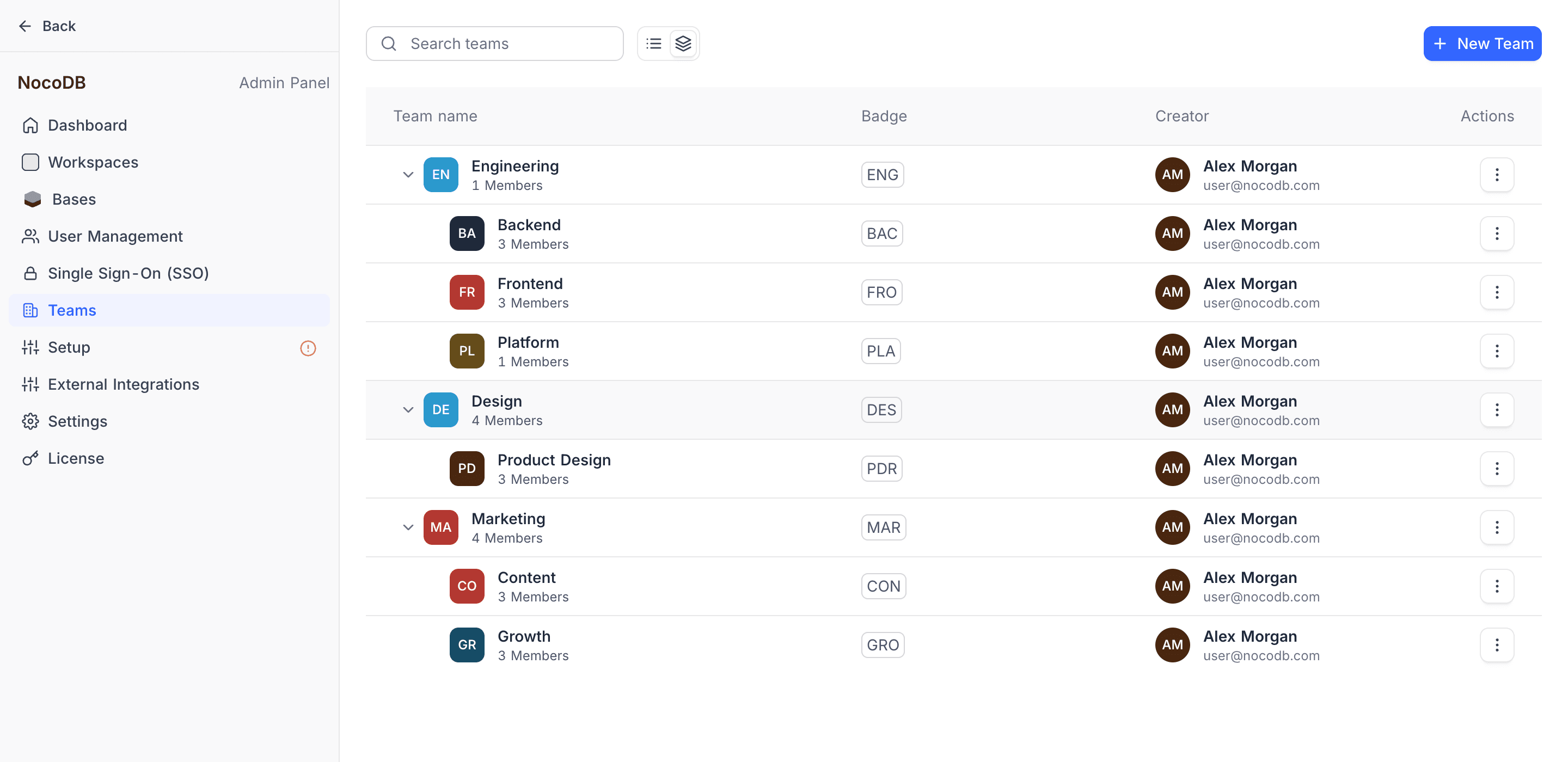
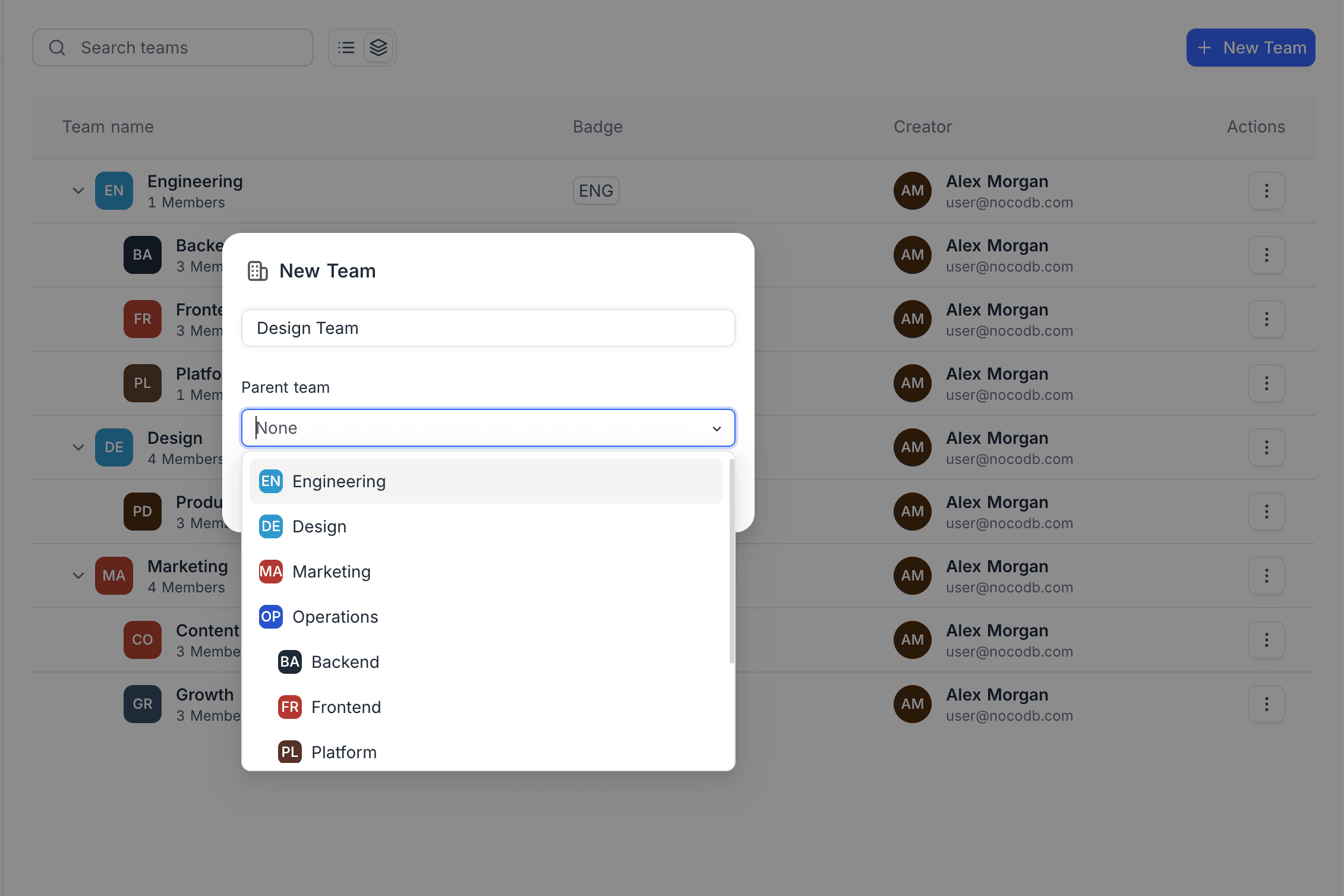
Click the + New Team button to create a new team. You can optionally select a parent team to create it as a sub-team.
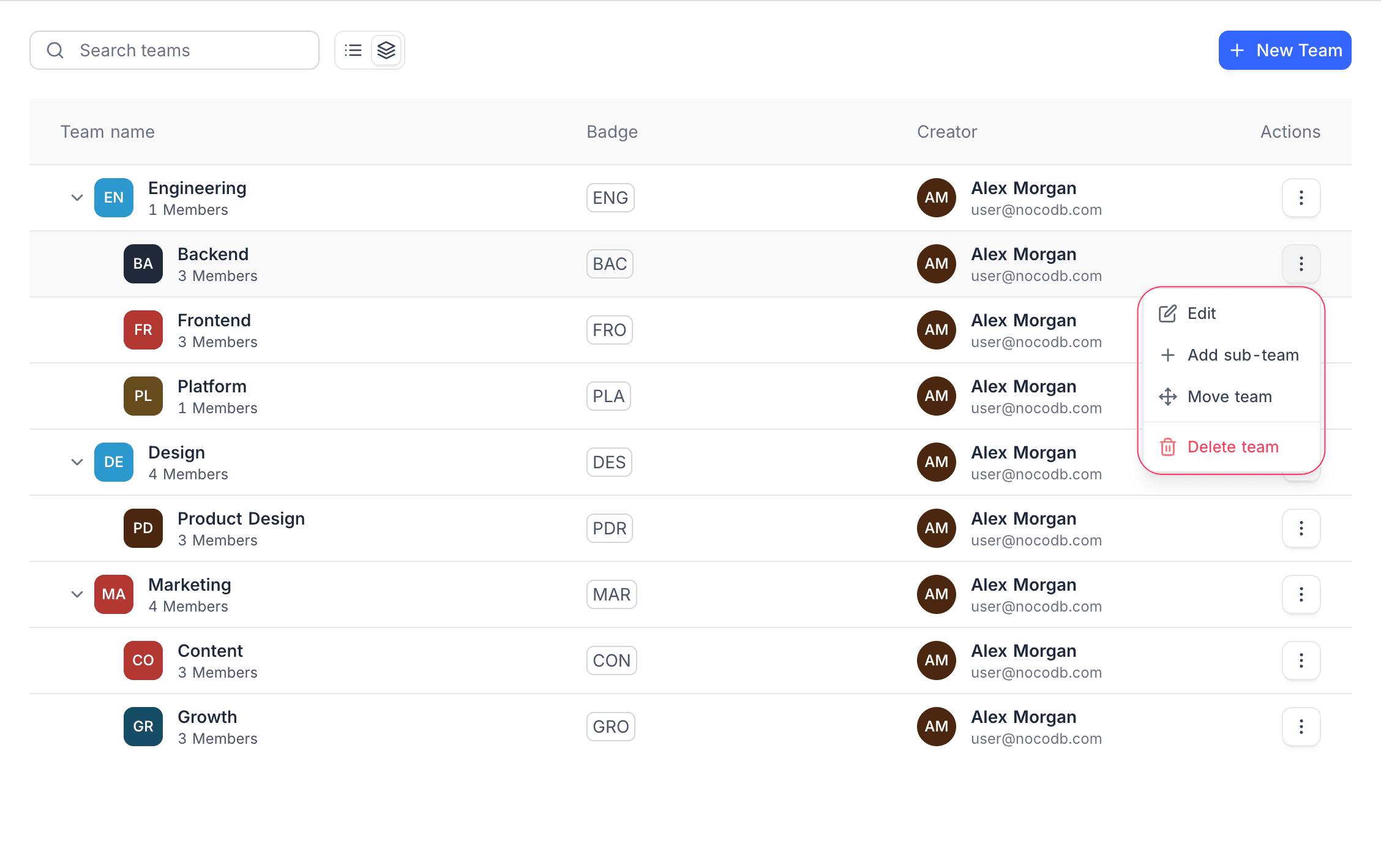
Click the Actions (three dots) menu beside a team to access:
- Edit – Open the team to manage its members and settings.
- Add sub-team – Create a nested sub-team under this team.
- Move team – Move the team under a different parent.
- Delete team – Remove the team from the organization.
For detailed team management instructions, see Organization Teams.
Single Sign-On (SSO)
The Single Sign-On (SSO) section allows organizations to configure centralized authentication for their users. SSO reduces the burden of managing individual credentials and ensures that user authentication adheres to enterprise security policies.
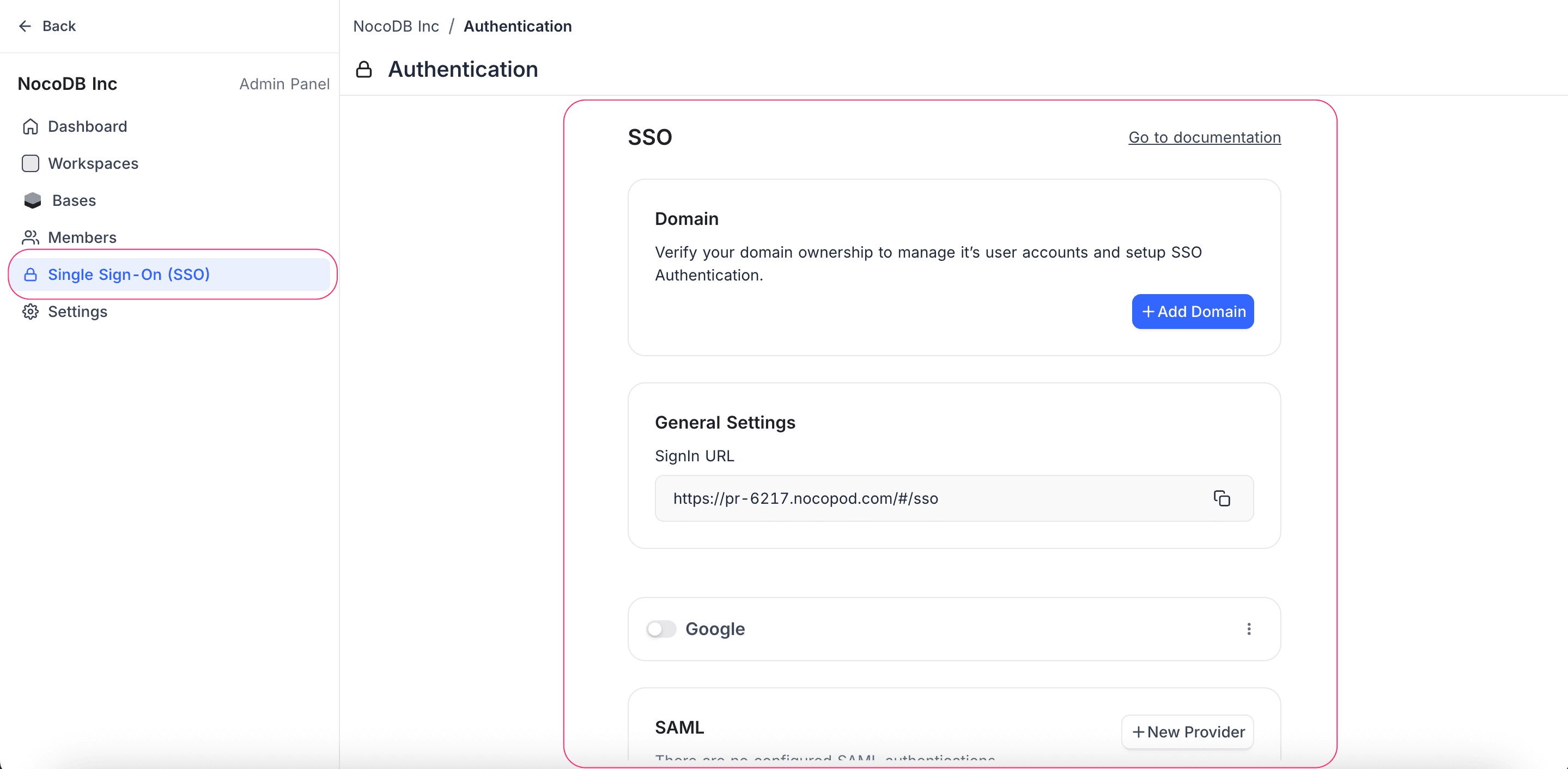
Refer to the SSO documentation for detailed setup instructions.
SCIM
The SCIM section allows Org Admins to configure SCIM v2.0 provisioning for automatic user and group management from an identity provider (IdP). When enabled, user onboarding, offboarding, and group membership changes in your IdP are automatically synced to NocoDB.
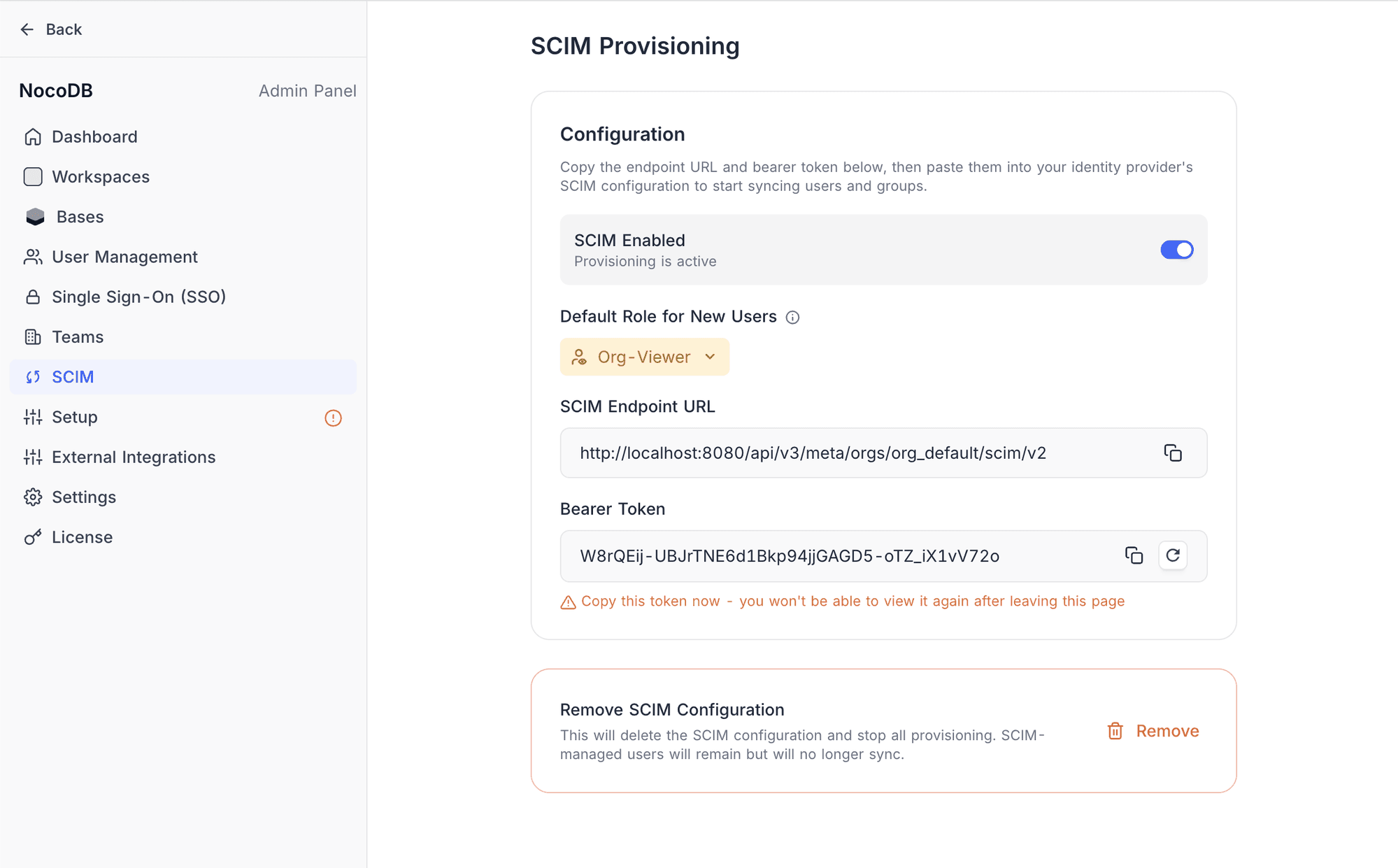
From this section, you can:
- Enable or disable SCIM provisioning
- Configure the default org role for provisioned users
- Copy the SCIM endpoint URL and provisioning token for IdP configuration
- Regenerate the provisioning token if compromised
- Remove the SCIM configuration entirely
Refer to the SCIM Provisioning documentation for detailed setup instructions.
Settings
The Settings section allows administrators to define the visual identity and branding of their NocoDB instance.
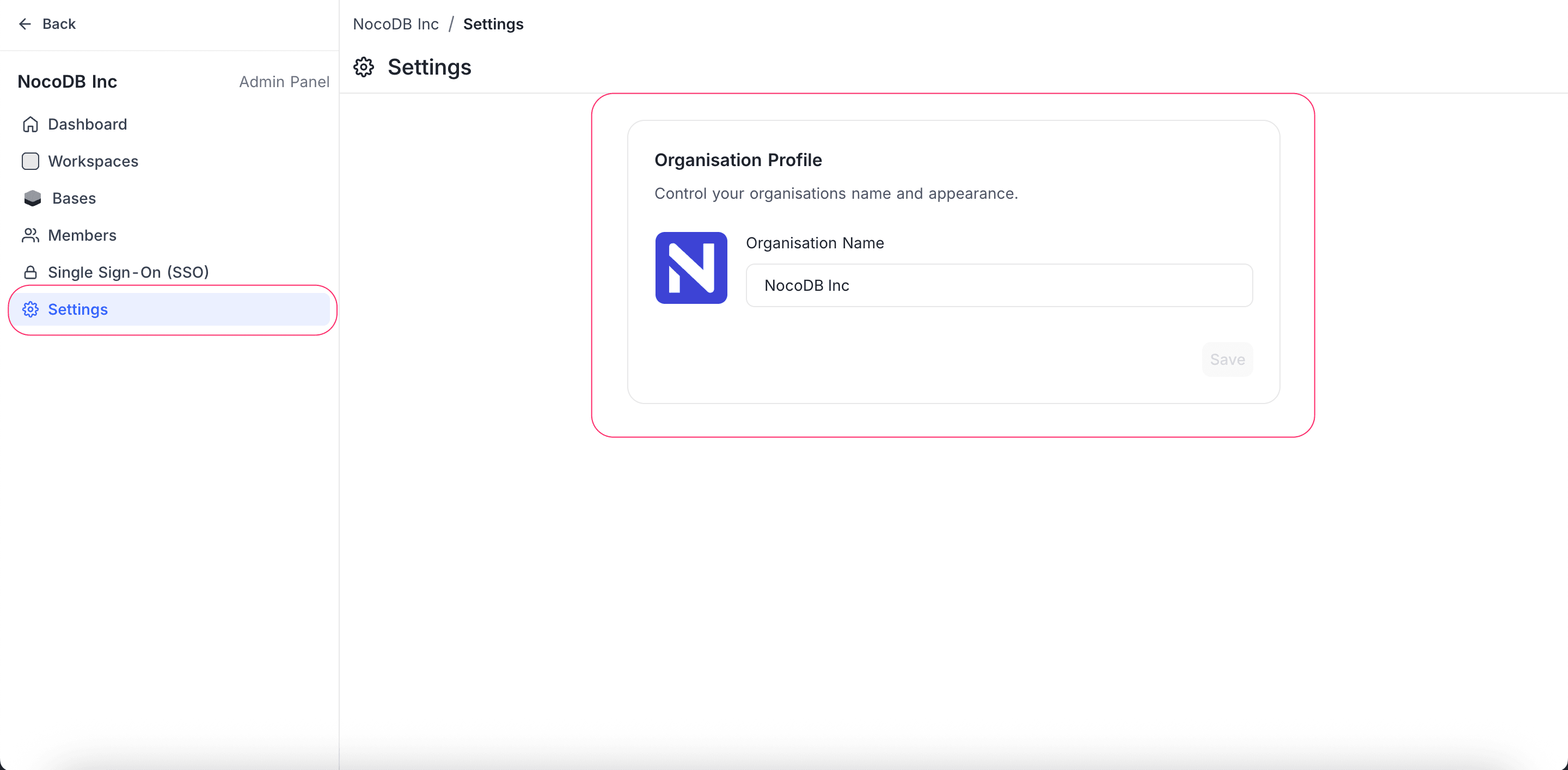
Editable Fields:
- Organisation Name – The display name for the organisation.
- Organisation Logo – Upload or update the logo for the organisation.
License (self-hosted only)
The License section is available in self-hosted deployments and allows super admins to activate a license key to unlock features such as SSO, audit logs, and advanced access controls.
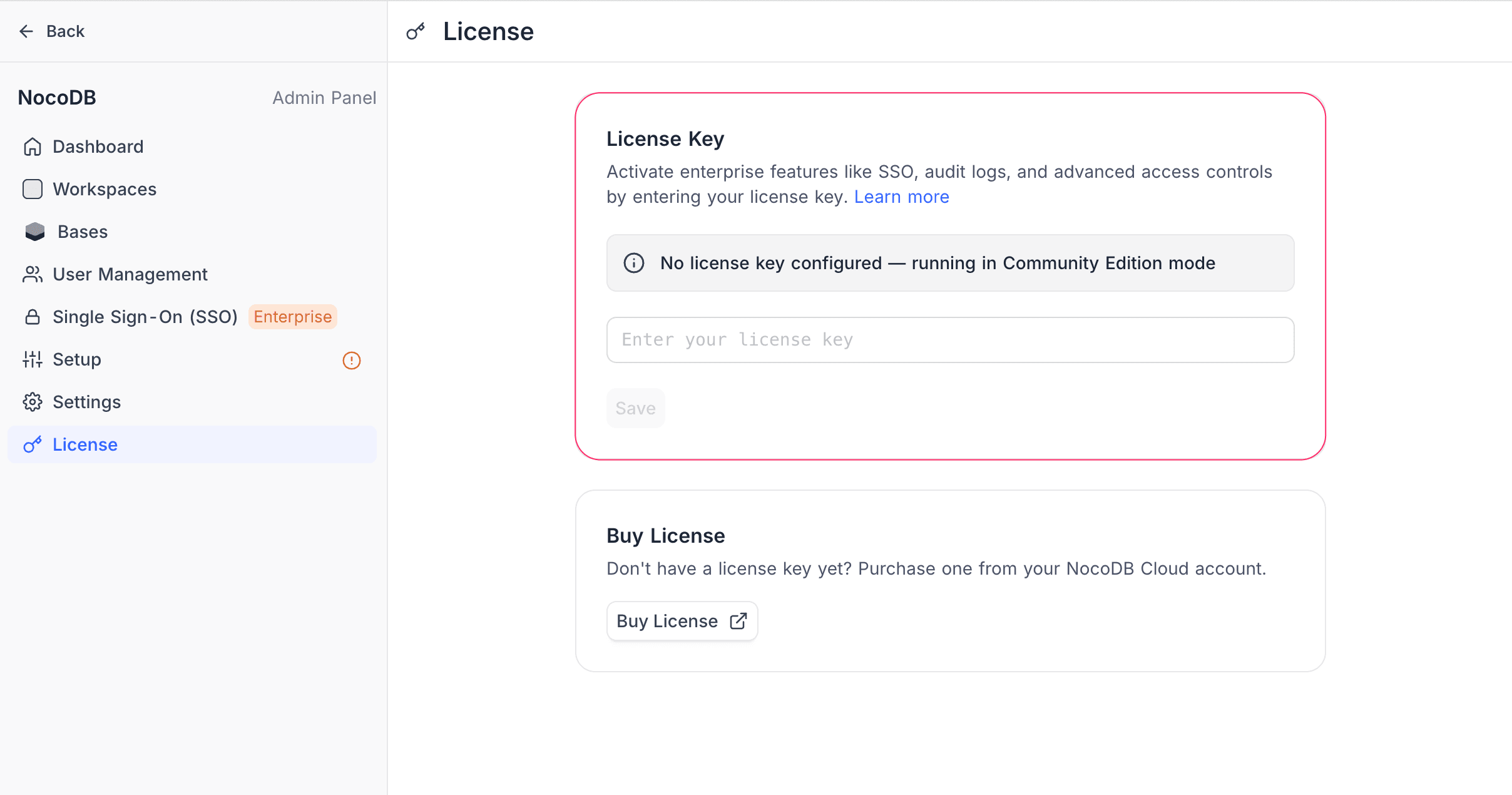
Paste your license key into the input field and click Save to activate. Once active, the status banner turns green and paid features are enabled immediately.
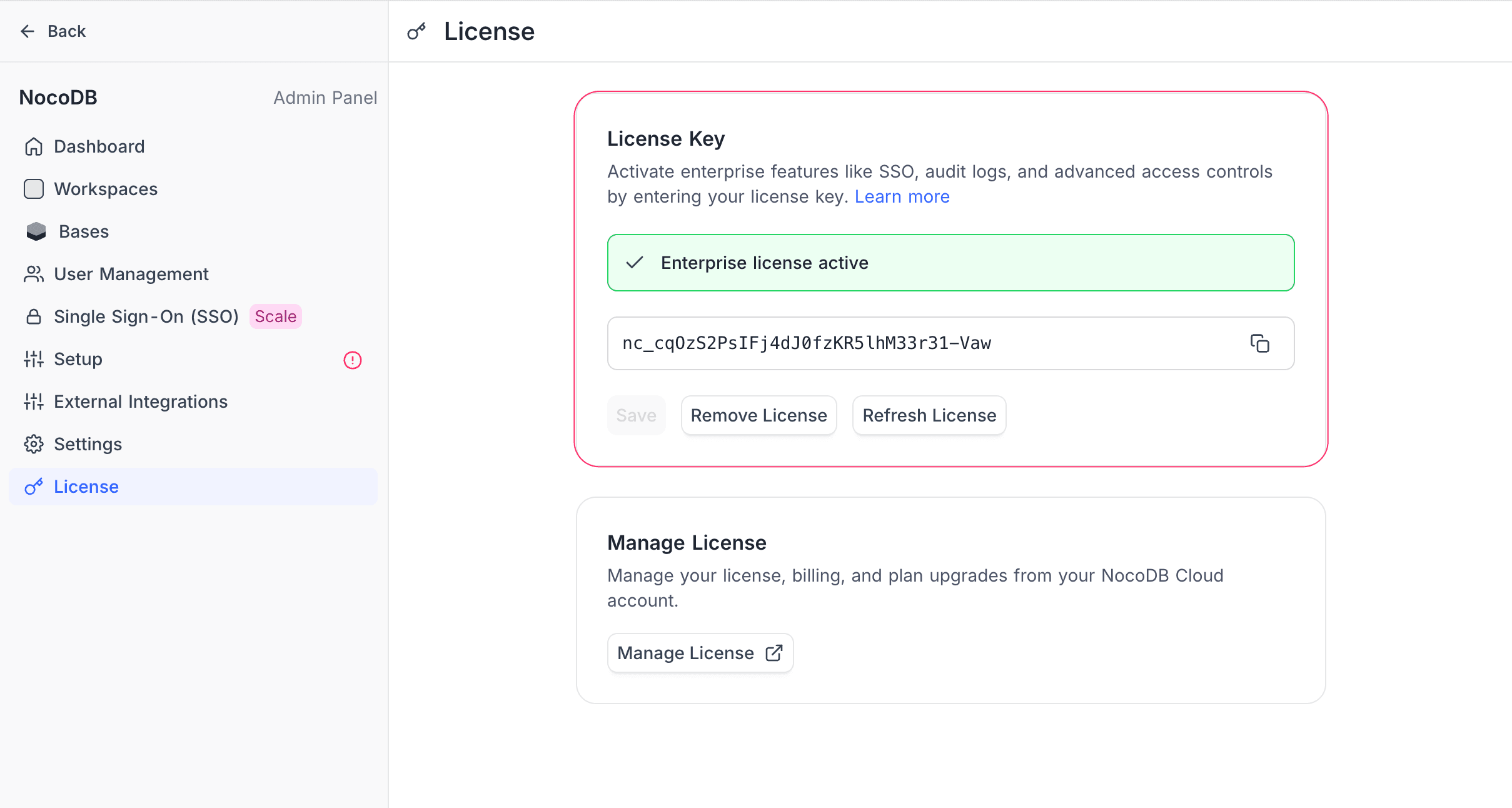
To purchase a license, see Purchase a License. For the complete activation guide — including airgapped and offline modes — see License Activation.
Additional Notes
- Only users with the Org Admin role can access the Admin Panel. Org Creators and Org Viewers do not have access.
- Actions in the Admin Panel are scoped at the organization level, affecting all workspaces and bases.
- Any updates made in this panel reflect immediately and globally across your NocoDB deployment.