Web Bookmarks
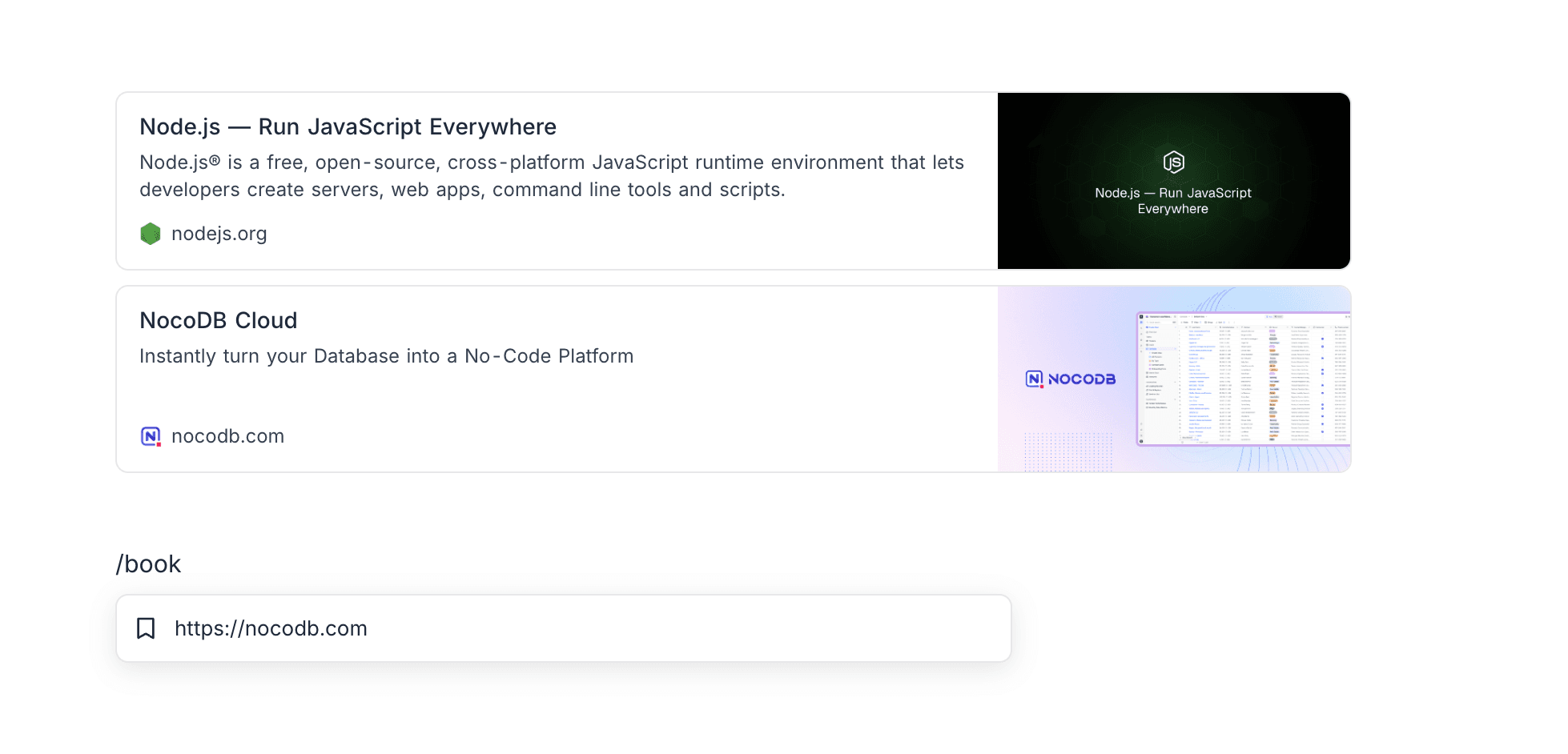
Save links as rich visual bookmark cards in NocoDocs.
A web bookmark turns any link into a rich visual card showing the page's title, description, site icon, and a preview image — far easier to scan than a bare URL. Use it to collect research sources, curate resource lists for your team, or reference articles and tools without cluttering your document with raw links.
Insert a Web Bookmark
-
Type
/in the editor and select Web bookmark from the slash command menu — or type/bookmarkto filter straight to it.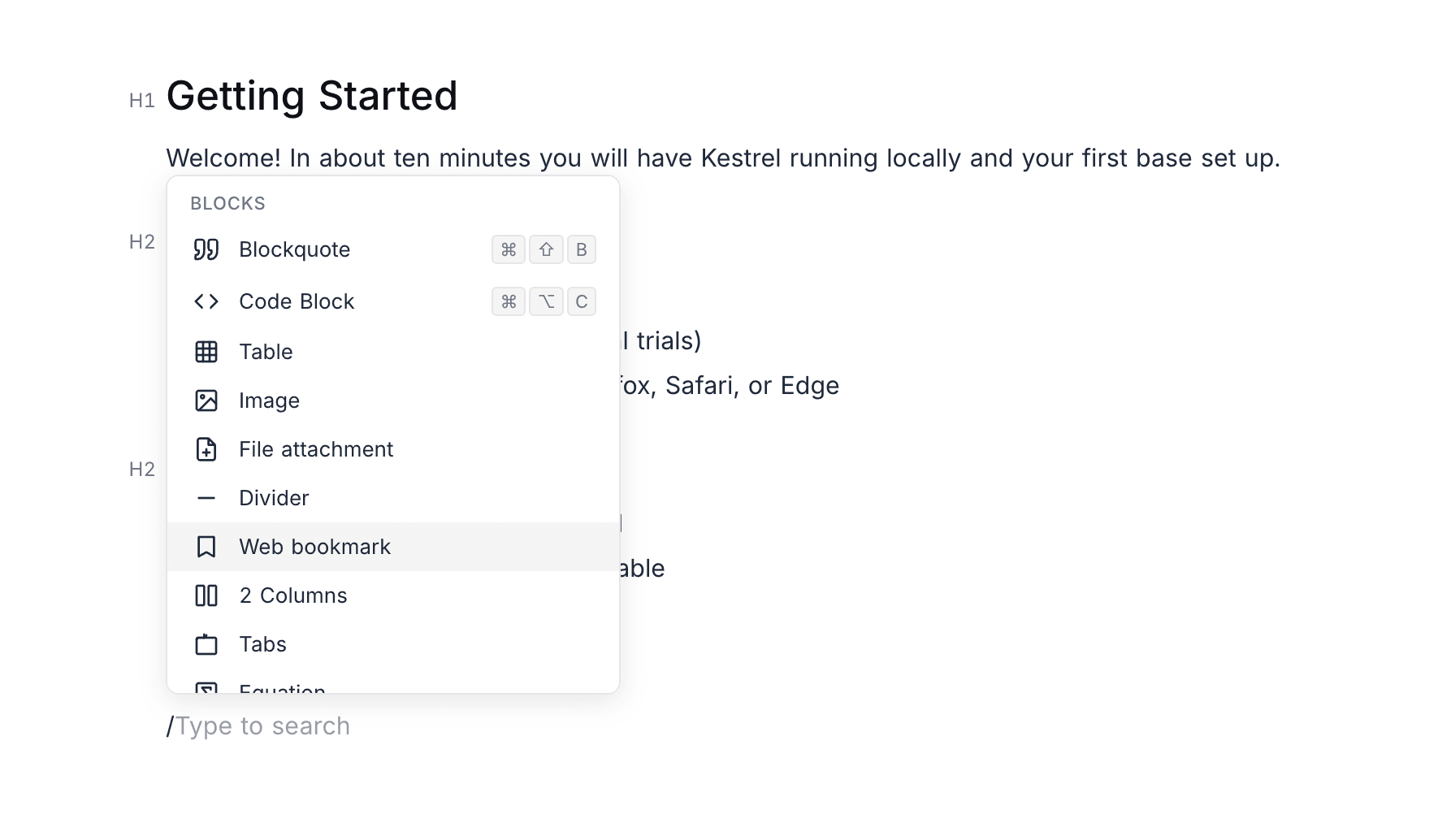
-
Paste or type the URL into the input and press
Enter.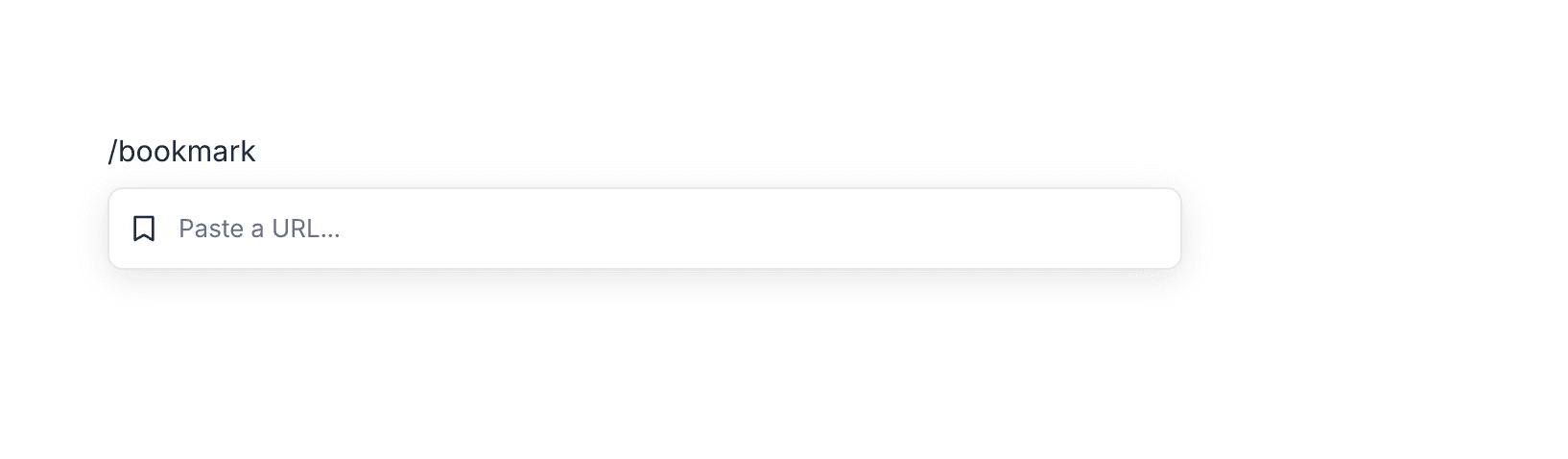
NocoDocs fetches the page's details and replaces the input with the finished bookmark card. Clicking the card opens the link.
What the Card Shows
| Element | Source |
|---|---|
| Title | The page's title |
| Description | The page's summary or social-preview description |
| Site icon & domain | The site's favicon and hostname |
| Preview image | The page's social-preview image, cached by NocoDocs so the card keeps rendering even if the original image moves |
If a page's details can't be fetched — for example, the site is unreachable or blocks preview requests — the bookmark remains a clean, clickable link card with just the URL.
Web Bookmarks vs Embeds
Both start from a URL, but they serve different purposes:
- A web bookmark is a compact, static preview card that links out to the page. Use it when you want to reference something.
- An embed renders live, interactive content from a supported platform directly inside the document. Use it when you want to show something.
Looking to pin workspaces, bases, tables, and views for quick navigation instead? That's the separate Bookmarks feature in the workspace dock.
Related Topics
- Embeds — Embed live content from 25+ platforms.
- Images & Attachments — Upload and embed media.
- Blocks — All available block types.