Custom Sync
Mirror tables from PostgreSQL, MySQL, or SQL Server databases into NocoDB as read-only synced tables.
Custom Sync is the App Sync category for databases. It mirrors tables from an external PostgreSQL, MySQL, or Microsoft SQL Server database into your base as synced tables that stay up to date with their source — giving business teams a friendly interface over operational data without migrations or export scripts.
Unlike other App Sync categories, which map sources onto predefined schemas, Custom Sync works with your schema: you pick the tables, and you control how each column maps to a NocoDB field type.
How It Works
Custom Sync is strictly one-way — from the database into NocoDB. Synced tables are read-only mirrors, so the source database remains the single source of truth. Data is refreshed using the standard App Sync machinery: Incremental or Full runs, triggered manually or on a schedule, with configurable source-delete handling.
Only regular tables are listed for syncing — database views are excluded. Each Custom Sync connects to a single source, but a base can contain as many Custom Syncs as you need.
Create a Custom Sync
-
Open the Manage Syncs tab from the base overview page and click + New Sync.
-
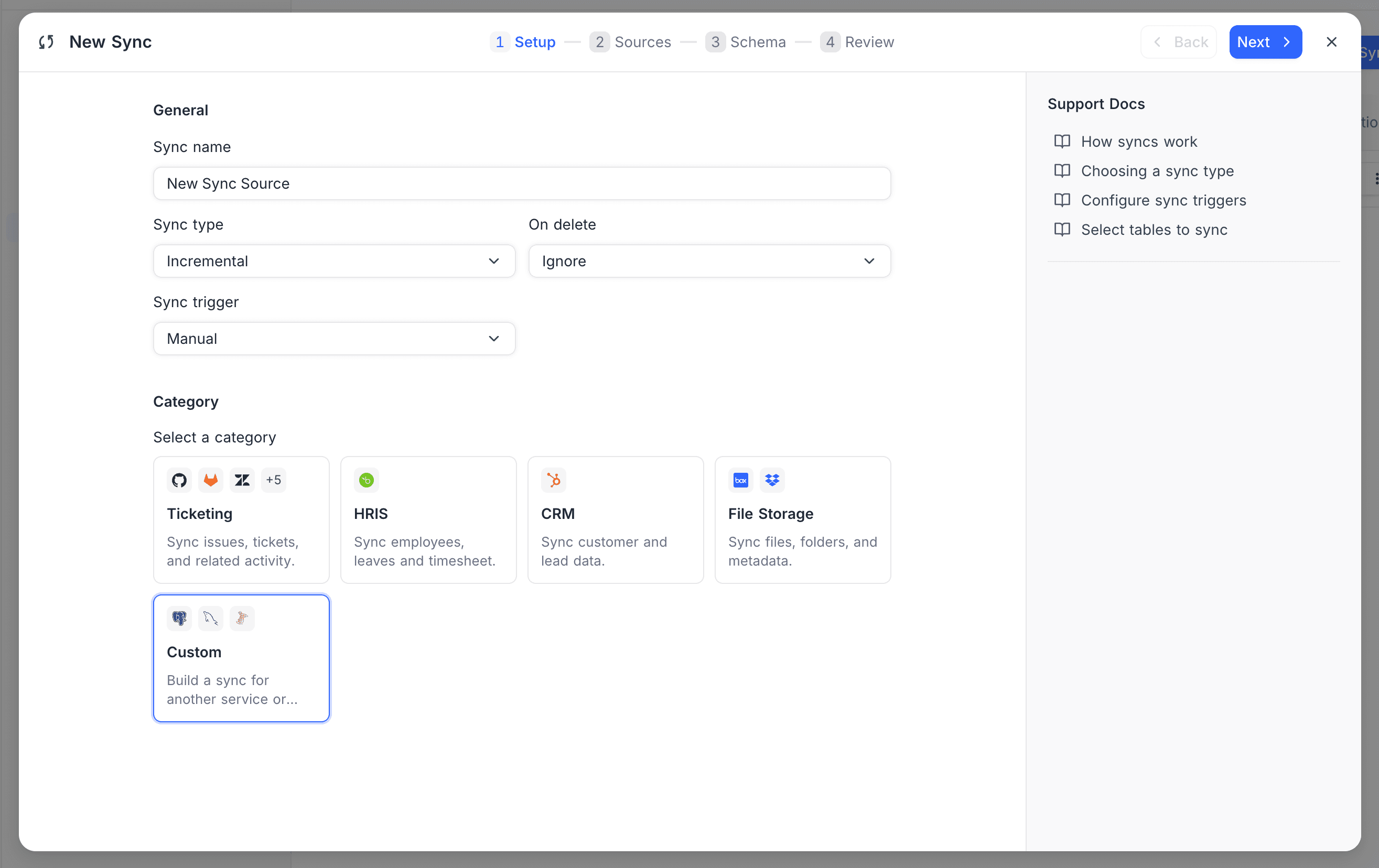
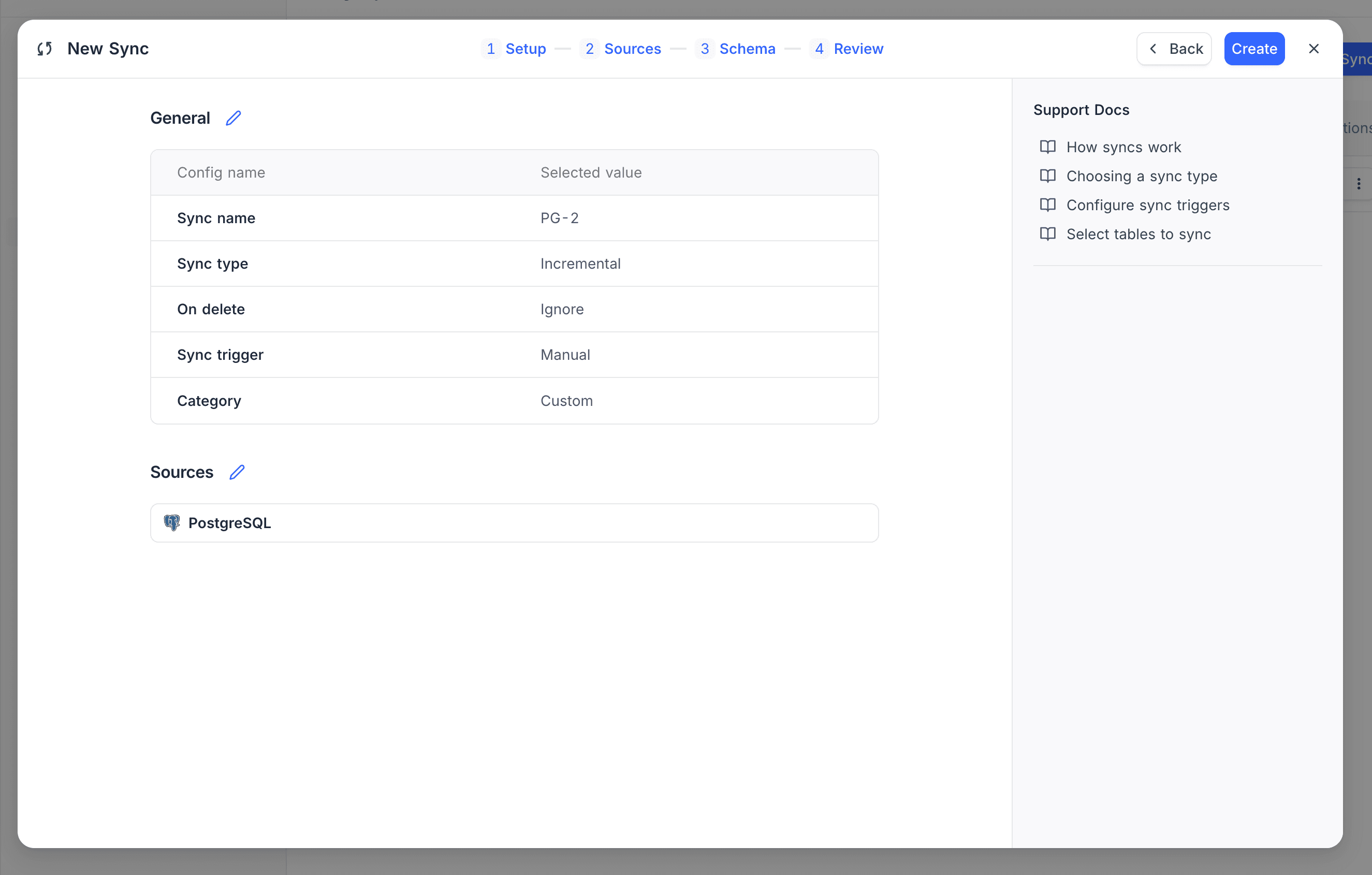
In the Setup step, name the sync and configure the Sync type, Sync trigger, and On delete behavior, then select the Custom category.
-
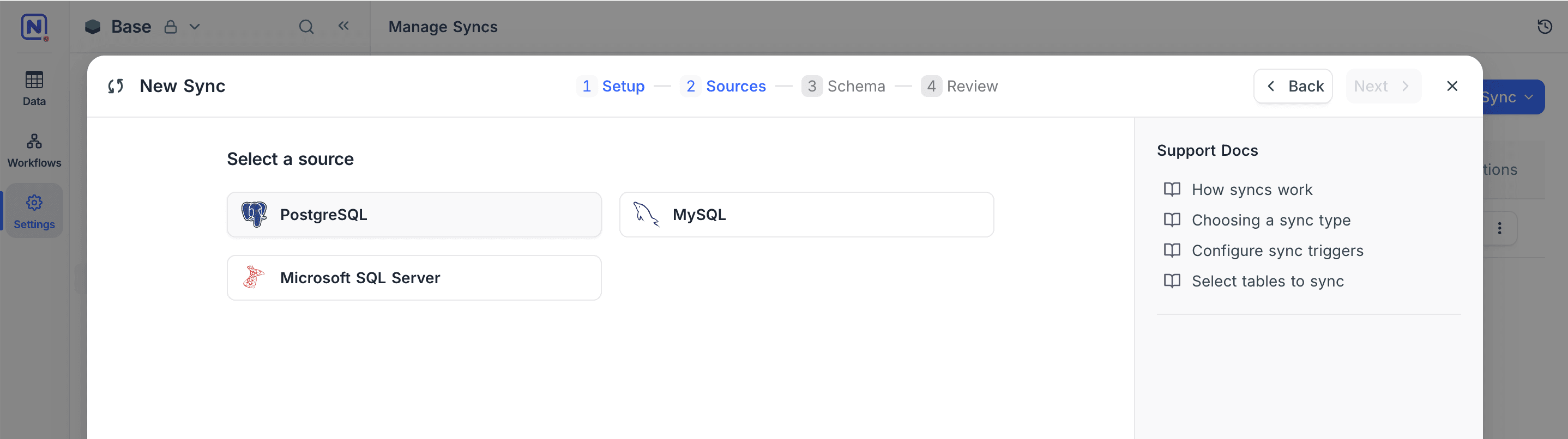
In the Sources step, choose your database engine: PostgreSQL, MySQL, or Microsoft SQL Server.
-
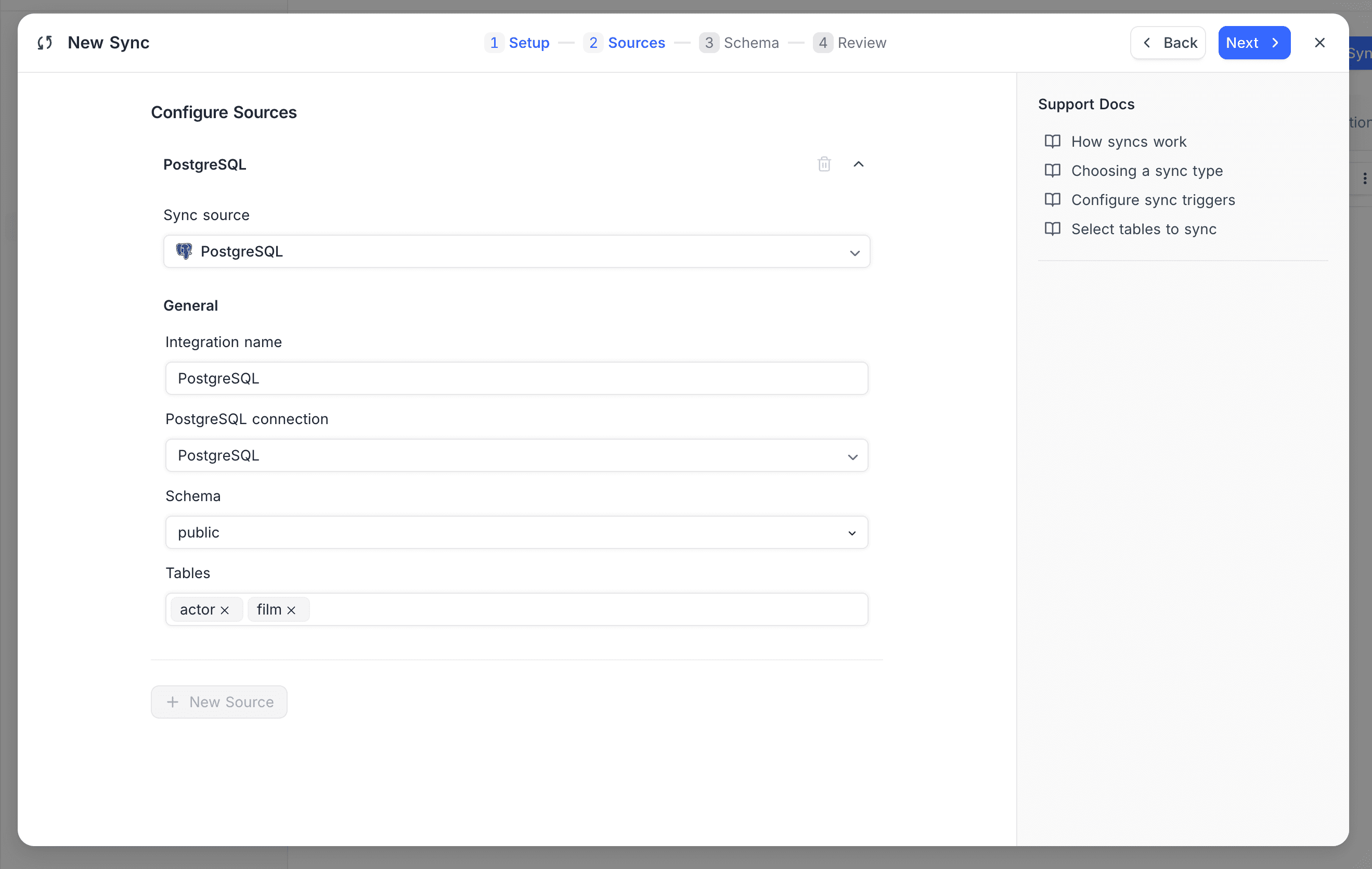
Configure the connection: pick an existing database connection or create a new one (host, port, username, password, database), select the Schema (PostgreSQL, SQL Server) or Database (MySQL), and choose the Tables to sync.
-
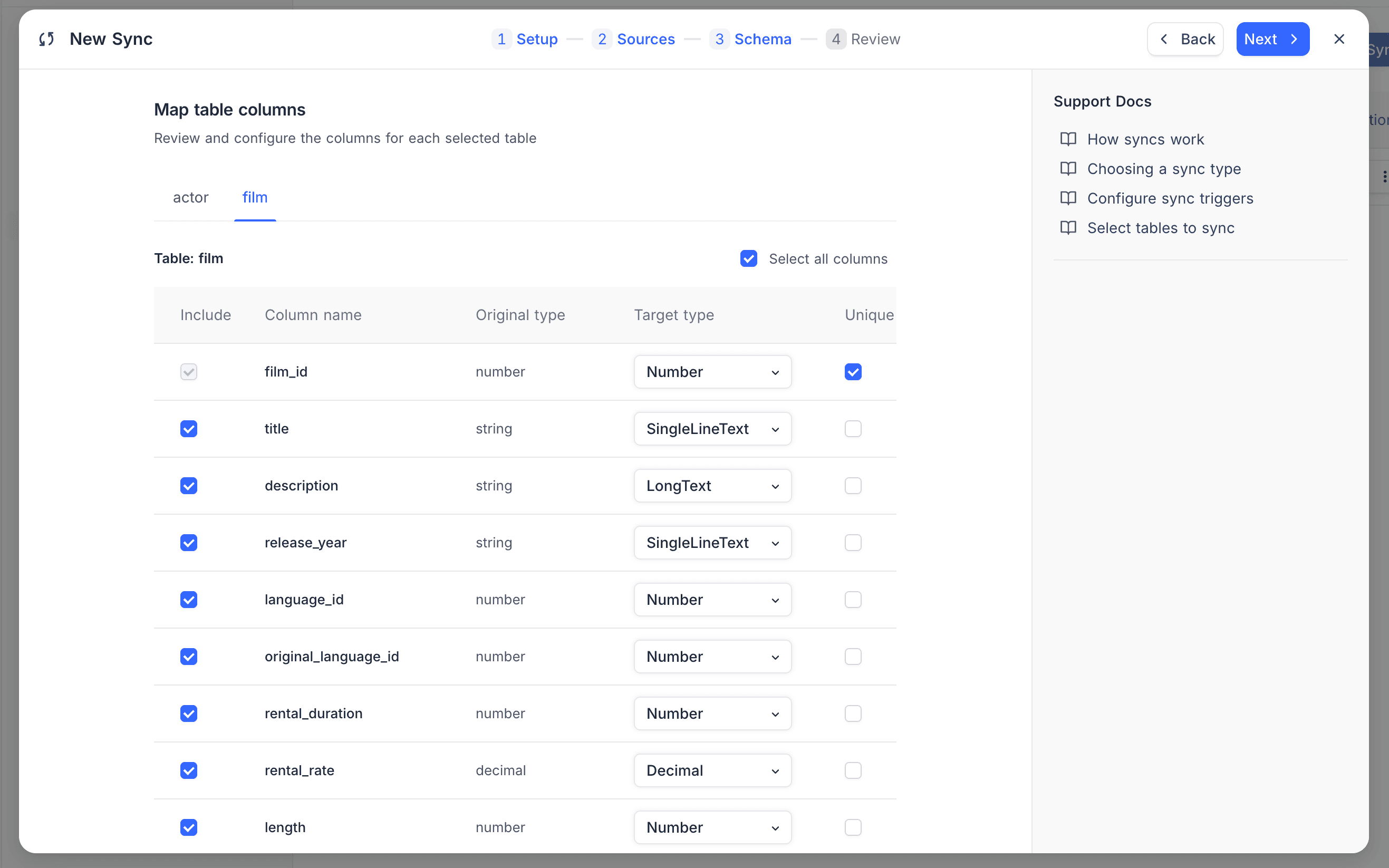
In the Schema step, fine-tune the column mapping for each selected table: include or exclude columns, review each column's original type, choose among the compatible NocoDB Target types, and confirm the Unique ID along with the Created at and Updated at designations. NocoDB auto-detects sensible defaults, including the table's primary key.
-
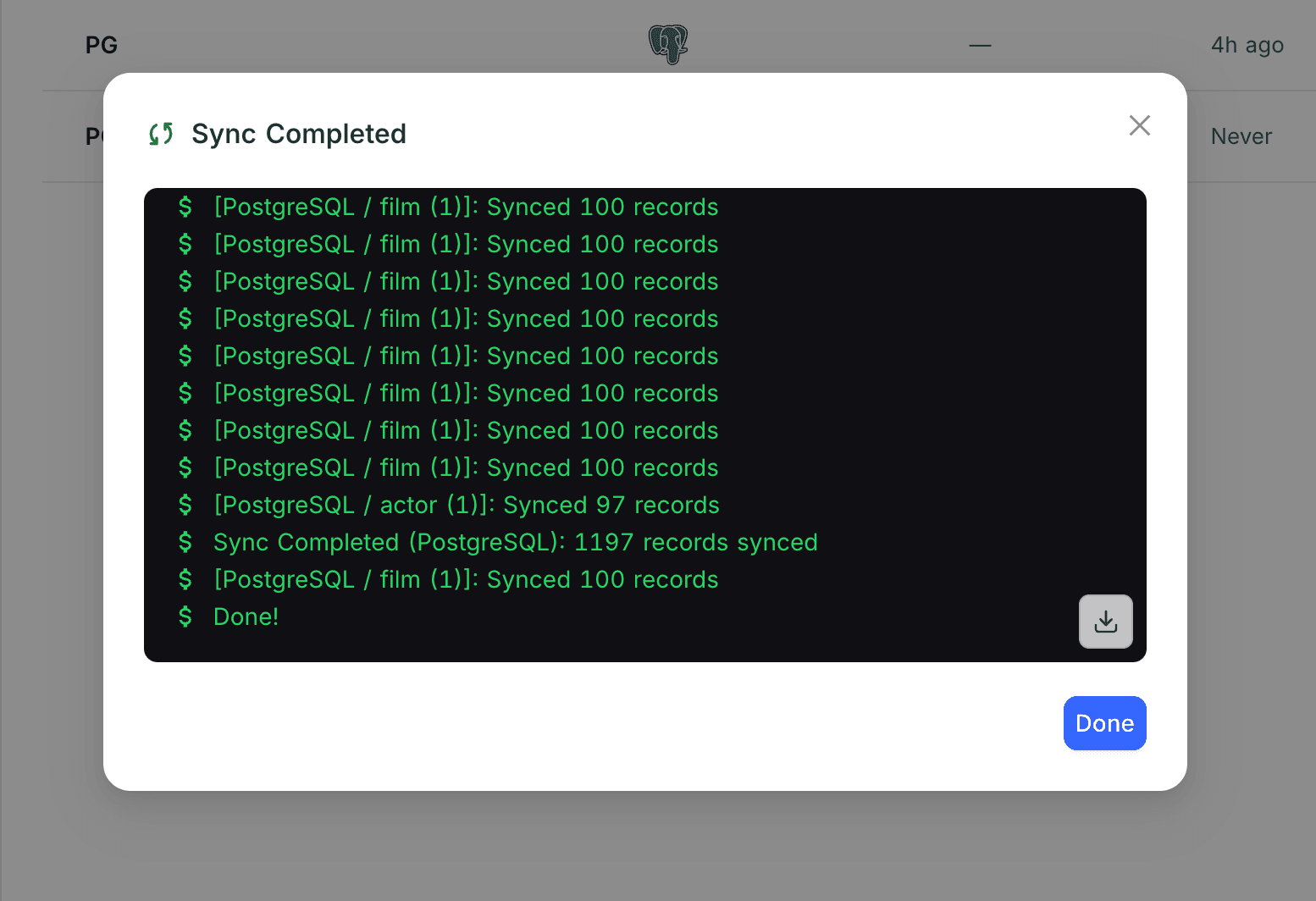
Review the configuration and click Create. A log window shows the initial sync's progress; once it completes, the synced tables appear in your base.
Working with Synced Tables
Synced fields are read-only and marked with a flash icon (⚡) — the sync owns them, and they update only from the source database.
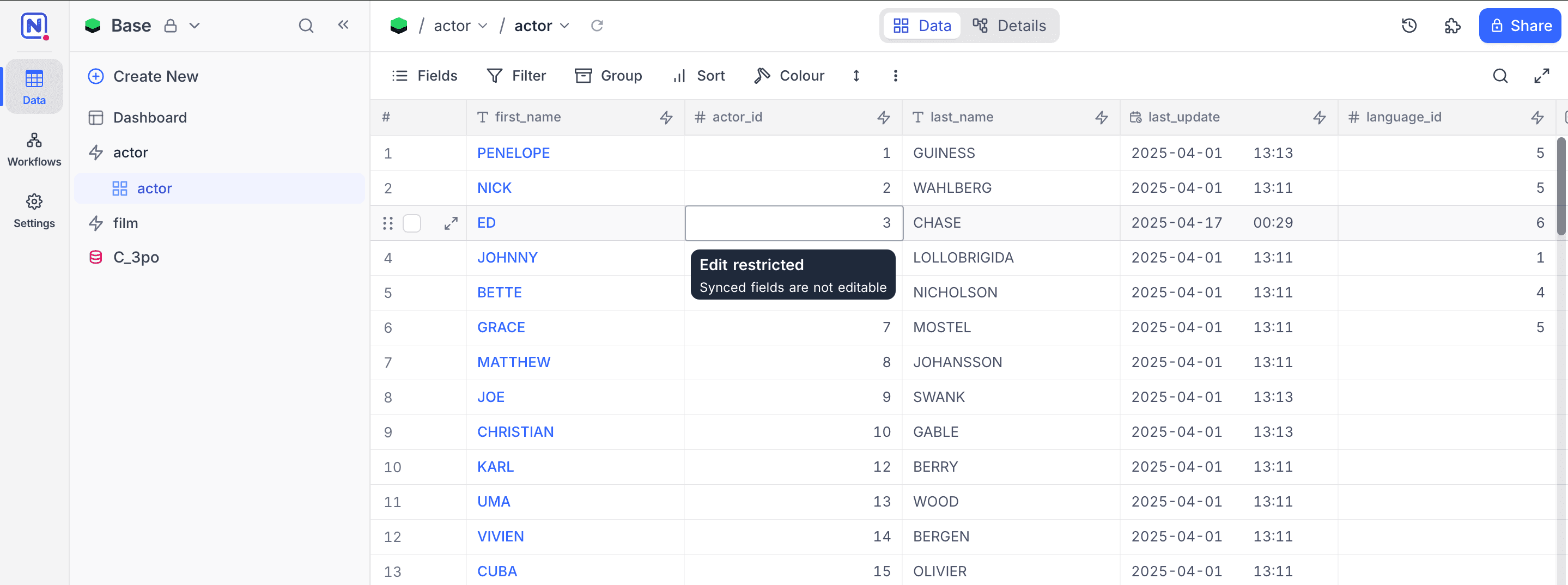
Beyond that, synced tables behave like regular NocoDB tables: add your own custom fields alongside the synced ones, build views with filters, sorts, and grouping, link them to other tables, and use them in dashboards and automations.
Keeping Data in Sync
- On demand — click Trigger Sync next to the sync in the Manage Syncs tab.
- On a schedule — choose the Scheduled trigger with an Hourly or Daily interval.
With the Incremental sync type, each run fetches only records that changed since the last run, based on the designated Updated at column; Full re-imports everything.
Edit a Custom Sync
Open the sync from the Manage Syncs tab to rename it, adjust trigger settings, or add and remove tables — existing column mappings are preserved.
Delete a Custom Sync
When deleting a sync, you choose what happens to the destination tables:
- Convert to plain tables — keep the synced data and unlock the tables for editing; only the sync configuration is removed.
- Delete synced tables — drop the mirrored tables along with the sync configuration.
Related Topics
- App Sync overview — sync types, triggers, and delete handling.
- NocoDB Sync — mirror a shared view from another NocoDB base.