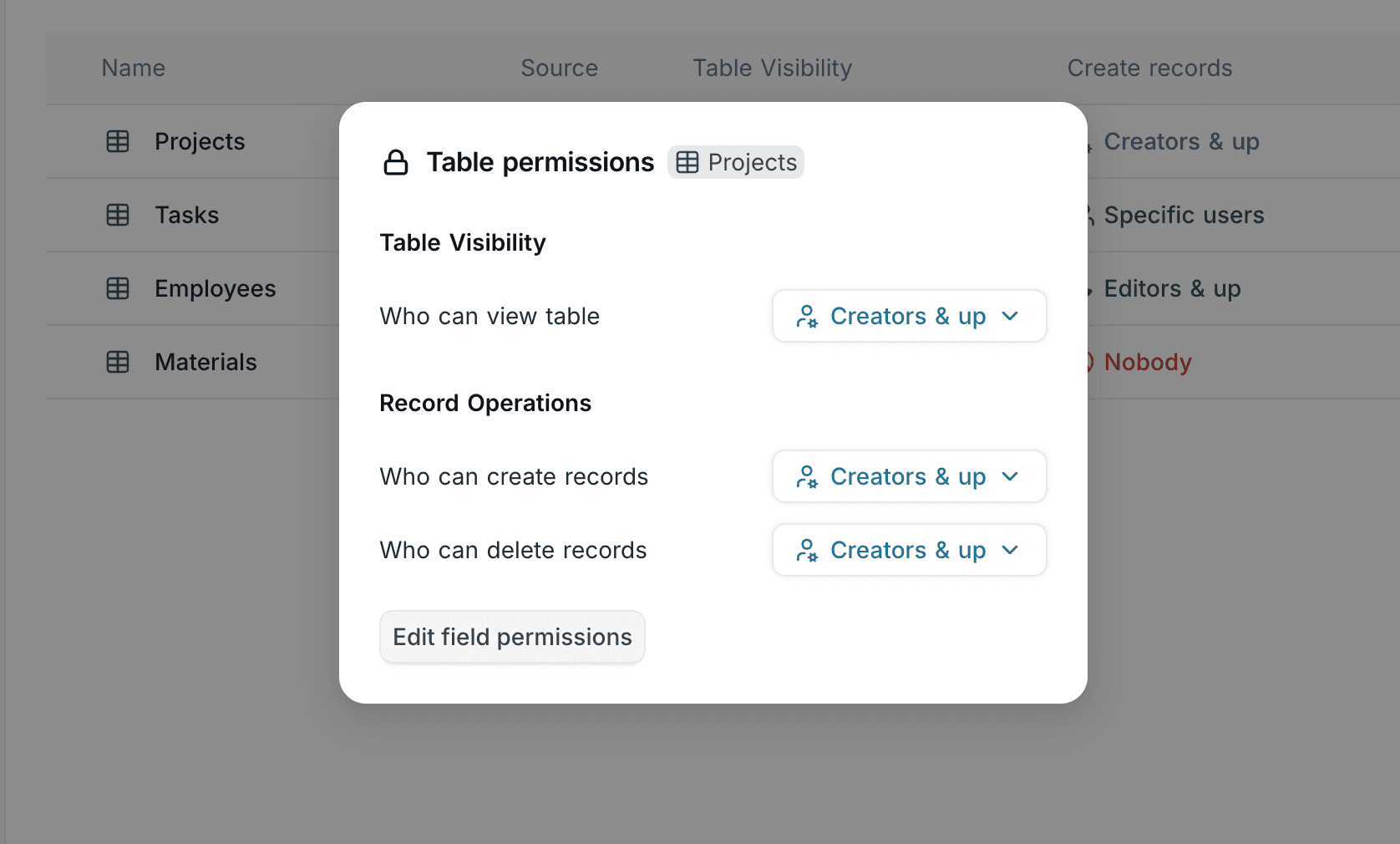
Table Permissions
Learn about working with table permissions in NocoDB.
Table permissions in NocoDB allow you to control what users can see and what actions they can perform within a table. Visibility determines whether a table exists for a user, while record permissions allow you to define who can create or delete records in that table.
Table Visibility
Table Visibility determines whether a table and its views are discoverable and accessible to a user within a base. When a table is visible, the user can access and interact with it according to their assigned roles & permissions. When a table is not visible, it is treated as non-existent for that user.
Information below lists down various visibility options:
| Option | Who can see the table |
|---|---|
| Creators & up | Members with Creator or Owner roles |
| Editors & up | Members with Editor, Creator, or Owner roles |
| Specific users or teams | Only selected members or teams |
| Everyone | All members of the base (default) |
Note:
- By default, all tables are visible to everyone in the base.
- Table visibility is evaluated before checking record permissions. If a table is not visible to a user, they cannot access it or perform any actions within it, regardless of their record permissions.
- Hidden tables will be excluded from APIs, Automations, Scripts & Extensions that list or access tables.
Configuring Visibility
To configure the visibility of a specific table:
- Click the
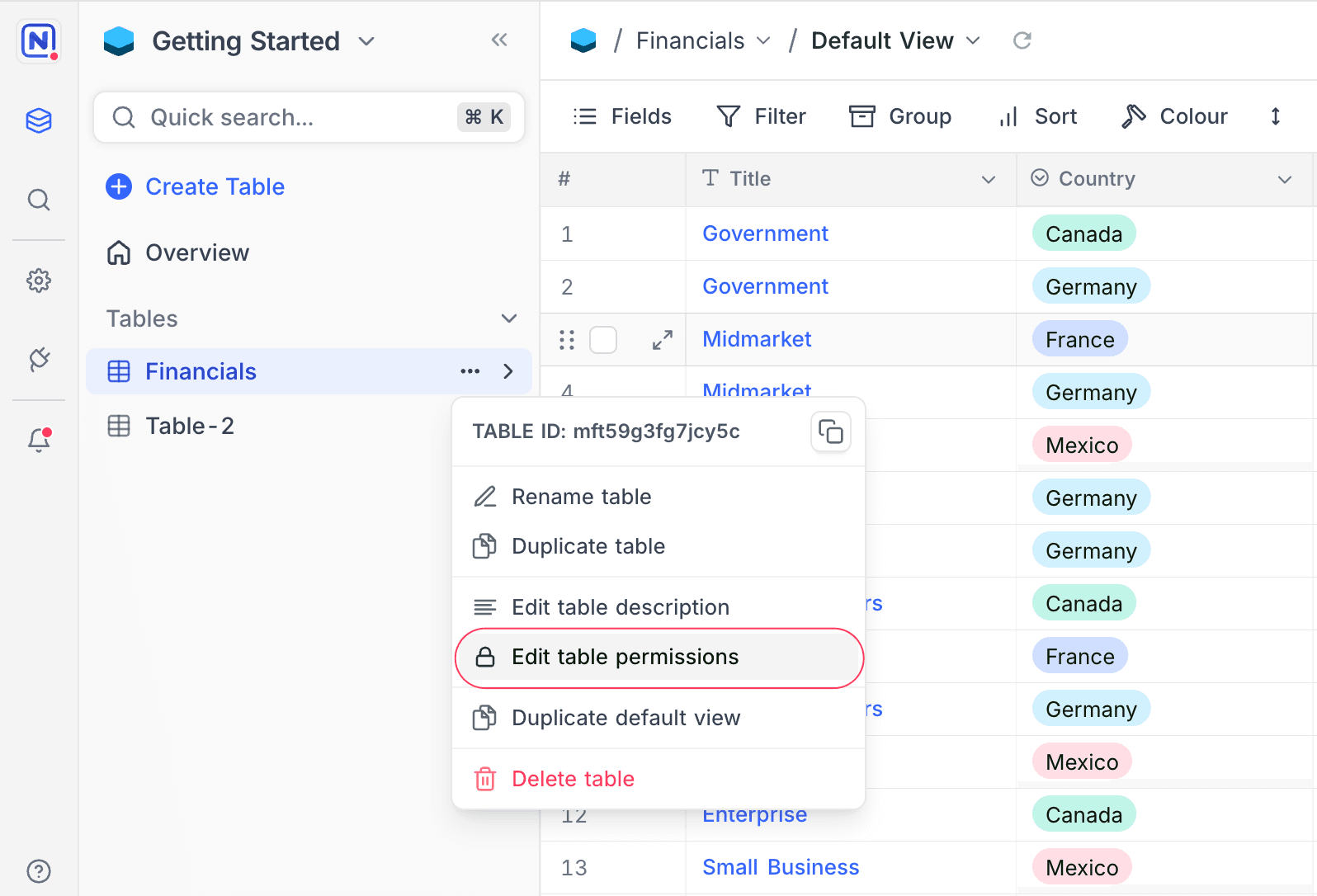
⋯icon next to the table name in the sidebar. - Select Edit table permissions.
- Use the dropdown menus against Who can see this table? to define visibility.
- If you select Specific users or teams, choose the members or teams who should have access to the table.
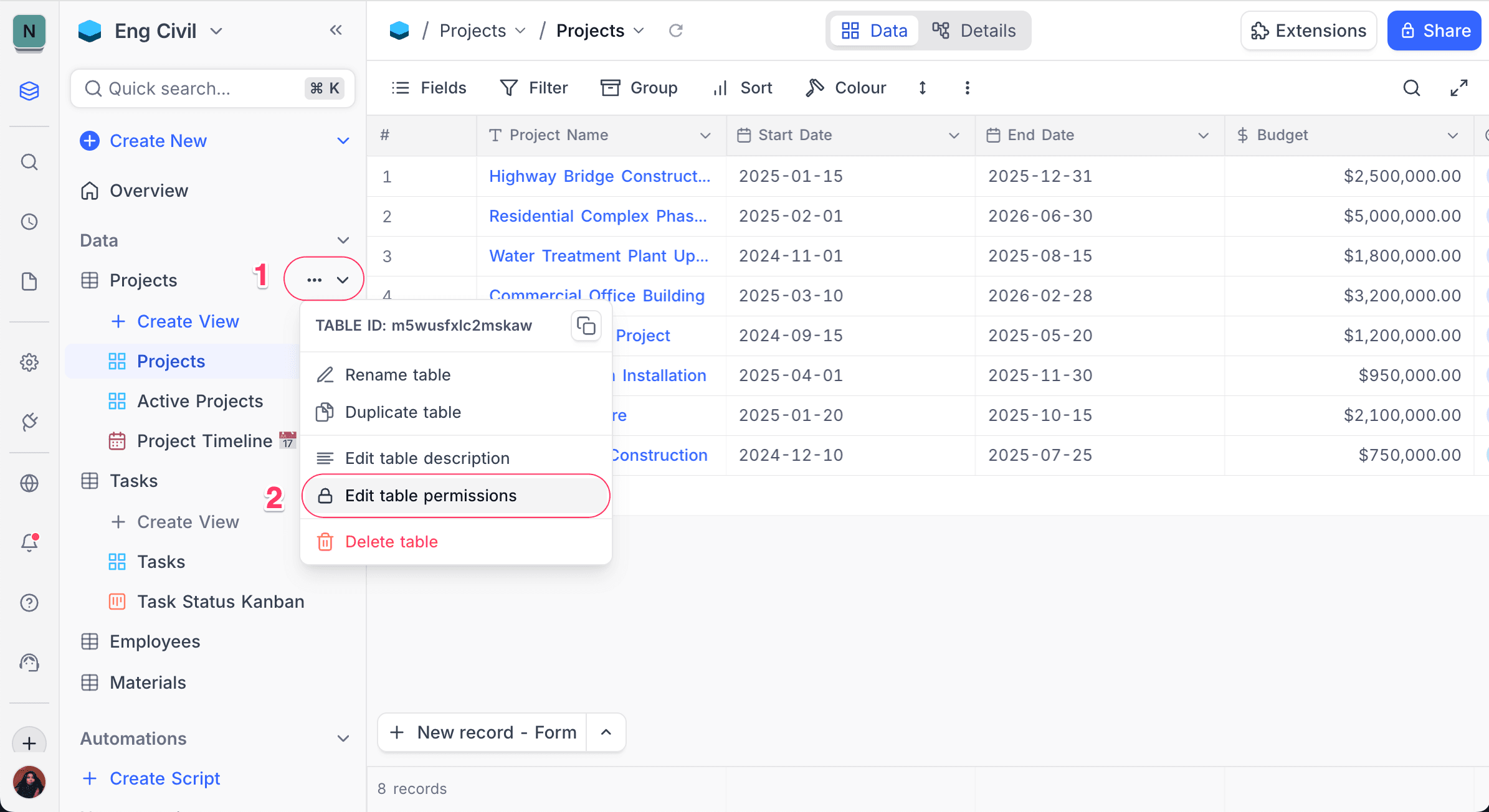
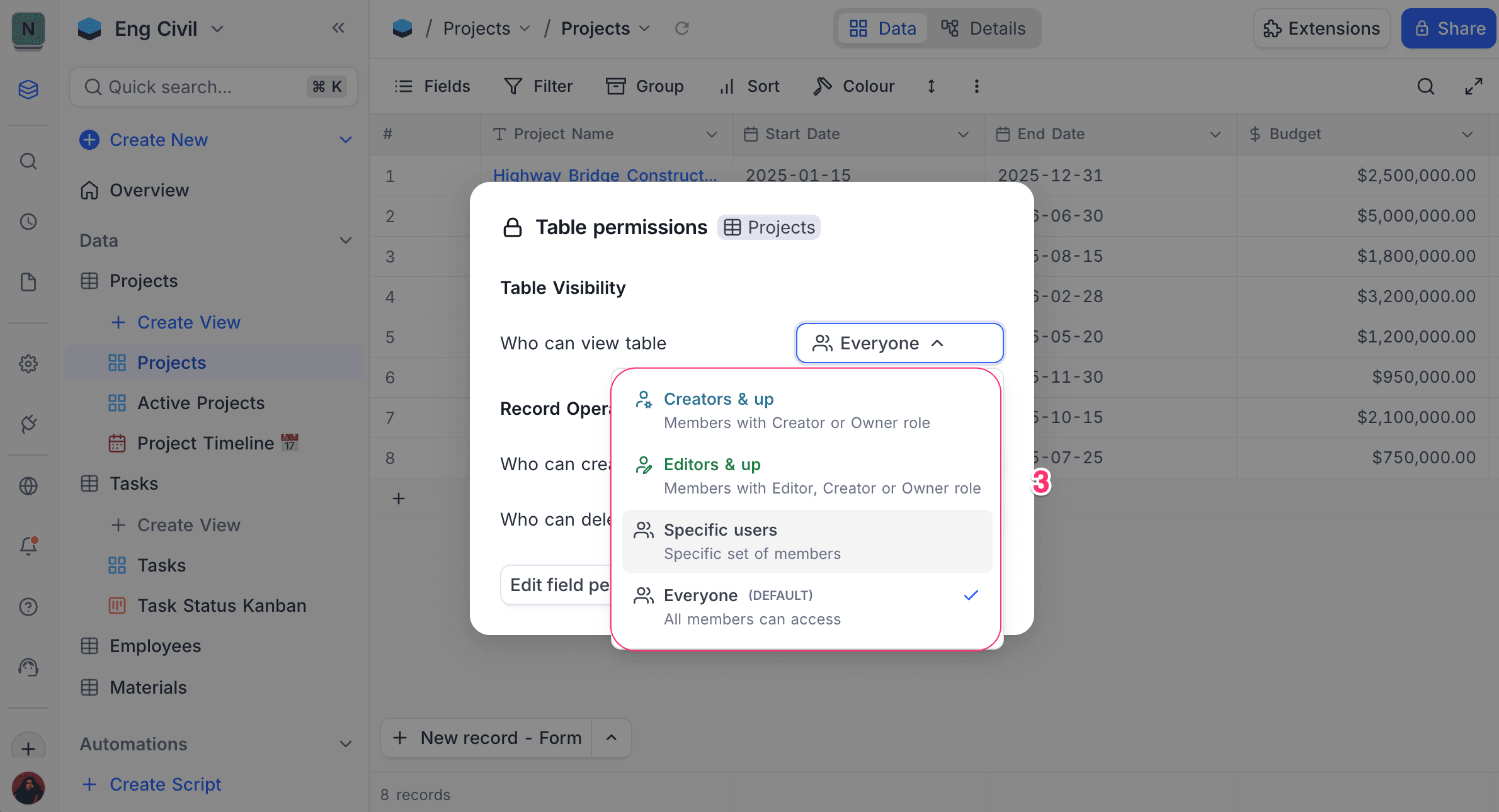
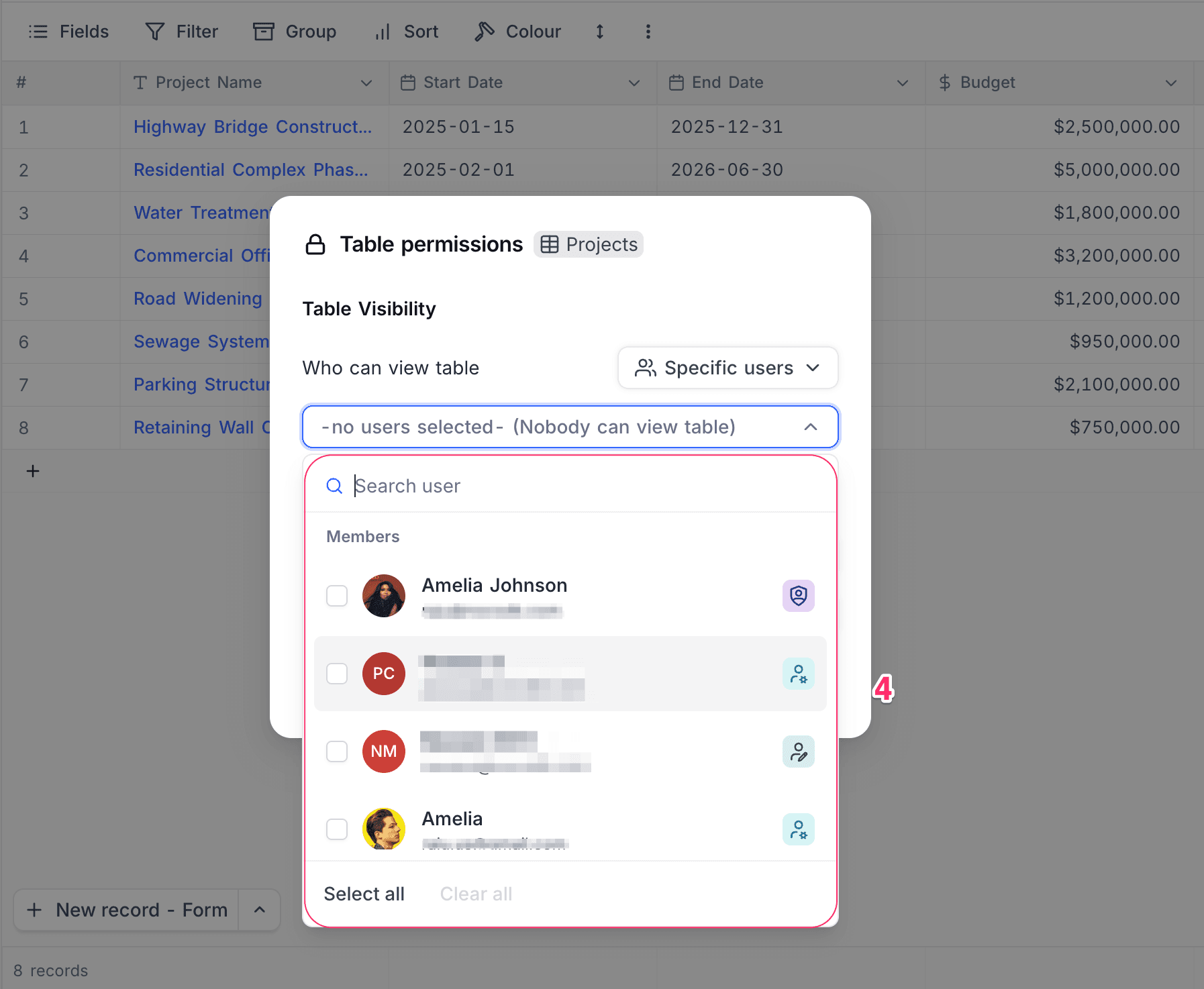
Note that, only Base Owners can modify table visibility settings. Other members will not see this option in the menu.
Visibility Notes
Shared bases and shared views Table visibility affects shared access. Only tables with the visibility option set to Everyone are accessible in a shared base or shared view.
Relational fields When a table is hidden from a user, relational fields linking to that table will list only the display values of the linked records. Based on their role (Editor+), the user may still link or unlink records from the source table, but cannot open or access the linked records themselves. Lookup and Rollup fields continue to function and display values from the hidden table, without granting visibility or access to that table.
Edit modal for relational fields linking to hidden tables would display table & view names as "Private Table" and "Private View" respectively.
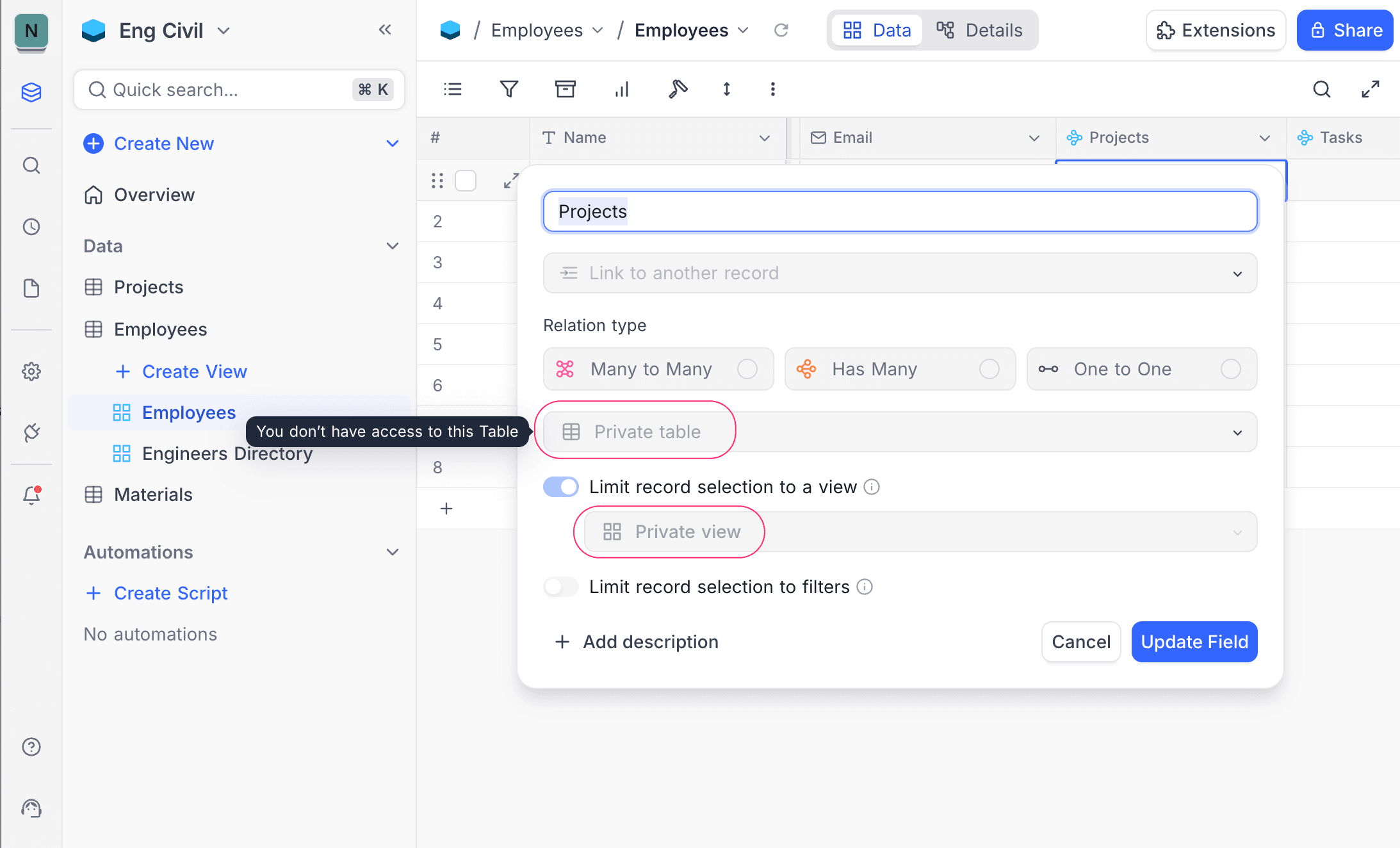
Duplicating bases When duplicating a base, only the tables visible to the duplicating user are copied to the new base. Tables hidden from that user are excluded from the duplicated base. Hence, relational fields linking to hidden tables will also be excluded. Formula fields referencing such relational fields may display errors due to missing references.
Table Record Permissions
Table Record Permissions determine what actions a user can perform on records within a table. When permissions are granted, users can create or delete records according to their assigned roles and configured access levels. When permissions are restricted, those actions are disabled, while the table and its records may still remain visible to the user.
Configuring Record Permissions
To configure record access permissions for a specific table:
- Click the
⋯icon next to the table name in the sidebar. - Select Edit table permissions.
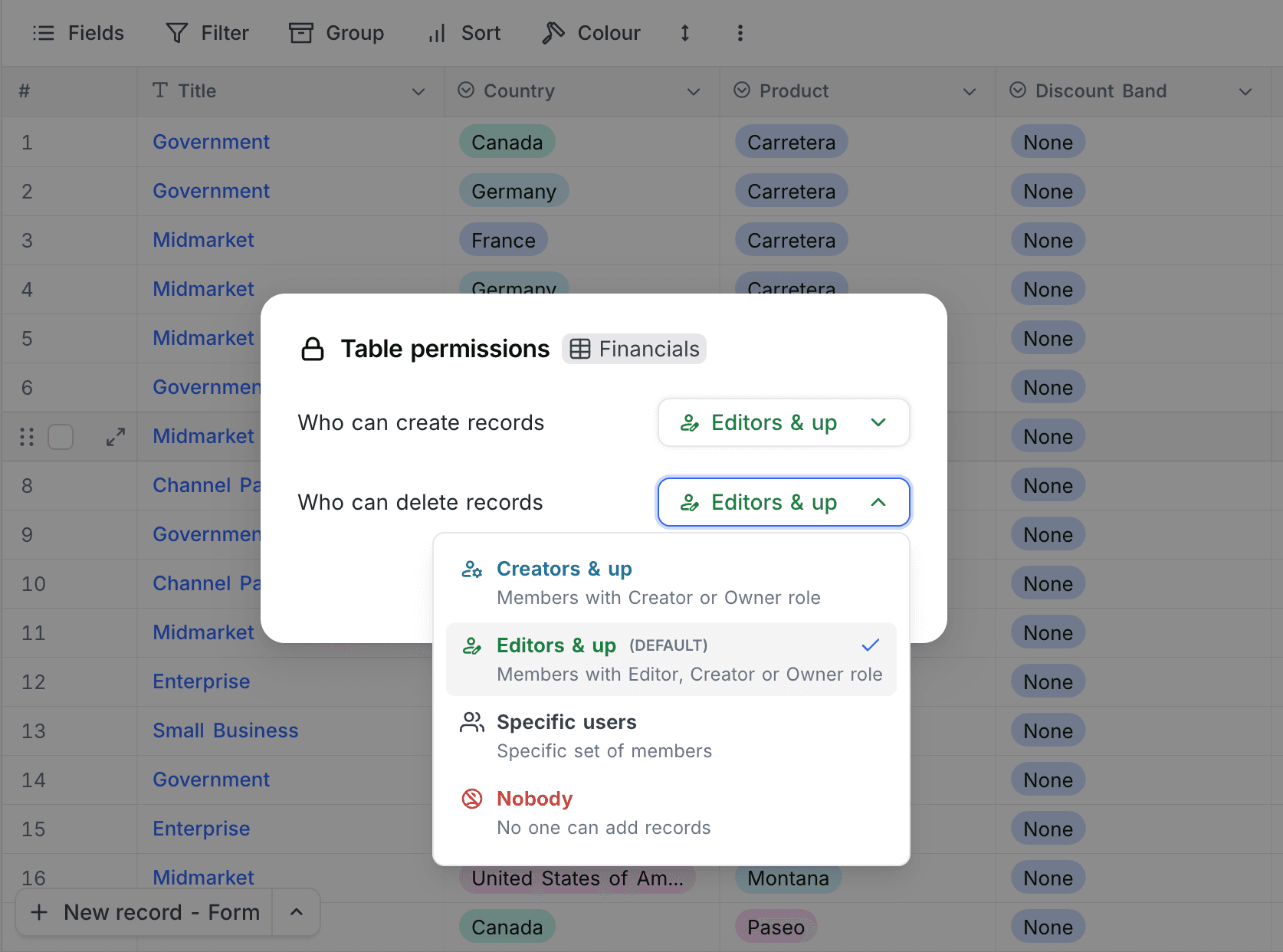
- Use the dropdown menus to define who can:
- Create records
- Delete records
Permission Levels
You can assign different access levels for each action (create or delete record). The available options are:
| Option | Who gets access |
|---|---|
| Editors & up | Members with Editor, Creator, or Owner roles (default) |
| Creators & up | Members with Creator or Owner roles |
| Specific users or teams | Selected members or teams |
| Nobody | No one can perform this action |
By default, members with the Editor role and above can create and delete records in a table.
- Choose Creators & up to restrict these actions to creators and owners.
- Choose Nobody to disable record creation or deletion entirely.
- Choose Specific users or teams to grant access only to selected members or teams.

Record Permission Notes
- Table permissions do not control record visibility — users with access can still view all records. However, their ability to create or delete records depends on the configured permissions.
- Permissions are applied at the table level and affect all records within that table. They cannot be defined for individual records or specific subsets.
- Table permissions function independently of field permissions; each can be configured separately.
- Table permissions also apply to:
- Record creation or deletion via APIs, and
- Record creation through shared forms.
Permissions Overview
The permissions overview provides a consolidated summary of table and field permissions across the base.
To access the permissions overview:
- Go to the base homepage (click Overview in the sidebar).
- Click the Permissions tab.
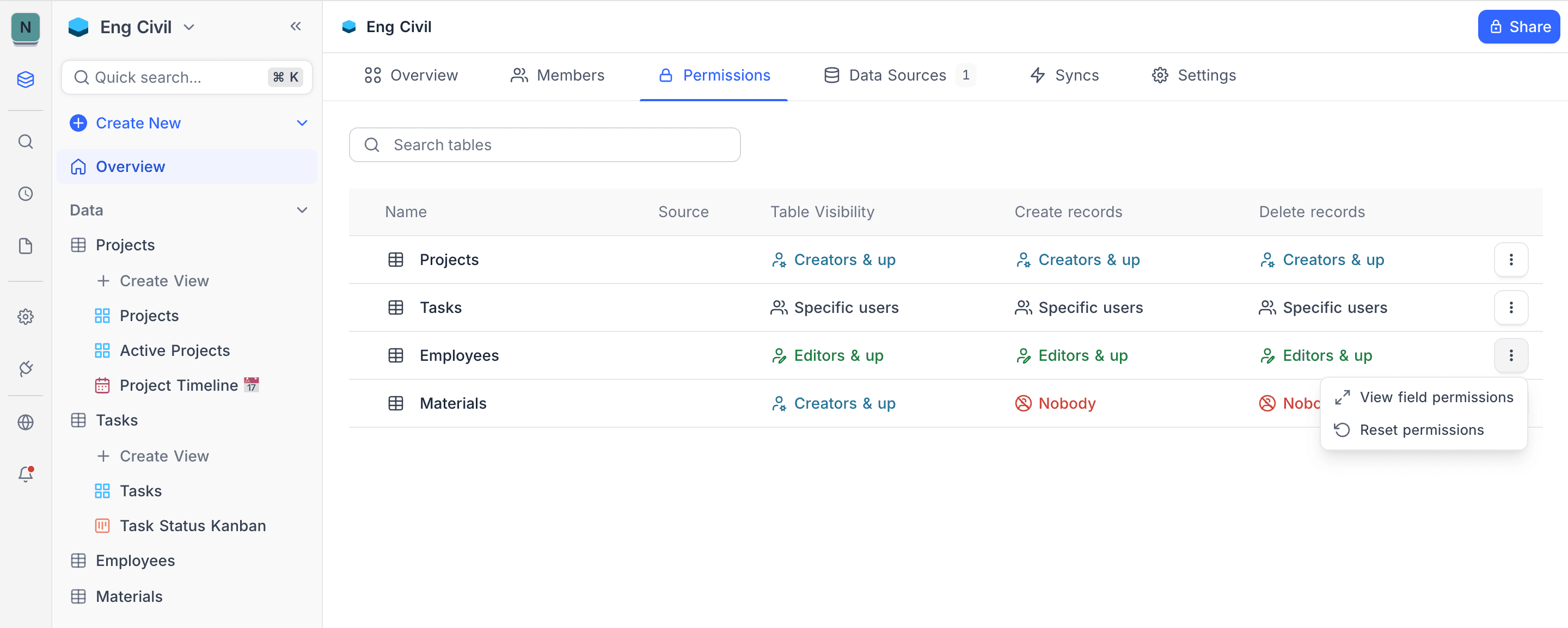
Select the table you want to review. The overview displays both table and field permissions, showing who can see the table, create records, delete records, and the visibility of each field within that table.
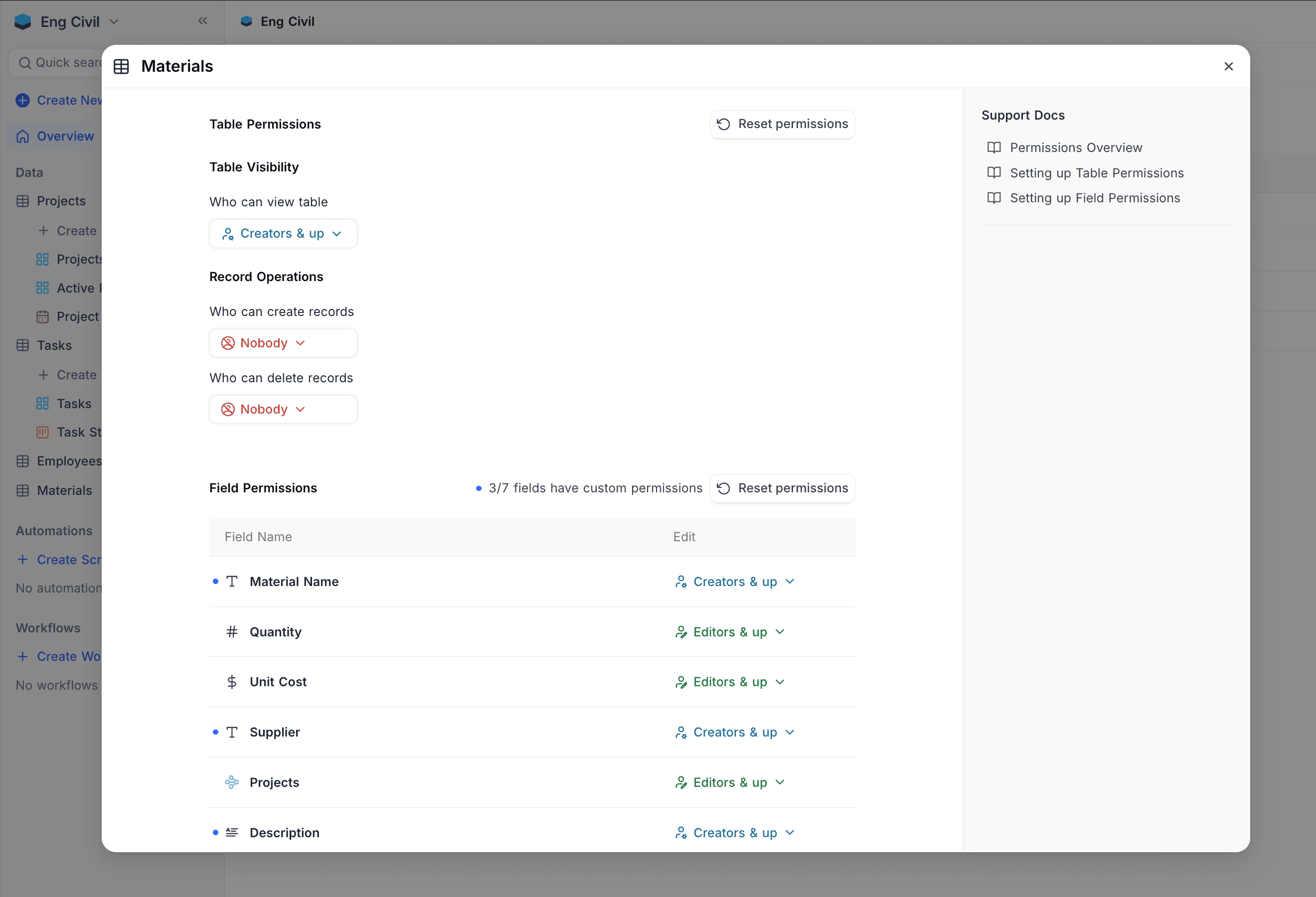
You can also open the Permissions overview directly from the table or field permission configuration modal.