NocoDB terminologies
Familiarize yourself with key terms used across NocoDB.
Layout
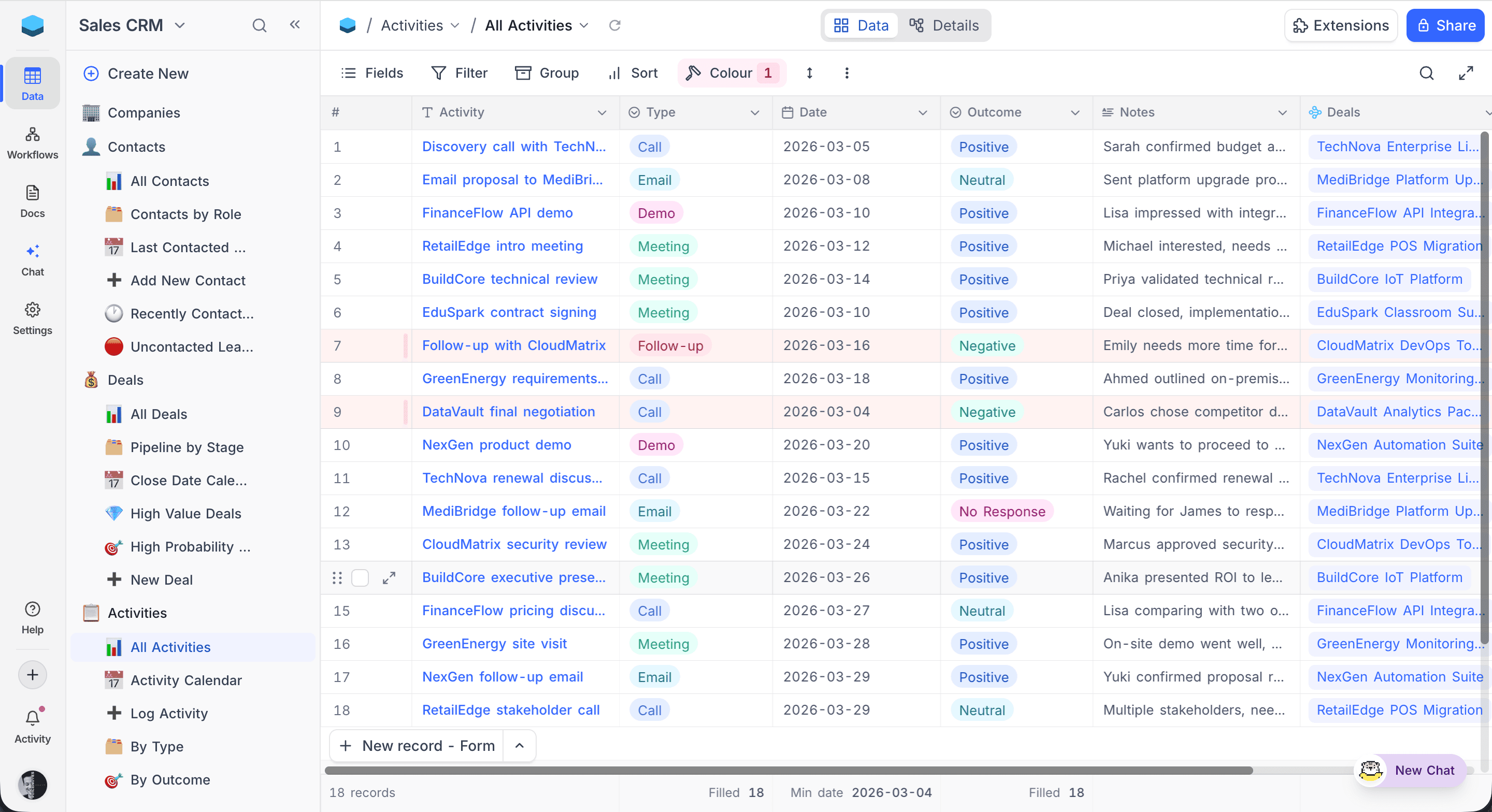
The layout below shows the main parts of NocoDB's user interface.
-
Minibar: The vertical bar on the far left with icons for quick access to Search, Workflows, Integrations, Help, and Settings.
-
Sidebar: Displays the base name (e.g., "Sales CRM"), a Create New button, and a tree of all tables and their views. Each table and view shows its icon for easy identification.
-
Navbar: The horizontal bar at the top showing the current breadcrumb path (Base > Table > View), along with tabs for Data, Details, and Extensions, and the Share button.
-
Toolbar: Located below the Navbar, provides tools for the current view — Fields, Filter, Group, Sort, Colour, row height, and search.
-
View Area: The central workspace displaying records in the selected view format (Grid, Form, Gallery, Kanban, Calendar, Timeline, Gantt, List, or Map). In Grid view, data is shown in rows and columns with fields like Activity, Type, Date, Outcome, and Notes.
-
Footbar: The bottom bar showing the total record count and field aggregations (e.g., Filled, Min, Percent Filled) when configured.
Terminologies
Core Concepts
| Term | Description |
|---|---|
| Workspace | Top-level organizational unit that contains one or more bases. Manages user access and permissions across all bases within it. |
| Base | A container for one or more related data sources, each comprising multiple tables. Think of a base as a project workspace for organizing structured data. |
| Table | Organizes data into rows (records) and columns (fields). Each table represents a distinct entity and can be linked to other tables through relationships. |
| Field | A named column within a table that holds values of a specific type (e.g., text, number, date). All records in a table share the same set of fields. |
| Record | A single entry in a table, represented as a row. Contains values across multiple fields. |
| Cell | The intersection of a row and a column. Holds the actual value of a field in a specific record. |
Views
| Term | Description |
|---|---|
| View | Defines how records in a table are displayed and interacted with. Each table can have multiple views with their own filters, sorts, and field visibility. |
| Grid View | Default spreadsheet-like view displaying data in rows and columns. |
| Form View | Presents fields as a form for data collection. Can be shared publicly. |
| Gallery View | Displays records as cards, useful for visual content like images or profiles. |
| Kanban View | Organizes records into columns based on a Single Select or User field, useful for tracking status or stages. |
| Calendar View | Displays records on a calendar based on a date field. |
| Timeline View | Shows records along a horizontal timeline based on date ranges. |
| Gantt View | Shows records as bars on a date axis with dependency arrows, milestones, and per-view scheduling rules for project planning. |
| List View | Hierarchical outline view that displays records organized through LTAR relationships. |
| Map View | Plots records on a map using a Geometry or GeoData field. |
| Shared View | A publicly accessible link to a view, optionally password-protected. |
| Collaborative View | A view shared across all base members, where changes to filters, sorts, or field visibility are visible to everyone. |
| Locked View | A view where the configuration (filters, sorts, field visibility) is locked and cannot be modified until unlocked by a Creator or Owner. |
| Personal View | A view whose configuration can only be modified by its owner. All base members can still see the view and its data — only editing the view's configuration is restricted. |
Relationships & Computed Fields
| Term | Description |
|---|---|
| Link To Another Record (LTAR) | A field type that creates a relationship between two tables, allowing records in one table to reference records in another. |
| Lookup | A field that retrieves and displays a value from a linked table via an LTAR relationship. |
| Rollup | A field that aggregates values (e.g., sum, count, average) from linked records in another table via an LTAR relationship. |
| Formula | A computed field whose value is derived from an expression involving other fields, operators, and built-in functions. |
Automation & Integrations
| Term | Description |
|---|---|
| Webhook | Sends data to a specified URL when a configured event occurs (e.g., record created, updated, or deleted), enabling integrations with external services. |
| Workflow | A visual automation that runs a sequence of actions in response to a trigger event, with support for conditions, loops, and delays. |
| Script | A JavaScript-based automation that can read and modify data across tables, fields, and records programmatically. |
| Integration | A configured connection to an external service or data source that NocoDB can interact with. |
| Data Source | An external database (e.g., PostgreSQL, MySQL) connected to a base, allowing NocoDB to read and write data directly. |
Extensions & Features
| Term | Description |
|---|---|
| Dashboard | A visual canvas for building charts and widgets that summarize data from your tables. |
| Extension | An add-on app that provides additional functionality such as Bulk Update, Data Exporter, Dedupe, Org Chart, or Page Designer. |
| NocoDocs | Built-in document editor with rich text formatting, comments, AI writing assistance, and granular permissions. |
| NocoAI | AI-powered assistant that helps create bases, tables, fields, views, filters, formulas, and select options using natural language. |
| NocoDB Sync | Mirrors a Grid view from another NocoDB base into this base as a continuously updated, read-only table. |
| App Sync | Syncs data from external tools like GitHub, GitLab, Bitbucket, and Linear into NocoDB tables. |
Roles & Permissions
| Term | Description |
|---|---|
| Workspace Owner | The user who created the workspace. Has full administrative privileges including managing members, roles, and billing. |
| Workspace Member | A user with access to the workspace. Can be assigned roles such as Owner, Creator, Editor, Commenter, or Viewer. |
| Base Owner | The member who created the base or was assigned the owner role. Has full control over the base configuration and data. |
| Base Member | A user with access to a base, assigned a role that defines their permissions (Owner, Creator, Editor, Commenter, or Viewer). |
UI Elements
| Term | Description |
|---|---|
| Expanded Record | A detailed view of a single record, opened as a side panel beside the grid (default on desktop across all editions) or a centered modal (shared views and mobile). Fullscreen mode is available from the side panel. |
| Modal | A UI overlay for a specific task such as editing a record or confirming an action. Blocks access to the rest of the interface until dismissed. |