Workspace collaboration
This article explains how to invite members or teams to your workspace, manage their roles, and remove them when needed.
Invite Members to Workspace
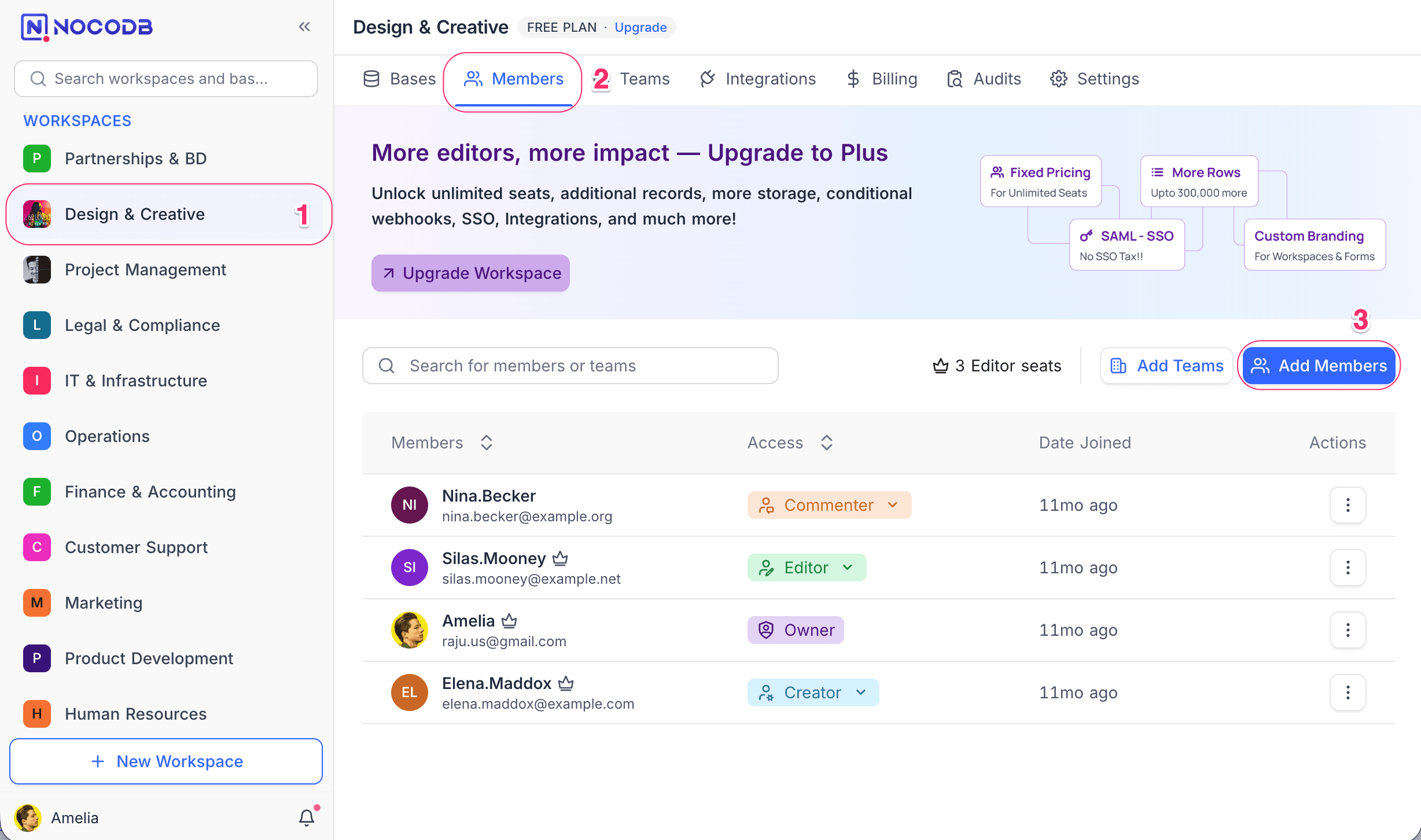
- Go to Team & Settings in the left minibar.
- Open the Members tab.
- Click Add Member.
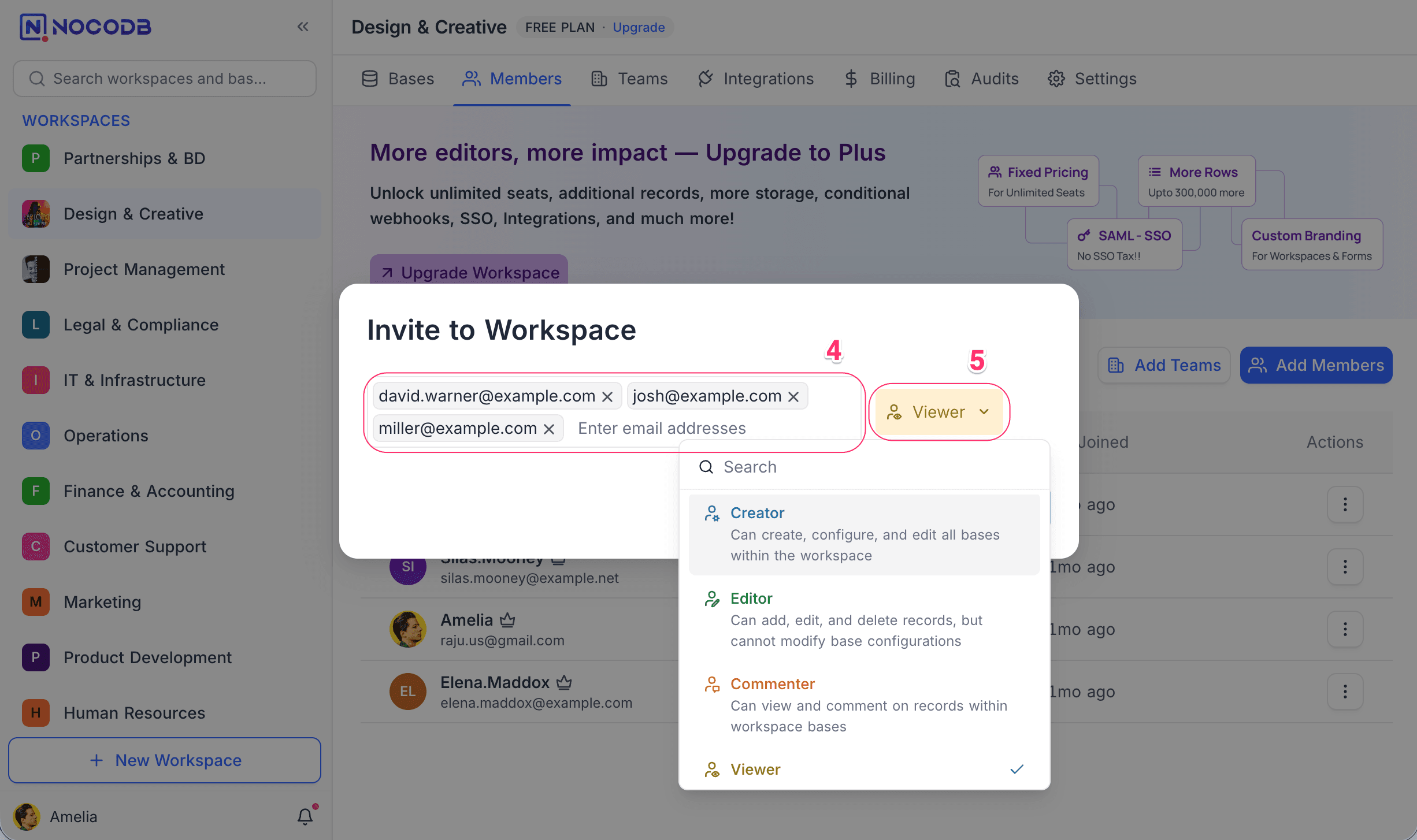
- Enter one or more email addresses (comma-separated).
- Select a role for the invited member(s).
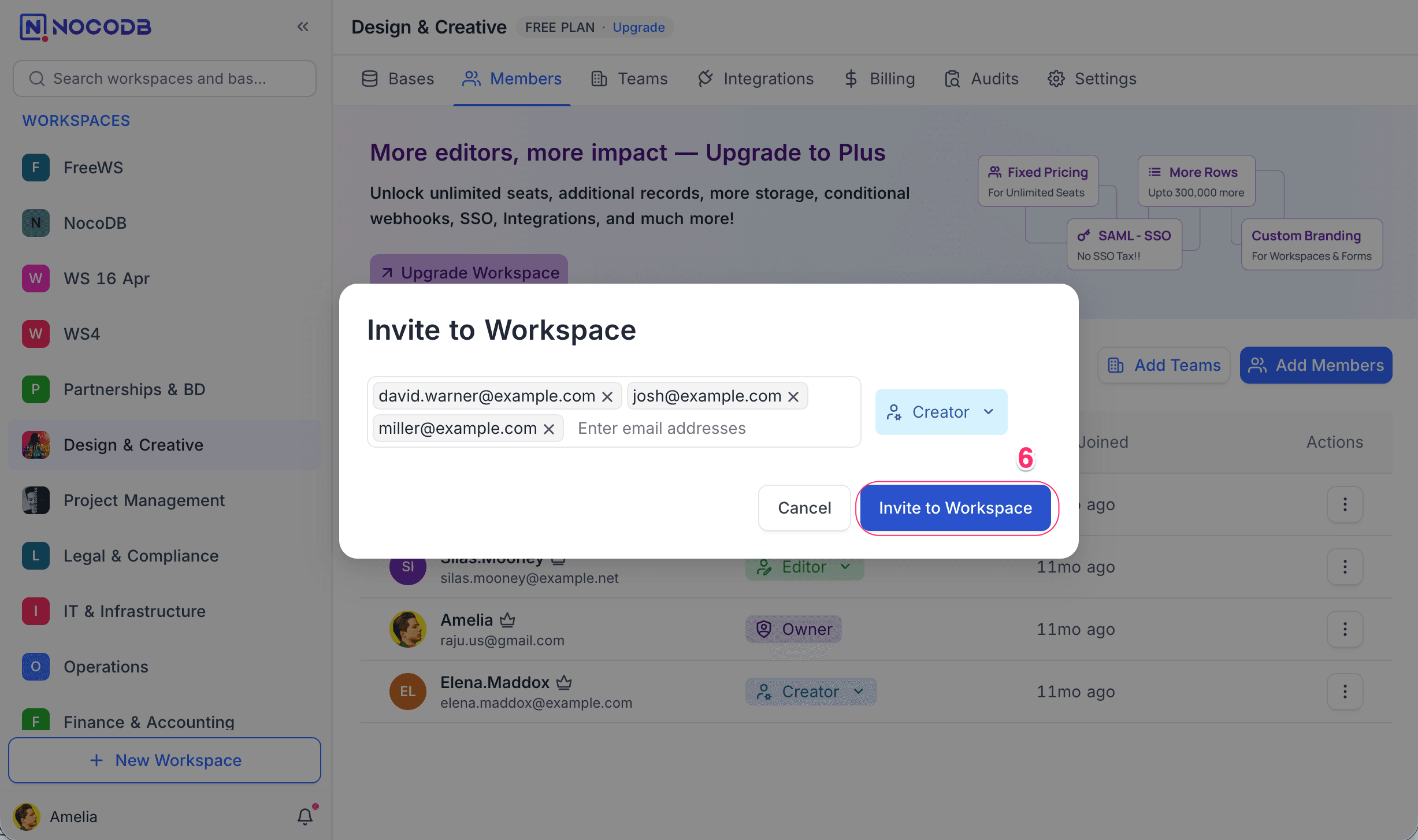
- Click Invite to Workspace.
Invite Teams to Workspace ☁
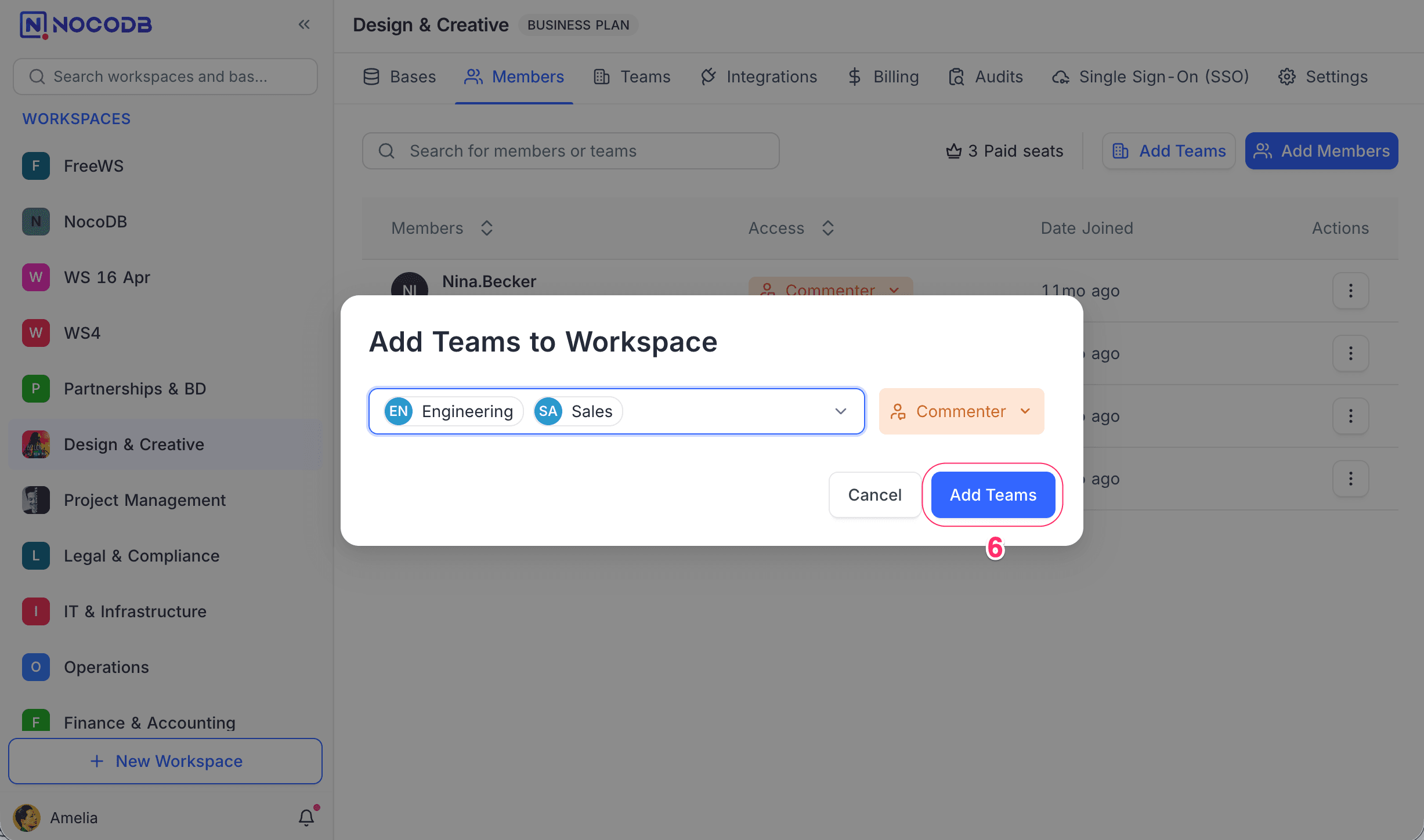
NocoDB now allows inviting Teams to the workspace for simplified collaboration. Teams can be assigned workspace-level access roles, streamlining permissions for all their members.
- Navigate to the
Team & Settingspage and open theMemberstab. - Click on the
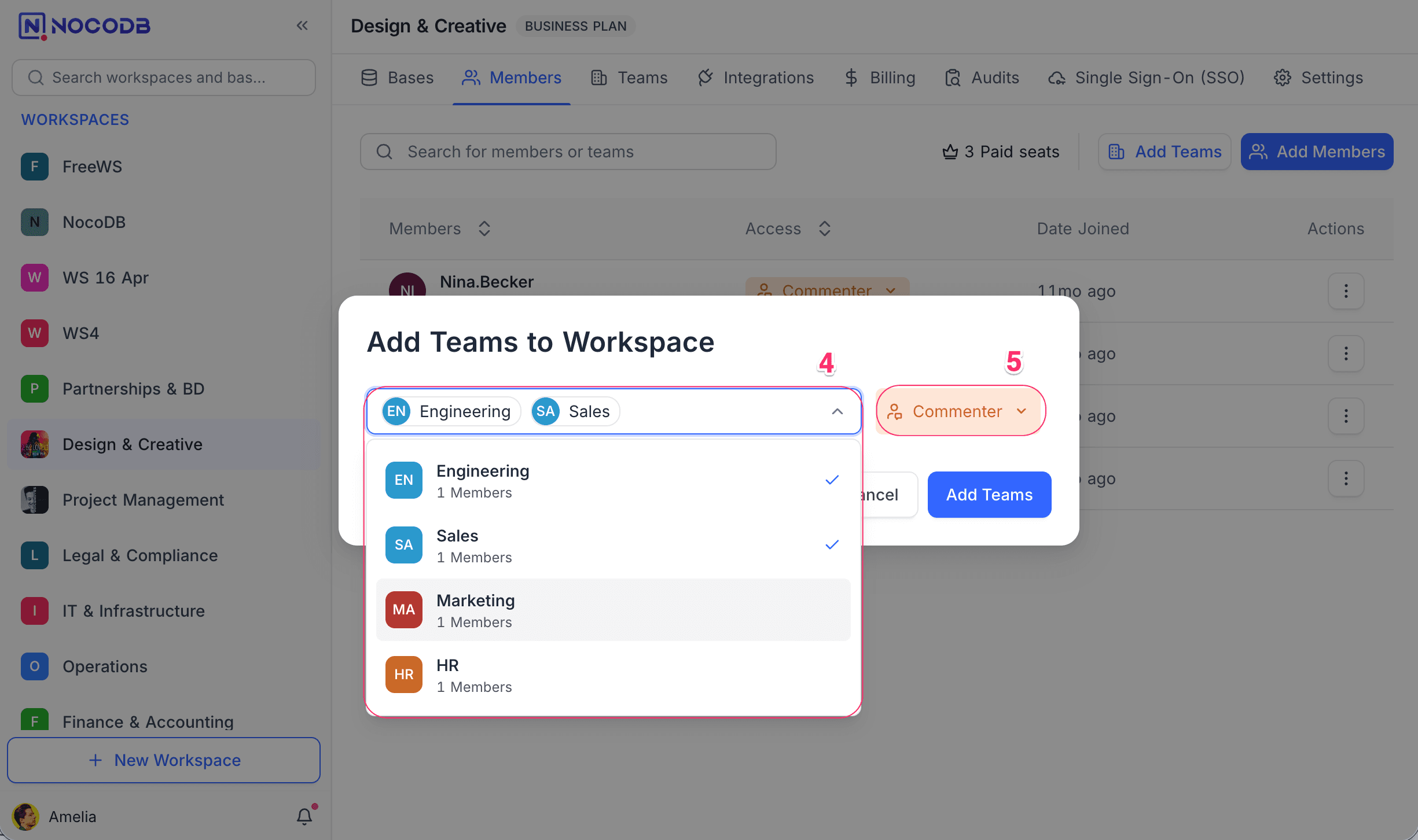
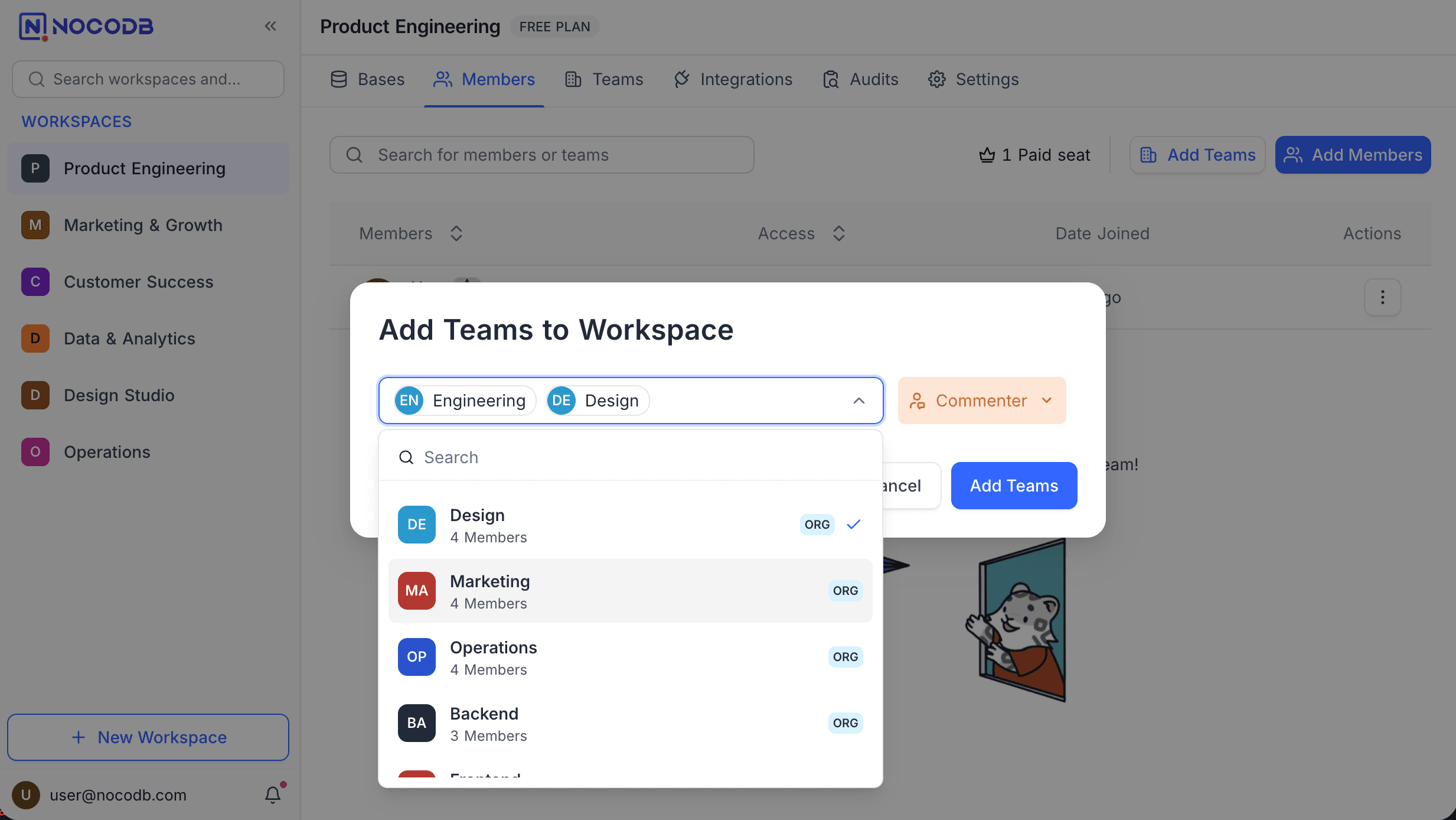
Add Teamsbutton. - From the dropdown, select one or multiple teams to add.
- Choose the appropriate access role from the dropdown menu. Note that,
- Similar to individual members, you can only assign roles that are at most equal to your own role in the workspace.
- Teams can't be assigned the Owner role.
- Click on the
Add Teamsbutton to complete the process.
To learn more about creating and managing teams, refer to the Teams documentation.
List Workspace Members and Teams
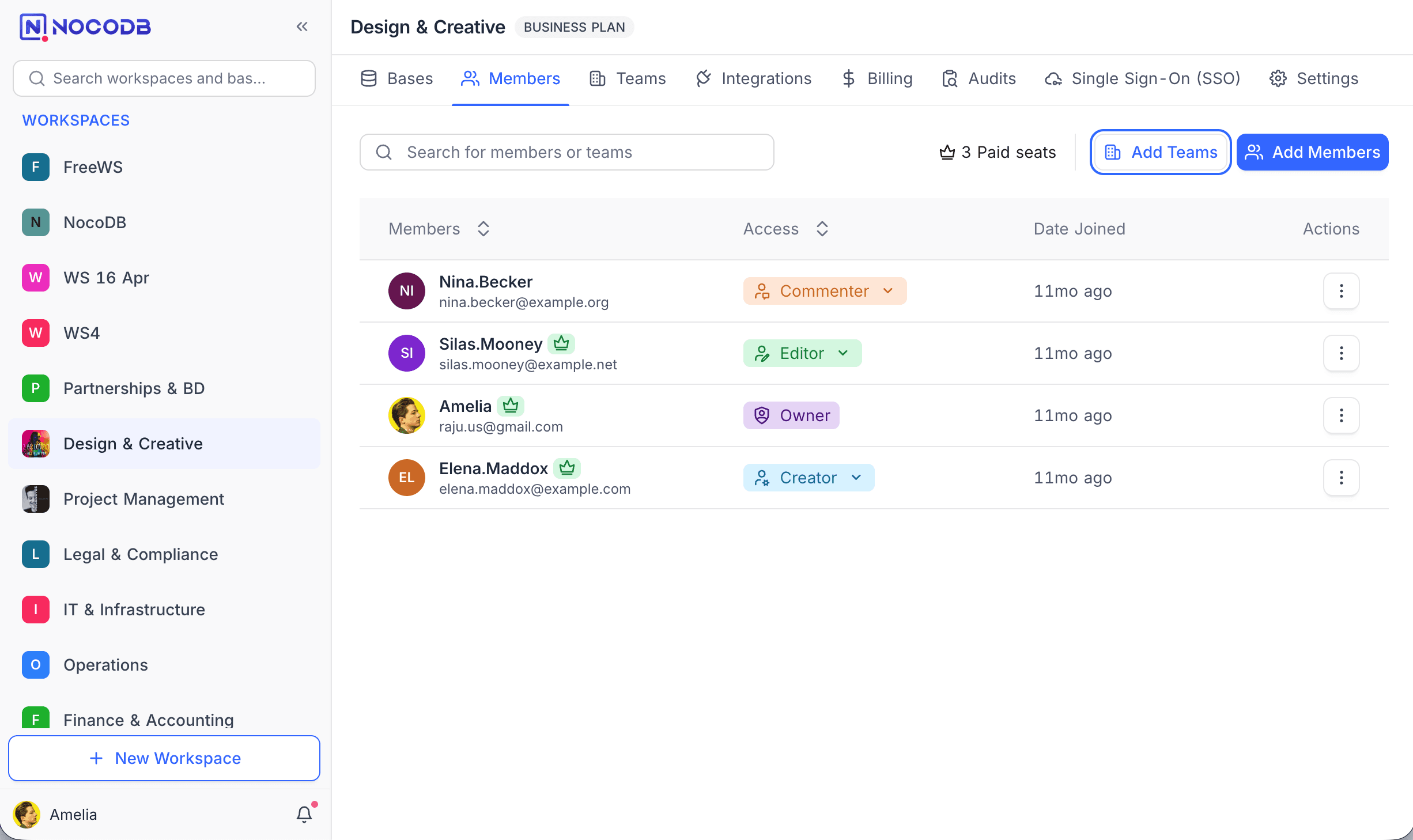
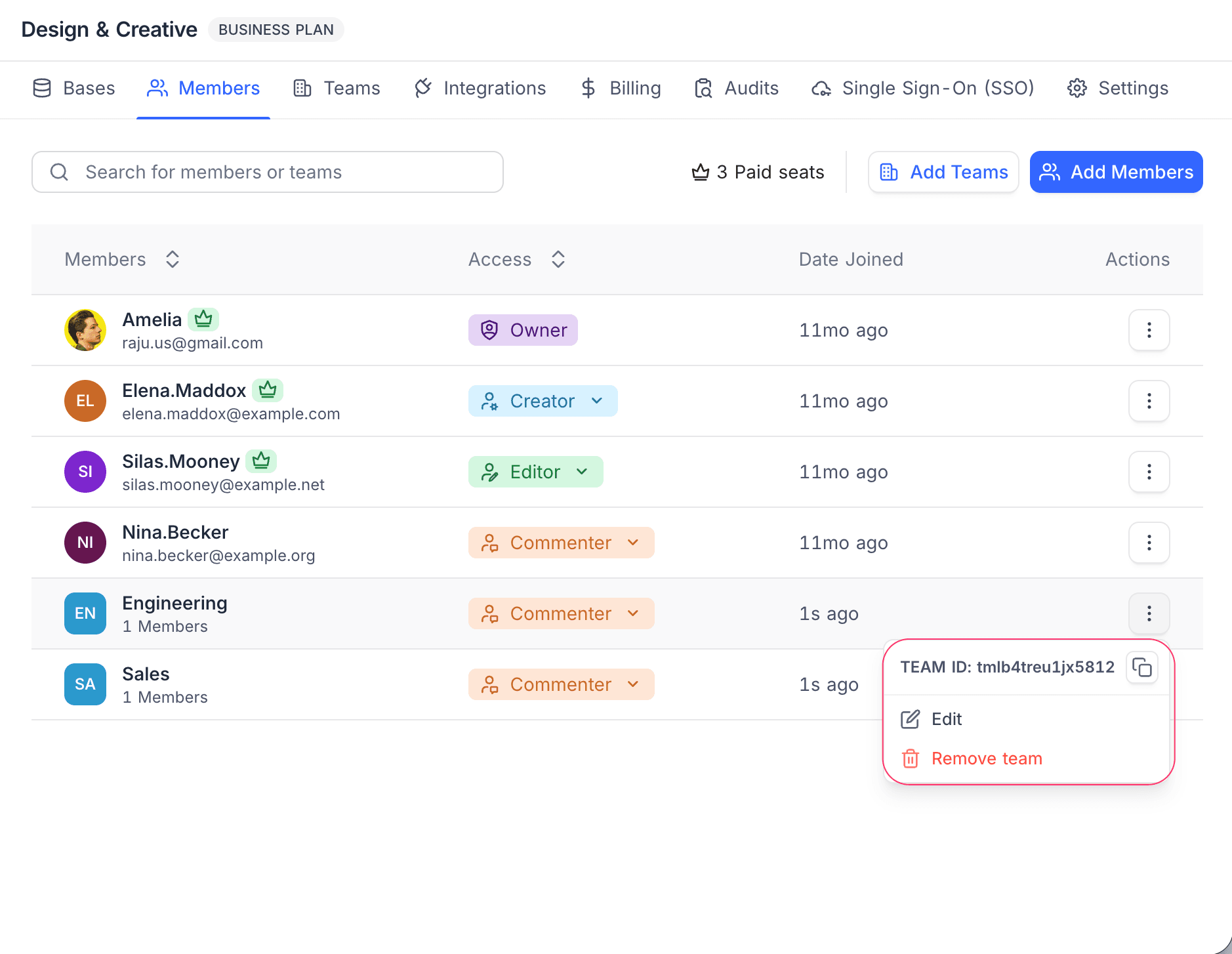
The Members tab displays all users and teams that have access to the workspace.
- Individual members appear with their email addresses.
- Teams are listed with their name and member count.
- Organization teams (available on NocoDB Cloud Enterprise plan and self-hosted Scale and Enterprise plans) are displayed with an ORG badge, distinguishing them from workspace teams.
Modify Roles for Members or Teams
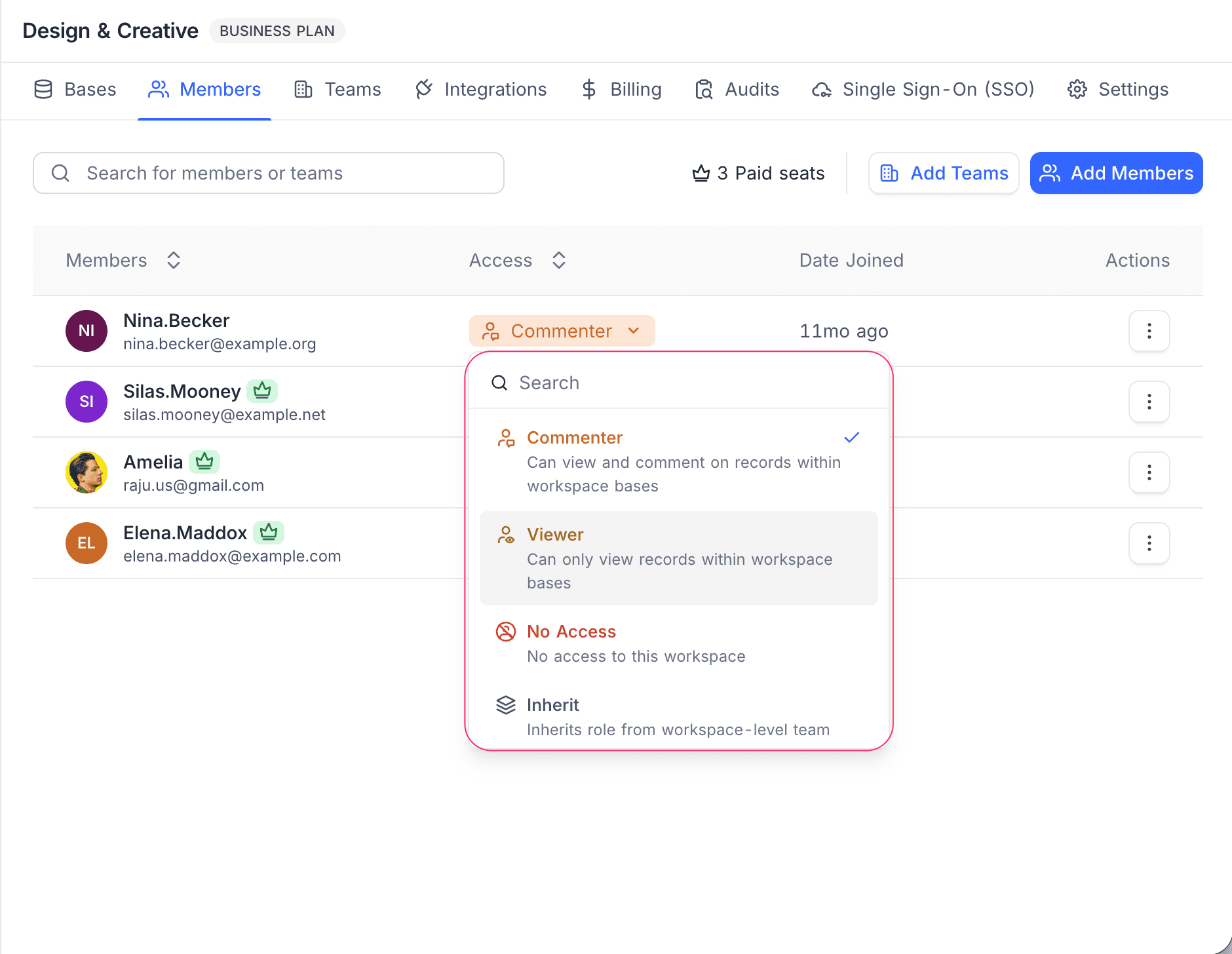
Access permissions for both members and teams can be updated directly from the Members tab.
- Click on the access dropdown next to the member or team.
- Select a new role from the list of available options.
Role Precedence
When a user has multiple role assignments through both team and individual access, NocoDB resolves the final permission using a clear precedence order.
- Individual explicit role takes precedence over team-assigned role.
- Base-level roles override workspace-level roles.
- In case of multiple team roles, the highest permission applies.
To learn more about effective role resolution, refer to the Teams effective role resolution documentation.
Remove Members or Teams from Workspace
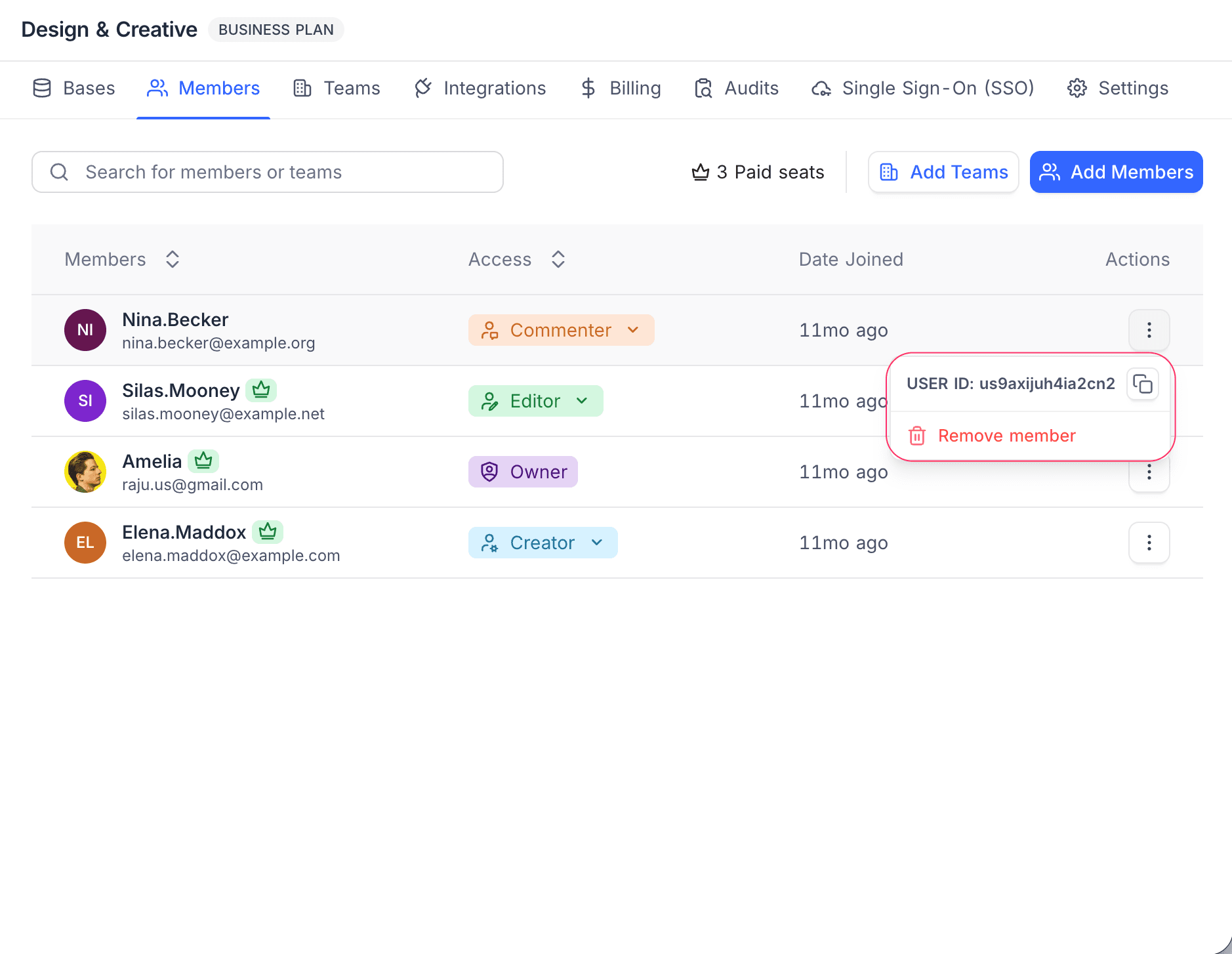
You can remove both members and teams from the workspace using the context menu.
- Click on the vertical ellipses
⋮beside the member or team entry. - Select the appropriate removal option —
Remove UserorRemove Team.
Best Practice
- Invite all users to the workspace first with the Inherit role. This will allow them to access workspaces based on their team or base-level roles.
- Use teams for departments or functional groups to manage roles efficiently.
- Adjust team-level permissions instead of managing roles individually for large workspaces.
Learn more here.