Create base
Learn how to create a base in NocoDB.
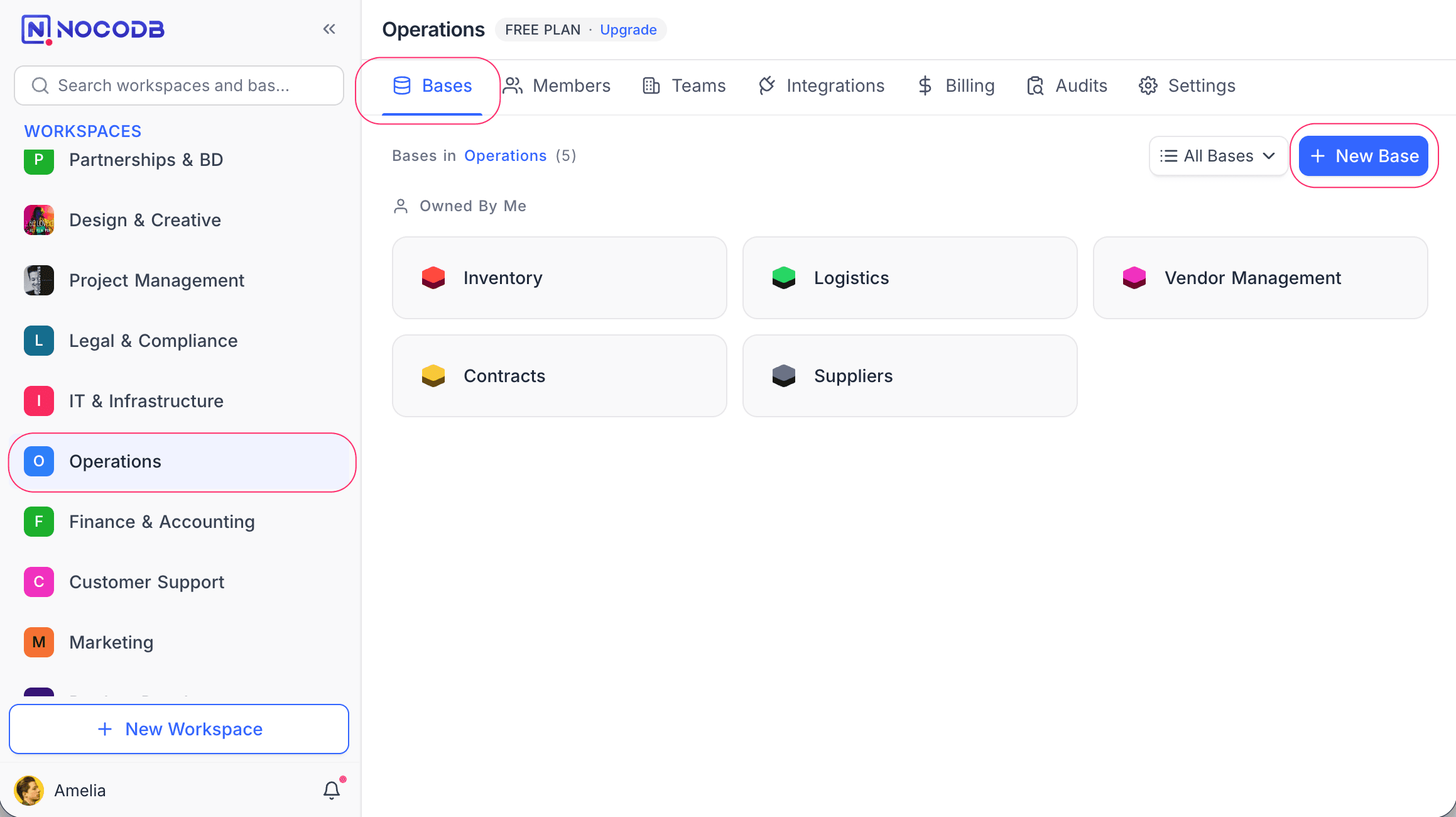
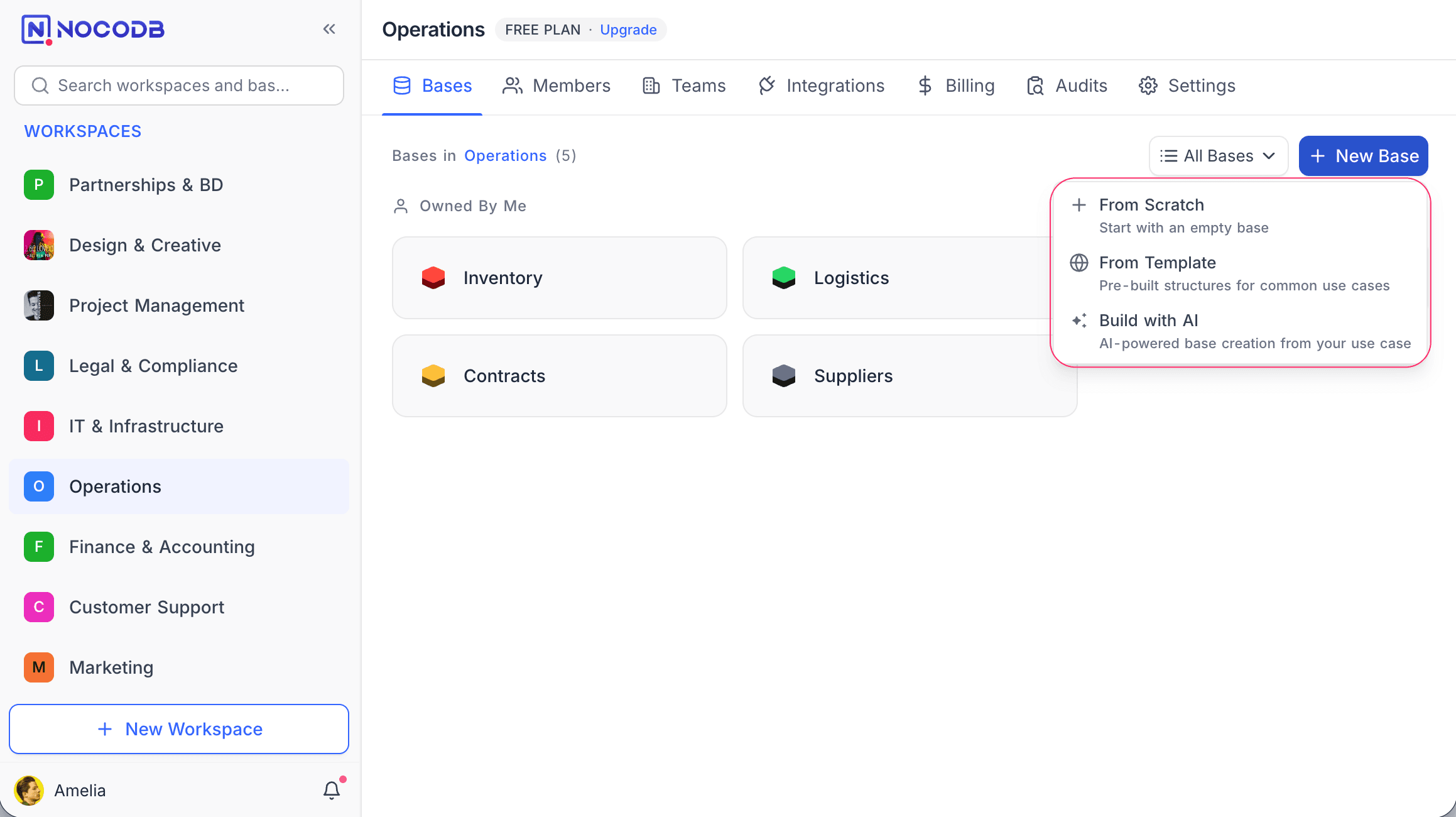
Click + New Base on the workspace Bases tab to see the available options:
- From Scratch — Start with an empty base
- From Template — Pre-built structures for common use cases
- Build with AI — AI-powered base creation from your use case
From Scratch
- Click + New Base → From Scratch.
- Enter a name for your base.
- Select a Base Type:
- Default — Workspace members can collaborate based on their role.
- Private — Invite-only base. Only you can view and manage its members. Learn more about Private Base.
- Click Create Base.
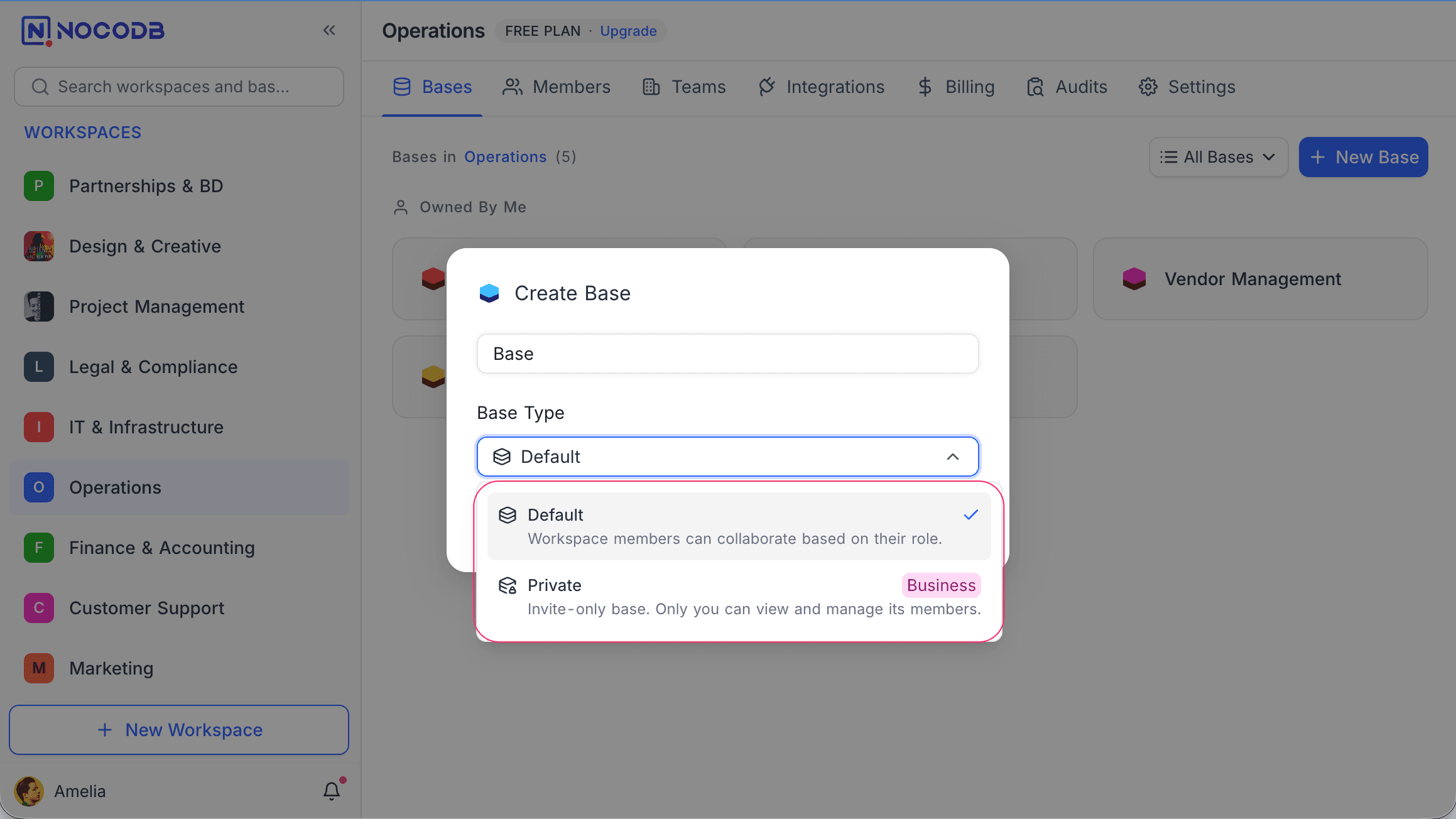
Private bases are available on NocoDB Cloud (Business plan and above) and licensed self-hosted deployments (Scale plan and above).
From Template
- Click + New Base → From Template.
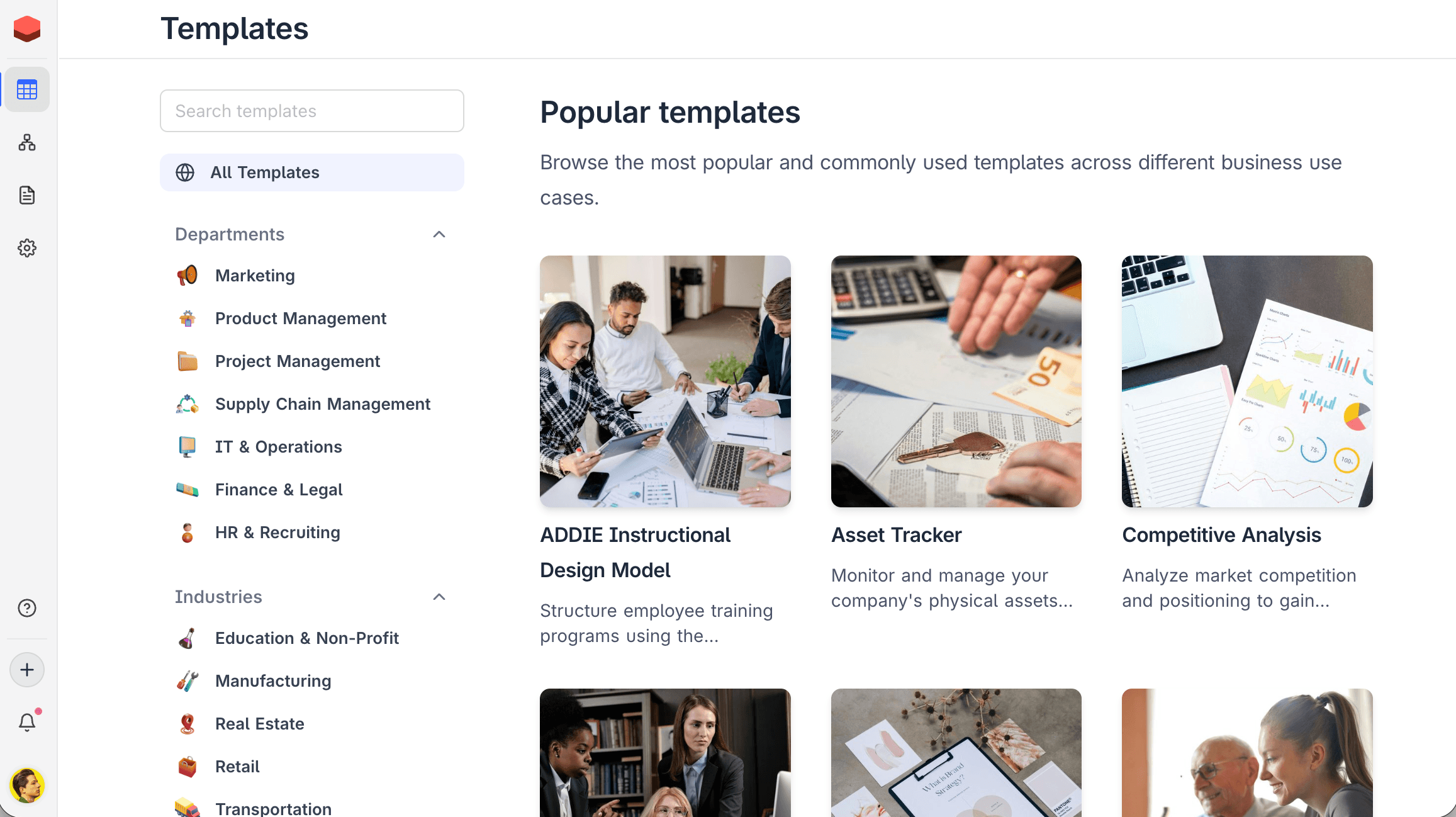
- Browse templates by Departments (Marketing, Project Management, Supply Chain, Finance & Legal, HR & Recruiting) or Industries (Education, Manufacturing, Real Estate, Retail, Transportation).
- Select a template to preview its structure and click to create.
Build with AI
Managed AI is available on NocoDB Cloud (Plus plan and above). On self-hosted deployments, AI base creation requires configuring your own AI integration (Business plan and above).
- Click + New Base → Build with AI.
- Select a use case (e.g., Project Management, CRM, Marketing campaigns) or describe your needs.
- Review the suggested tables, views, and relationships.
- Click Create Base.
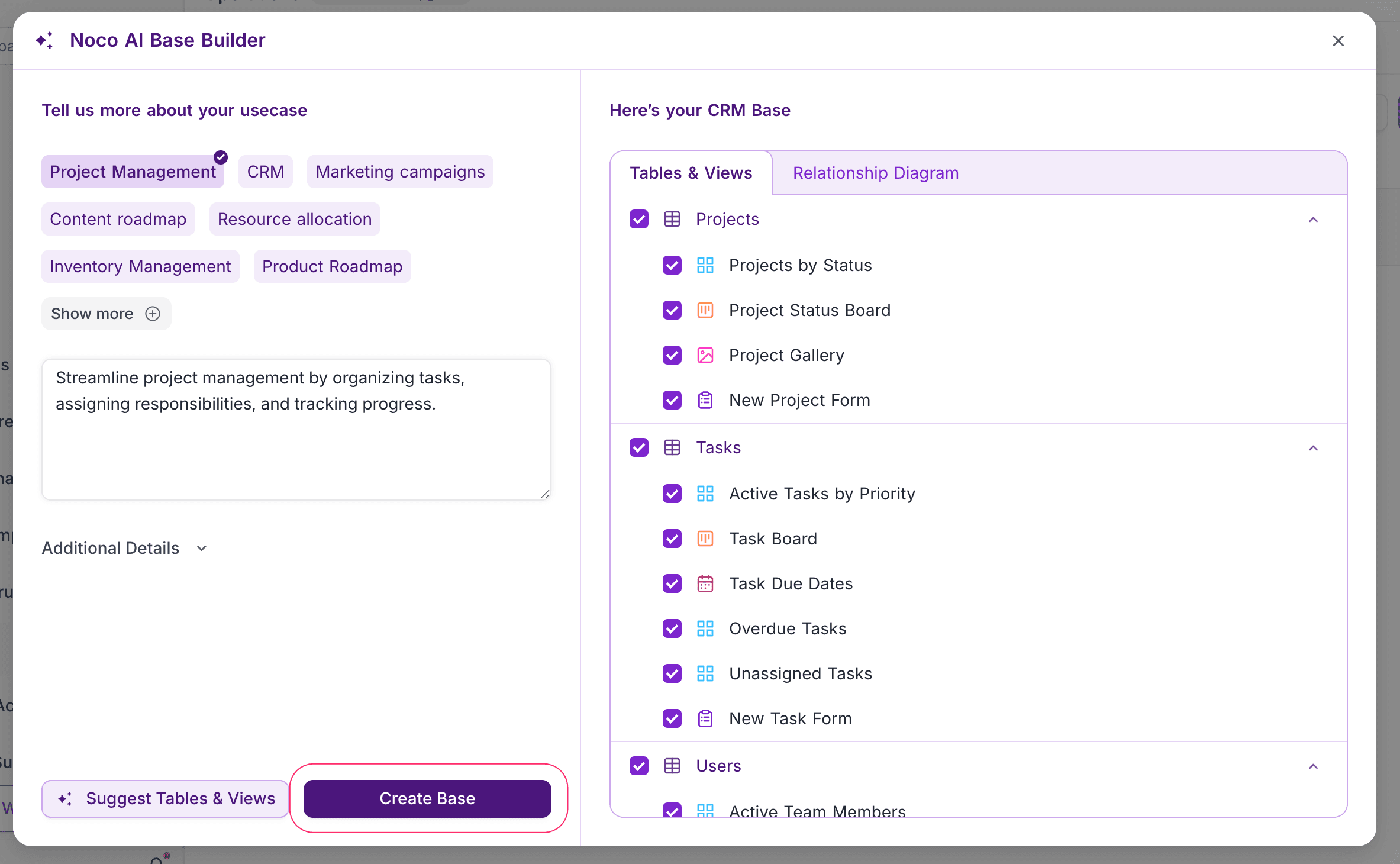
Learn more about NocoAI base creation.
When you create a base, you become its owner. Only base owners can delete a base.
On successful creation, you will be directed to the Base Dashboard where you can start adding tables and data.